3pRally User Manual
Version 5.1. The current copy is always the web one at 3prally.com/manual/.
English only. The app is in six languages; this manual is not.
1. Getting started
1.1 Which app do you have?
| 3pRally | 3pRally Pro | |
|---|---|---|
| Devices | iPhone | iPhone and iPad |
| Price | Free to download | Free to download |
| Subscription sold inside | No | Yes |
| Lifetime Full Access Pass sold inside | No | Yes |
| Free trial | 45 minutes of running time per day | 45 minutes of running time per day |
Both apps are the same instrument. The difference is commercial: the purchase flow lives in 3pRally Pro. Both trials include every mode, Roadbook too. If you use 3pRally on iPhone and want unlimited running time, you buy in 3pRally Pro, and the entitlement follows your Apple ID.
If you bought either app before version 4.0 you are not on a trial: that app opens what you paid for. Stage mode, added since, is included. Roadbook mode needs a discounted upgrade, and future features may too. If you bought 3pRally on iPhone, 3pRally Pro recognises that purchase and offers you the discounted upgrade. Until you take it, Pro runs as a trial for you: every mode, 45 minutes a day. Your unlimited legacy access stays in 3pRally. See chapter 12.
1.2 What the app is, and is not
We are your instrument, not the beam. The organiser's timing owns the result. What this app gives you is a clock where there is none, and the splits nobody hands you. GPS distance is good to roughly three to five metres, which is about a second, not hundredths. Some events time to whole seconds, some to tenths, some to hundredths, and none of that is ours to choose.
Worth knowing before you enter an event: some organisers ban this category of device outright. Certain classic events allow mechanical counters only, some ban GPS devices from the crew entirely, and some clubs move any competitor using a computer into an expert class. Check your regulations, not the app.
If an event bans an average-speed display, Settings ▸ Dashboard ▸ Hide average speed(s) removes both averages from every mode and shows your current speed in their place. Whether that makes the app acceptable is still for the regulations to say.
1.3 First launch
A short tour runs once, one idea per page: go to start, next to reset the partial, the four modes, following a roadbook, Voice, saving and sharing, avoiding accidental resets, making it yours, and the location permission.
You can skip it, and replay it any time from Settings ▸ About ▸ Show app tour, where Manual opens this document. What's New shows the highlights of the version you are running.
Location permission
Your speed and distance both come from GPS, so the app cannot measure anything without it. The tour's last card explains that, and iOS asks for the permission once you tap Get started. The card does not grant it, and nothing is asked for while the tour is open. Grant While Using the App at minimum. If you decline, the dashboard prompts you and offers a shortcut into iOS Settings.
Getting a fix
At launch the app searches for satellites and shows the current accuracy against the minimum you require. Tap anywhere to interrupt the search. For the first 20 seconds the app then takes fixes within 50 m even if you require better, and never a rougher one (see 7.1).
If location cannot work at all, the search says why instead: location not allowed for the app, Location Services off, or Precise Location off. Each message points to the setting that fixes it; see 13.2.
1.4 Choose your words first
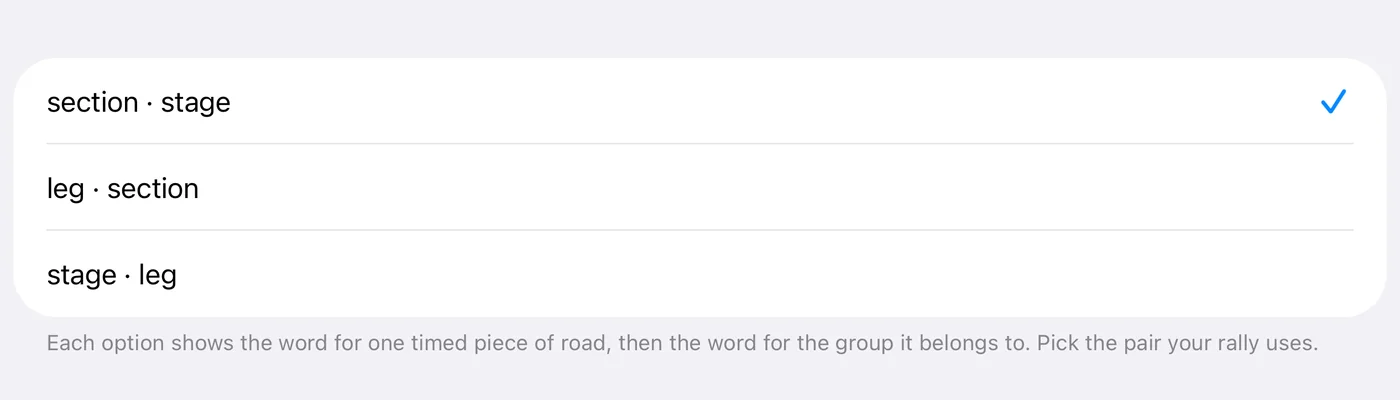
Settings ▸ Mode ▸ Segment name sets the vocabulary the whole app uses:
Tap the row and pick from the list. Each option names the pair it sets, the word for one timed piece of road followed by the word for the group it belongs to:
| Choice | One timed piece is a | Its grouping is a | Typical use |
|---|---|---|---|
| section · stage | section | stage | European regularity |
| leg · section | leg | section | US TSD |
| stage · leg | stage | leg | Stage rally |
The same three words swap roles rather than stacking into one hierarchy: a section is the timed piece under one choice and the grouping under another. That is deliberate, because each discipline uses the words differently.
It is cosmetic but pervasive: row labels, dialogs, summaries and the roadbook editor all follow it. Pick the one your paperwork uses, so the app speaks the same language as the event.
In the other five languages the words are not a simple translation of these three. Each discipline gets the term crews in that country actually use, which sometimes means the same word appears in two places and sometimes means three entirely different ones.
1.5 A first run in five minutes
- Open Settings: swipe right on the dashboard. On iPad you can also tap the gear icon at the top left.
- Settings ▸ Mode ▸ Mode: leave it on Advanced.
- Settings ▸ Units & Format ▸ Units: check it matches your paperwork.
- Close Settings and let the accuracy settle.
- Tap go.
- Tap next at each waypoint. The partial distance and time zero, and the counter advances.
- Tap stop, holding it or confirming depending on your settings, to end and save.
Everything else in this manual refines that loop.
1.6 Before your first event
- Calibrate. The organiser's distance and your GPS distance will differ, and calibration is what reconciles them. Chapter 7.
- Pair your Flic, or run Test your button for a Bluetooth media button, at home rather than at the start line. Chapter 9.
- Decide your safety settings. Two-finger swipe and double-tap buttons are both off by default. 2.3.
- If you will follow a roadbook in the app, build it and check it against the paper beforehand. It is optional: many crews run Classic or Advanced and read the roadbook on paper. Chapter 5.
- Sort out access. The free trial is 45 minutes of running per day, which is enough to evaluate the app and not enough for a rally. Chapter 12.
1.7 Where things live
| You want to | Go to |
|---|---|
| Change anything | Swipe right on the dashboard, or on iPad tap the gear icon at the top left |
| See the map or your track | Swipe left, or on iPad tap the map icon beside the gear |
| Build or pick a roadbook | Settings ▸ Mode ▸ Roadbooks |
| See saved tracks | Map ▸ Show saved tracks |
| Pair a Flic, set up a media button, or check the GPS | Settings ▸ GPS & devices |
| Check your access | Settings ▸ Subscription |
2. The dashboard
The screen you drive with. What it shows depends on the mode (chapter 3); this chapter covers what is common, and the gestures that work everywhere.
The screenshots in this manual are mostly from an iPhone, because a phone screen fits the page better. The iPad shows the same readouts with more room; the differences are in 2.5.
2.1 The readouts
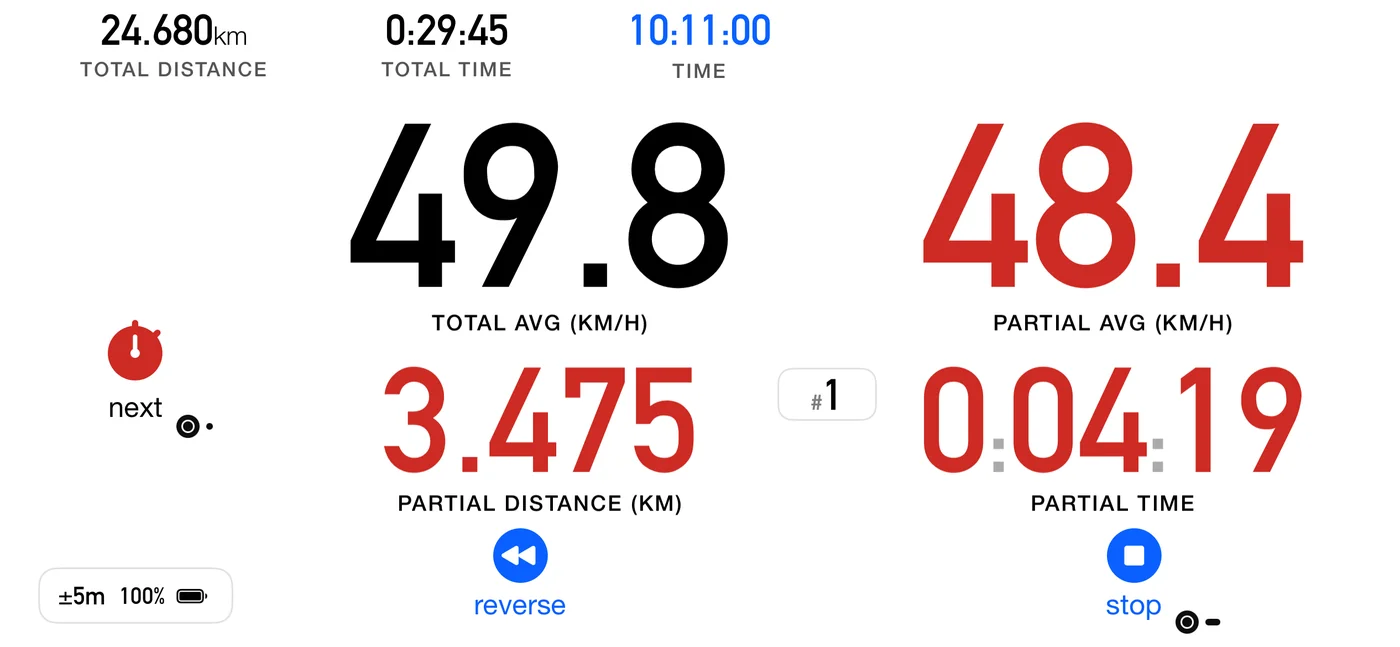
| Readout | What it is |
|---|---|
| Total distance | Distance since go, or since the last quick restart |
| Partial distance | Distance since you last tapped next |
| Total time | Elapsed since go, or since the last quick restart, less any paused time |
| Partial time | Elapsed since you last tapped next, less any paused time |
| Current speed | Speed reported by the GPS, not computed from distance |
| Total average speed | Total distance over total time |
| Partial average speed | Partial distance over partial time |
| Independent average | A second partial average, in green, that you start and end yourself. See below |
| Coordinates | Your position, off by default |
| Clock | Wall clock, or official time when an offset is set |
| Crossing chip | Which part you are on, or the paper's own label where you typed one (Roadbook only) |
Independent average. Turn on Settings ▸ Dashboard ▸ Independent partial avg speed and the reset button changes job, and turns into a green stopwatch: tap it to start a fresh average from that moment, and tap it again to end it. In Advanced and Roadbook the word under it reads start avg, then end avg. The average shows in green and runs alongside the normal partial. next does not zero it, so it can span as many waypoints as you like. A Flic double click does the same as tapping it.
Max speed. Set Settings ▸ Dashboard ▸ Max speed and, in every mode, going over it is announced: a beep with Sounds on, a spoken "over max" with Voice on. Where the slot shows your current speed you also see it: the caption becomes a dark pill naming the limit, SPEED · MAX 180, and the speed turns red when you are over. With the average in that slot instead there is no pill to show, so the limit is only heard. See 11.5.
In Roadbook mode the partial still zeroes each time you tap next, as in Advanced. The partial average is the difference: it runs from one control to the next, so a row that is only there for navigation does not restart it. The distances can also count down to the next control. See 6.2.
2.2 The buttons
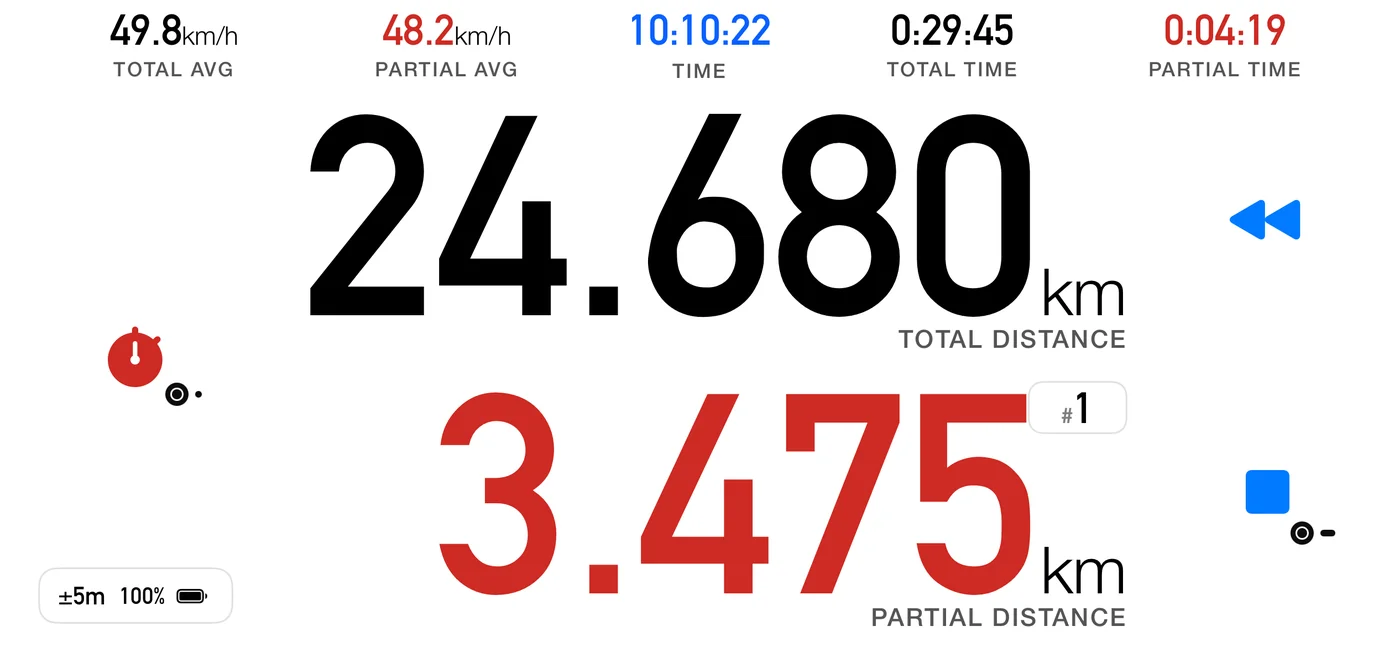
In Classic the buttons are icons only, apart from calibrate on the idle dashboard. In Advanced and Roadbook a word sits under or beside each one.
| Button | Looks like | When | What it does |
|---|---|---|---|
| go | Large play triangle | Idle | Starts, immediately or on a countdown |
| next | Red stopwatch; word next | Running | Zeroes the partial and moves to the next part |
| Red circled A; word auto | Roadbook, when the next crossing is automatic | Lets you cross early by hand | |
| Checkered flag; word finish | Roadbook, final part | Finishes: crosses the last control, scores it and saves the track. Tap and confirm Finish, or hold it if Confirm stop & reset is off. Reads auto when the roadbook's Finish is set to auto (6.8) | |
| Word reset | Roadbook with a single part | Zeroes the trip | |
| stop | Blue square | Running | Ends the run and saves the track |
| pause | Pause bars | Running, only with Settings ▸ Controls ▸ Pause button on (default: off) | Freezes the clock and stops counting distance. Never shown in Special Stage or Open Road parts |
| reverse | Blue double arrow pointing left | Running | Subtracts distance while you backtrack. The distances turn blue while it is on |
| quick restart | Black stopwatch; word reset | Running, with Settings ▸ Controls ▸ Show reset button on | Resets everything and restarts |
| Green stopwatch; words start avg / end avg | Running, with Independent partial avg speed on | Starts or ends the independent average | |
| calibrate | Ruler; word calibrate | Idle | Opens the calibration screen |
| set timer | Timer; word set timer | Idle, with Auto-Start "At time". In Classic and Stage, above calibrate | Sets the start clock time |
Notes:
- Confirm stop & reset (default: on) makes stop and quick restart ask first. Turn it off and they must be held instead. In Stage mode the stop is always a single tap, because a hold would land on the result.
- next, and split in Stage mode, fire on a tap (or a double tap, with the double-tap setting on). Holding one down does nothing: let go and tap again. The finish is the one exception, as above.
- Reset buttons puts the reset side on the Left (default) or the Right.
- On a roadbook's final part, next becomes the finish. See 6.8.
2.3 Gestures
| Gesture | Where | Result |
|---|---|---|
| Swipe left | Dashboard | Map, and from it your saved tracks |
| Swipe right | Dashboard | Settings |
| Pinch | Classic or Advanced | Switch between those two. It does nothing in Roadbook or Stage, or while reversing |
| Tap a top readout | Classic | Promote it to the big slot |
| Tap the timer | Stage | Swap the total and the split |
| Tap the splits row | Stage | Interval or cumulative times |
| Double-tap a distance | Running | The adjust dialog (7.4) |
| Tap next, or a Flic single click | One-part roadbook | Zero the trip (6.15) |
| Flic double click | Classic, Advanced or Stage, with Show reset button on | Quick restart |
| Flic double click | Classic, Advanced or Roadbook, with Independent partial avg speed on | Start or end the independent window (the button carries the two-dot badge) |
| Double-tap the clock | Classic, Advanced, Roadbook | Set the official-time offset |
| Tap the clock | Stage | Set the official-time offset |
The gestures you cannot see get a short hint during your first few sessions: pinch, tapping a readout to promote it, double-tapping a distance, and in Stage tapping the timer. Each hint comes back a few times and then stops.
Making input deliberate
Two settings under Settings ▸ Controls exist to prevent expensive accidents:
- Two-finger swipe (default: off): the screen swipes then need two fingers, and a one finger swipe warns instead of moving.
- Double-tap buttons (default: off): a dashboard button acts only on a double tap, two quick taps in a row, so a single accidental touch does nothing. In Stage mode stop still takes a single tap, so this reaches the split button only.
⚠️ Neither is on by default. On a rough route, turn both on before the start.
2.4 Day and night
Settings ▸ Dashboard ▸ Appearance is Auto, Light (default) or Dark, where Auto follows the device. Everything re-tints live, including the roadbook overlay, the speed signs and the Stage instrument.
Max energy saving (Settings ▸ Energy saving) turns on every power-saving option at once: pure black instead of dark grey, a blank screen when parked, and less GPS while stopped. A green leaf in the status pill, beside the GPS accuracy and battery, shows that at least one of them is on. Turning it on while Appearance is fixed to Light moves Appearance to Auto and tells you so, because a black screen only saves power when it is actually dark. See 11.9.
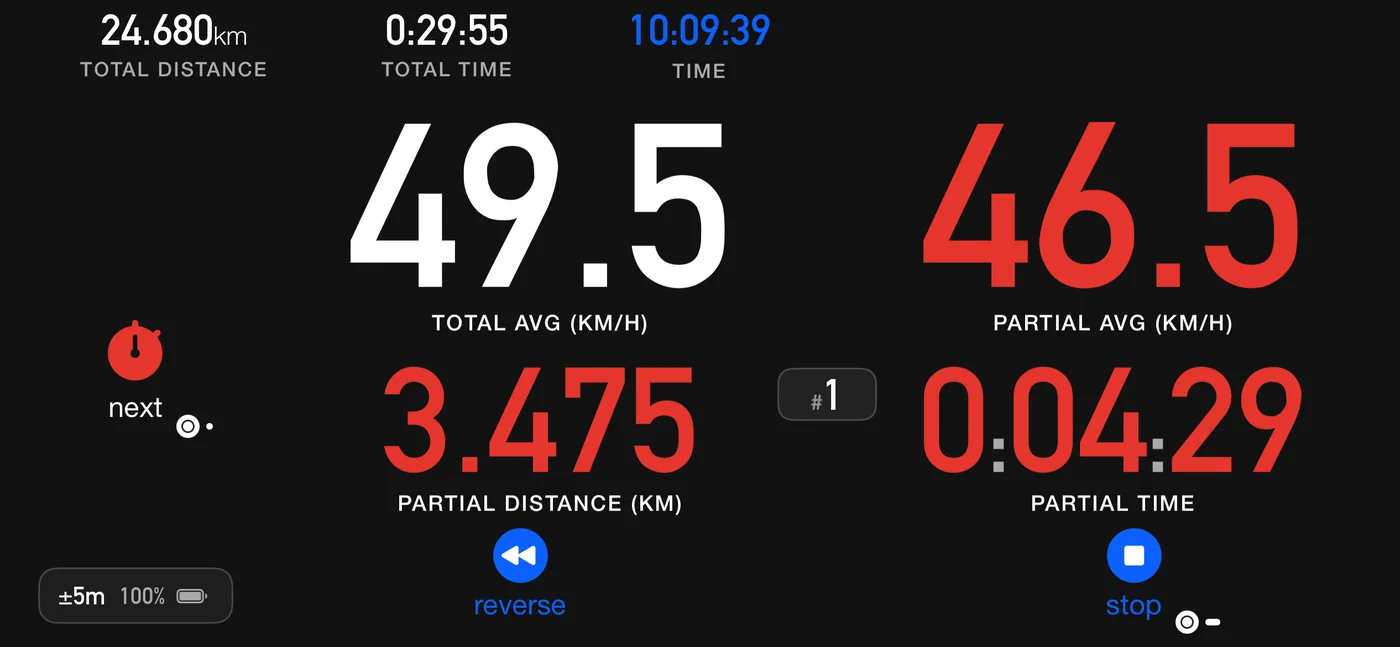
2.5 iPhone and iPad
- iPad, meaning 3pRally Pro, has a bar at the top with a gear icon for Settings and a map icon, beside the swipes both devices share.
- On iPad, Settings opens as a panel over the dashboard. On iPhone it fills the screen. The map is full screen on both.
- 3pRally is landscape only, on both devices. Turning the iPad upright does not change the layout.
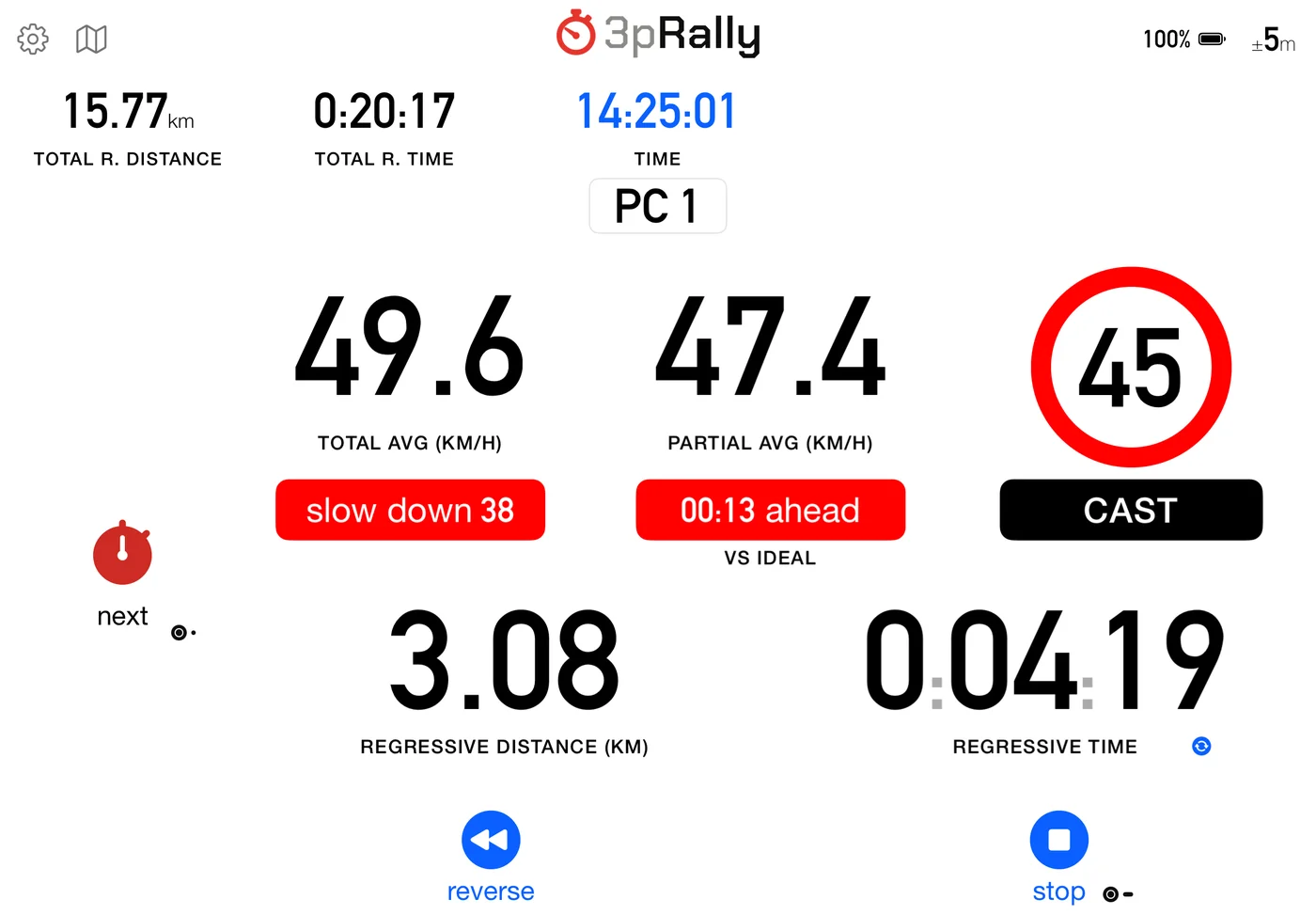
3. Modes
Settings ▸ Mode ▸ Mode picks one of four screens: Classic, Advanced, Stage, Roadbook (default: Advanced).
The mode changes what you see and what the buttons do. It does not change how distance is measured, which is the same engine everywhere.
3.1 Which one, and why two of them score in opposite directions
The most important functional distinction in the app, because Stage and Roadbook look similar and are scored in opposite ways.
- Stage is for repeating the same course, where the best run counts. A hillclimb, a sprint, a practice day, a test session. This is where the live gap to your best, the fastest flag and discarding a junk run all live.
- Roadbook is for a whole event driven once through, with everything in one book. Every pass is summed, and there is no best-of. So there is deliberately no ghost and no discard, because offering them would lie about how you are being scored.
| Your situation | Mode |
|---|---|
| Touring, no times, want the biggest numbers | Classic |
| A rally where you read the paper yourself and need accurate distances and average speeds | Advanced |
| Regularity or TSD with the route transcribed into the app | Roadbook, Regularity |
| Repeating one course, best run counts | Stage |
| A timed run inside a whole event | Roadbook, Special Stage |
| Open-road racing to a target average with speed zones | Roadbook, Open Road |
| A liaison between competitive parts | Roadbook with a Transit part, or Advanced |
⚠️ Liaisons do not score. Transit time never enters a rally result. Only penalties do, which is why the app reports competitive times separately and never folds road sections into them.
3.2 Classic
Two large counters, total and partial, with smaller supporting values.
Tap a top readout to promote it. The big pair cycles between distance, time and speed, so you can have a huge partial time rather than a huge partial distance. The choice lasts for as long as the app is running: close it or restart your device and Classic comes back with distance in the big slot.
Settings ▸ Dashboard ▸ Speed to display chooses whether the speed readout shows your Total avg. (default) or your Current speed.
Use Classic when you want the biggest possible numbers and are not working to a schedule. Pinch in to reach Advanced.
3.3 Advanced
The default. A dense four-up grid, plus a compact button row that appears and disappears with the run state.
Advanced is what most crews use when they are not following a roadbook: everything on one screen, with no tapping to swap values. Pinch out to go back to Classic.
3.4 Stage
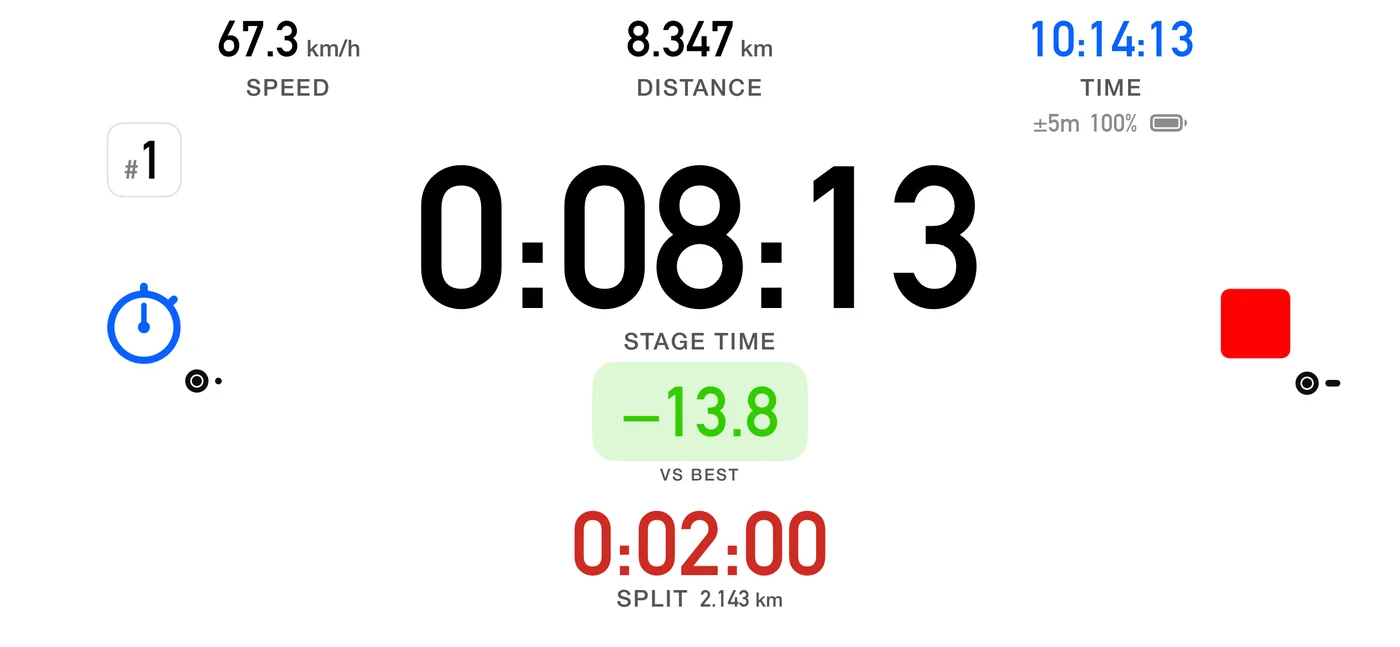
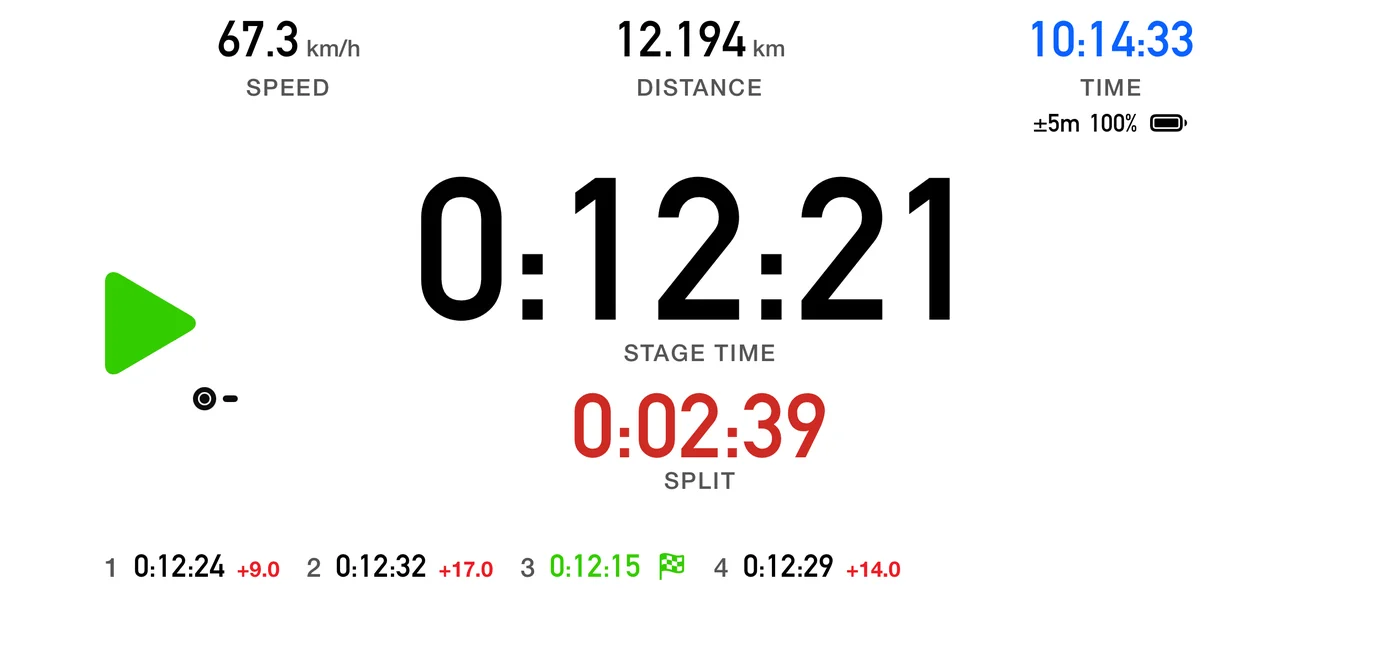
A purpose-built instrument for a flat-out timed run, and for comparing your runs of the same course against each other.
What is on screen
- A very large hero clock, the time since go. Tap the timer to swap it with the current split. The split is always red and the total always the normal ink colour, wherever each sits.
- A split badge showing which split you are timing.
- A strip: current speed, distance, clock, plus the GPS accuracy and the battery. Tap the clock to set the official-time offset.
- The live gap to your best, a tinted pill under the hero: how far ahead or behind your best run of the day you are at the same point on the course. Green ahead, red behind. On the first run of a session there is nothing to compare against, so it stays away.
- The splits, each with the distance it covered. Tap the list to flip between interval and cumulative times.
next marks a split rather than starting a scheduled part. It banks the time and distance, and speaks the elapsed time if Voice is on.
Stopping is a single tap, always, whatever your confirm and double-tap settings say. A hold or a dialog would land on the recorded elapsed time, and that elapsed time is the result.
Sessions, the best run, and discarding
The app never asks you to manage a session. It infers one: two runs belong together when they start at about the same place, within 500 m, on the same calendar day, and cover about the same distance, within 15% of the longer of the two. Start location is the strong signal, since a different course is miles away; the same-day rule matches the sport's own idea of a fastest time of the day; and the distance test separates two different courses that happen to share a start, such as a short run and a long one from the same paddock.
Once a session has two or more runs, comparison is simply on. Parked, the runs strip lists them with the fastest flagged, and the recap shows the delta against your best run of the session, captioned vs best, plus a FASTEST flag when you have just beaten it.
One benchmark, everywhere. The ghost you drive against, the runs strip and the recap all score you against the session best. They used to disagree: the recap alone graded you against your previous run, so the same run could read "+1.0 s" on the card above a strip showing "+2.0". Both were right, which was the problem.
A junk run, a warm-up or an aborted attempt, is discarded from the recap. It then drops out of the session best and stops being the next run's baseline, exactly like deleting a bad lap. That is deliberately a per-run decision: a single yes-or-no for the whole session could not express "this one run was a test".
⚠️ This is your own clock, not the organiser's. The gap, the fastest flag and the splits are your measure of your driving. See the note at the top of chapter 6.
3.5 Roadbook
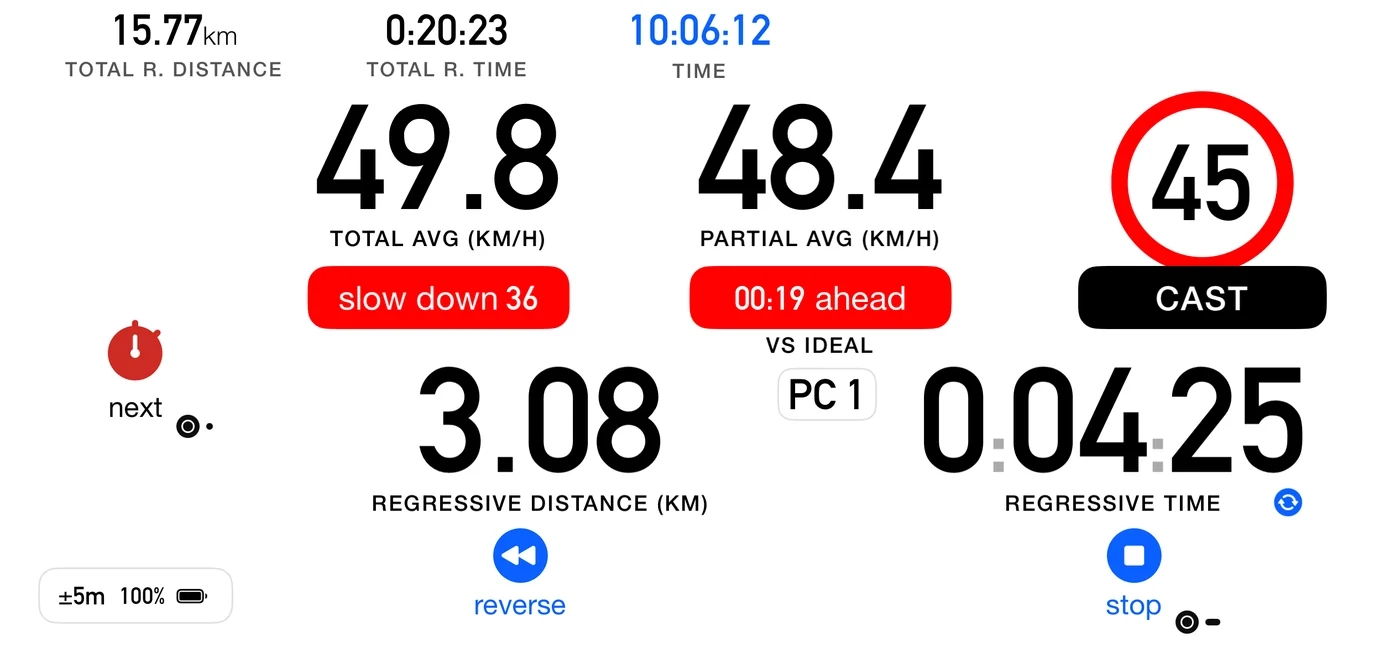
Follows the selected part of the selected roadbook: the app knows every row's distance and target, shows what you are on, tells you whether you are fast or slow, and counts down to the next boundary.
It requires a roadbook. Selecting the mode with nothing to follow does not switch. It offers to build one instead:
No roadbook yet: Roadbook mode needs a route to follow. Create one now, or keep using Classic or Advanced.
Create Roadbook takes you straight into the editor, Not now leaves you where you were, and the Mode selector goes back to what it was either way.
Build one in chapter 5, drive it with chapter 6.
Two more constraints:
- ⚠️ Legacy customers cannot select Roadbook mode, and are offered the one-off Lifetime Full Access Pass instead. The editor still opens, so you can build and explore. See chapter 12.
- While a run is under way you cannot switch which roadbook you are driving, though you can still edit the one you are on. See 5.13.
Pinch does nothing here. You leave Roadbook from Settings.
3.6 Repeating the same road inside one roadbook
A road driven twice in an event is normal, and it is simply entered twice, at its own place in the itinerary, with the transit between. Both passes count and both are summed.
⚠️ Known limitation. The app holds no link between the two passes, so it cannot compare your two runs of the same road inside a roadbook. That comparison exists only in Stage.
3.7 Switching modes
You can switch mid-run. The dashboard re-renders and the counters keep going, with nothing reset. Switching into Roadbook mid-run picks up at the crossing count you are already on.
Changing mode rebuilds Settings, because the mode-scoped section appears and disappears with it.
4. Running
4.1 Starting
Tap go. What happens next depends on Settings ▸ Start ▸ Auto-Start:
| Auto-Start | Result of tapping go |
|---|---|
| Off (default) | Starts immediately |
| 30 sec / 60 sec | Countdown screen, then starts on a round clock time: see below |
| At time | Counts down to a clock time you set |
30 sec and 60 sec do not start exactly that long after you tap go. They start on a round clock time, so the start is easy to agree with a marshal: 30 sec picks the next whole or half minute at least 30 seconds away, and 60 sec the next whole minute at least a minute away. So a 60 sec start can be up to two minutes off.
Auto-Start "At time"
If no time is set, tapping go opens the set-time dialog. The rules:
- at least 10 seconds in the future,
- within 90 days of today,
- an invalid date is rejected with an explanation.
While Auto-Start is on "At time", a set timer button sits on the idle dashboard so you can set or change the time. In Classic and Stage it sits opposite go, above calibrate.
The go button carries a start-delay badge, the same in every mode:
| Badge | Means |
|---|---|
| Red SET with a timer | No start time yet: tap go or set timer |
| Orange hh:mm | The start time |
| Black hh:mm (white at night) | The start is less than 5 minutes away |
| Orange dd/mm | The start is more than a day away: the date |
| Black +30s / +60s | Auto-Start 30 or 60 seconds |
⚠️ The countdown screen only counts inside the last 5 minutes. Further out it says so and offers start now. This is deliberate: you set your minute at the control, then park the phone.
If an official time offset is set, the countdown uses official time rather than the phone's clock.
Countdown
Settings ▸ Start ▸ Countdown is Off, 5 sec (default on a new install) or 10 sec, and it is the audible countdown on that screen. It needs Sounds or Voice to be heard. The same setting counts you out of a roadbook pause too (6.6b), so it can be set with Auto-Start off. If you updated from an earlier version it stays as you had it, Off unless you changed it.
4.2 Marking a crossing
Tap next at each waypoint or control. It:
- zeroes the partial distance and partial time, and with them the partial average (in Roadbook the partial average runs from control to control instead: see 6.2),
- advances the crossing counter,
- drops a pin, where the boundary is a control,
- re-arms the distance alerts,
- in Roadbook, loads the next row's targets and fires any zero-odometer flag on it,
- in Stage, and in a Special Stage part, banks a split,
- clicks, or speaks, depending on your sound settings.
With Settings ▸ Controls ▸ Show result at each control on, a brief card follows each next. In Roadbook it shows how that part scored (see 6.13), and only at a scored control: a row that is a reference rather than a control crosses quietly.
In Classic and Advanced, where you follow a paper roadbook and next is your control, the card shows the sector you just closed: its time, distance and average, and the time of day you pressed. There is no score, because the target is on your paper, not in the app. In Stage the next button banks a split and shows no card. The card at the end of a run is a separate setting and does appear in every mode: see Show run summary below.
Some roadbook rows cross by themselves, at the distance the paper gives. See 5.5 for which rows do that and why the sport's own rules put it there.
What you hear at a crossing, and why it differs
A crossing you made and a crossing that happened to you need different things said, so the app says different things.
| What it says | |
|---|---|
| You tapped next | "next", spoken: the word on the button you pressed (until 3pRally 5.1, "Reset"). You know where you are, so it confirms the tap registered, nothing more. On a roadbook with a single row the button reads reset, and so does the voice. |
| In Stage | the elapsed stage time, because a tap there marks a split |
| The row crossed by itself | a click if the part ahead was already announced on the approach; otherwise its name and target, "CAST 40" or "target 120", or the length of the pause if the row is one. Nobody pressed anything, so "next" would answer a question you never asked. What you need is the number that just changed under you. |
| In a dense chain | a click only. Parts a few seconds apart would otherwise speak over each other continuously. |
With voice off and sounds on, all of these are the click. With both off, an automatic crossing still pulses the target speed on screen, so it is never silent in the sense that matters.
A row that zeroes the odometer
Roadbook only. A row can carry a flag that zeroes the total distance at its control; how that looks on screen is in 6.16.
4.3 Pause
Off by default. Turn it on in Settings ▸ Controls ▸ Pause button.
While paused, the clocks freeze and no distance accumulates: the app keeps re-baselining your position, so measuring restarts from where you actually are. Tap Resume, or tap anywhere, to continue.
⚠️ Not available in Special Stage or Open Road parts, where the timing is continuous and there is no clock you may legitimately stop.
This is your clock, not the organiser's. Pause is the button for being held unexpectedly, and it stops the counters you own. It does not shorten or extend a roadbook Pause part, which is a halt the organiser scheduled and which runs for as long as it was written for (6.6b). The two share a word and nothing else.
4.4 Reverse
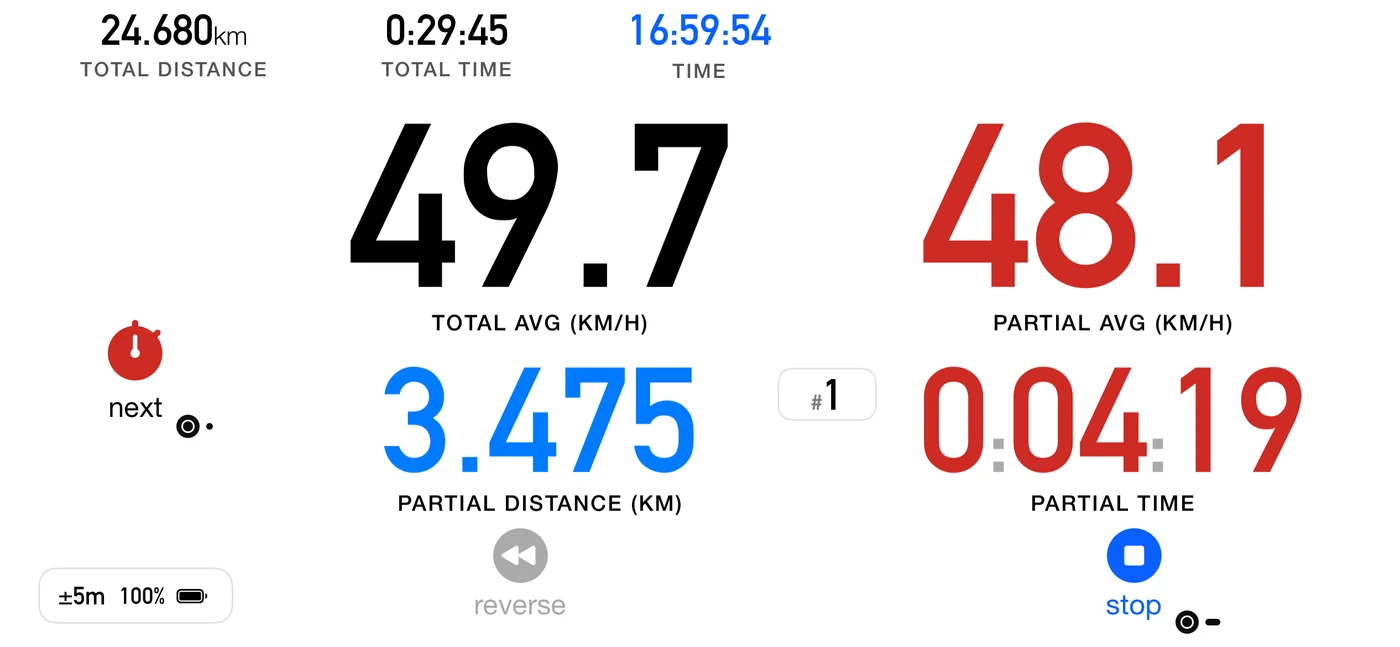
reverse subtracts distance instead of adding it, for backtracking to a missed junction without corrupting your totals. The partial distance turns blue; the total distance, the times and, in Roadbook, the count-down distance keep their colour. Voice says "Going Backward" and "Going forward now", and a brief flash confirms it. Tap again to return to normal.
4.5 Quick restart (the reset button)
The button is labelled reset; this manual calls what it does a quick restart.
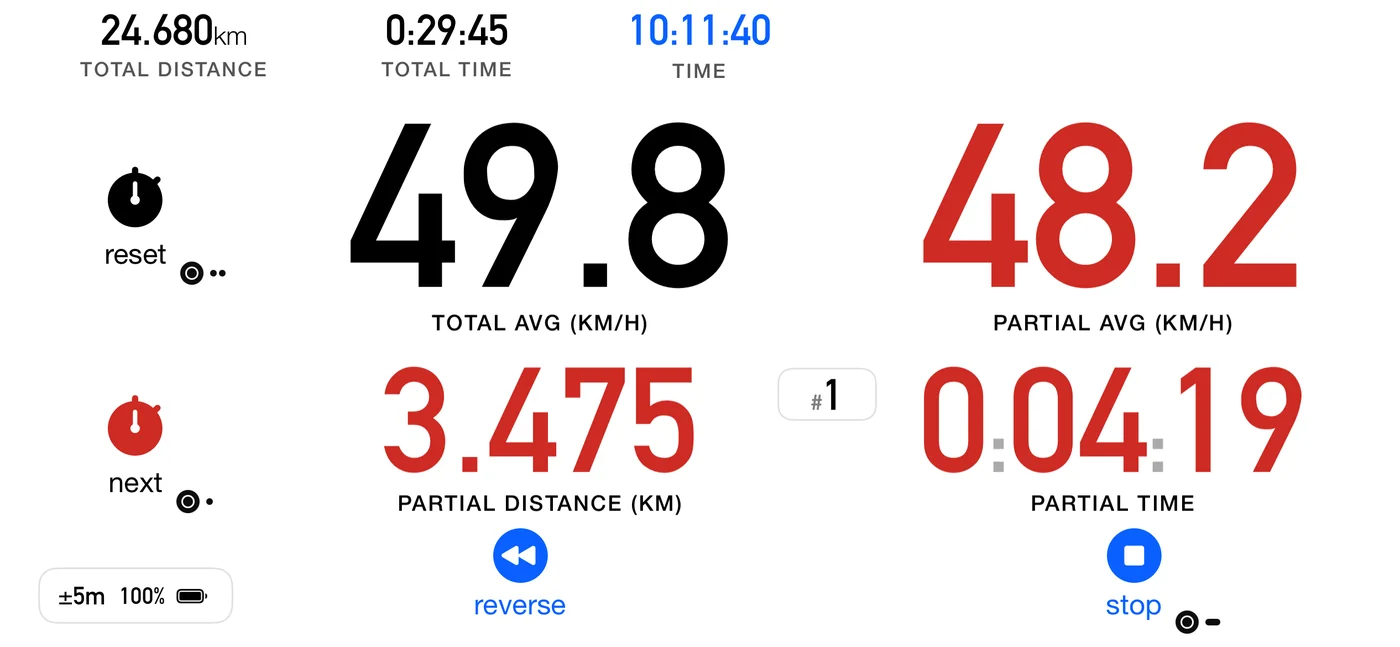
Resets every counter and starts again immediately, which is the fast way to begin another run without stopping first.
- Turn the button on in Settings ▸ Controls ▸ Show reset button.
- With Confirm stop & reset on (default) a Reset? dialog asks first. With confirmation off you press and hold it.
- The run it ends is always saved.
- With a Flic, a double click does it too (9.1); with the Bluetooth media button, two presses of Previous (9.6).
- Like stop, it takes its time and distance at the moment your finger or the Flic goes down, so waiting for a hold or a dialog costs you nothing.
⚠️ Not available in Roadbook mode. To zero the odometer at a point on a roadbook, put the zero-odometer flag on that row instead (5.6).
⚠️ Quick restart and the independent average are mutually exclusive. Turning one on turns the other off, since both want the same button.
4.6 Stopping, and finishing
stop ends the run.
- With Confirm stop & reset on, a Stop? dialog asks first and Stop ends the run. With auto-save on, which is the default, that one button also saves. With auto-save off the dialog gains a second button, Stop & Save Track. On a roadbook's final part the same dialog reads Finish? and Finish.
- With confirmation off, press and hold.
- With a Flic, hold it. With the Bluetooth media button, press Next twice, or hold it once if your button can.
- The time and distance are taken the moment you press, when your finger or the Flic button goes down. Holding, or answering the dialog, does not add to your time or distance.
- In Stage mode it is always a single tap, whatever those settings say, because a hold or a dialog would land on the recorded elapsed time, and that time is the result.
Finishing a roadbook is different from stopping one. On the final part the button becomes a checkered flag. Tap it and confirm Finish, or, with Confirm stop & reset off, hold it. Either way it crosses the last control, scores the final part and saves the track. Or set the roadbook's Finish to auto, and the run ends by itself at the last part's distance. Ending anywhere earlier is an abandon, and the button deliberately keeps saying stop. See 6.8.
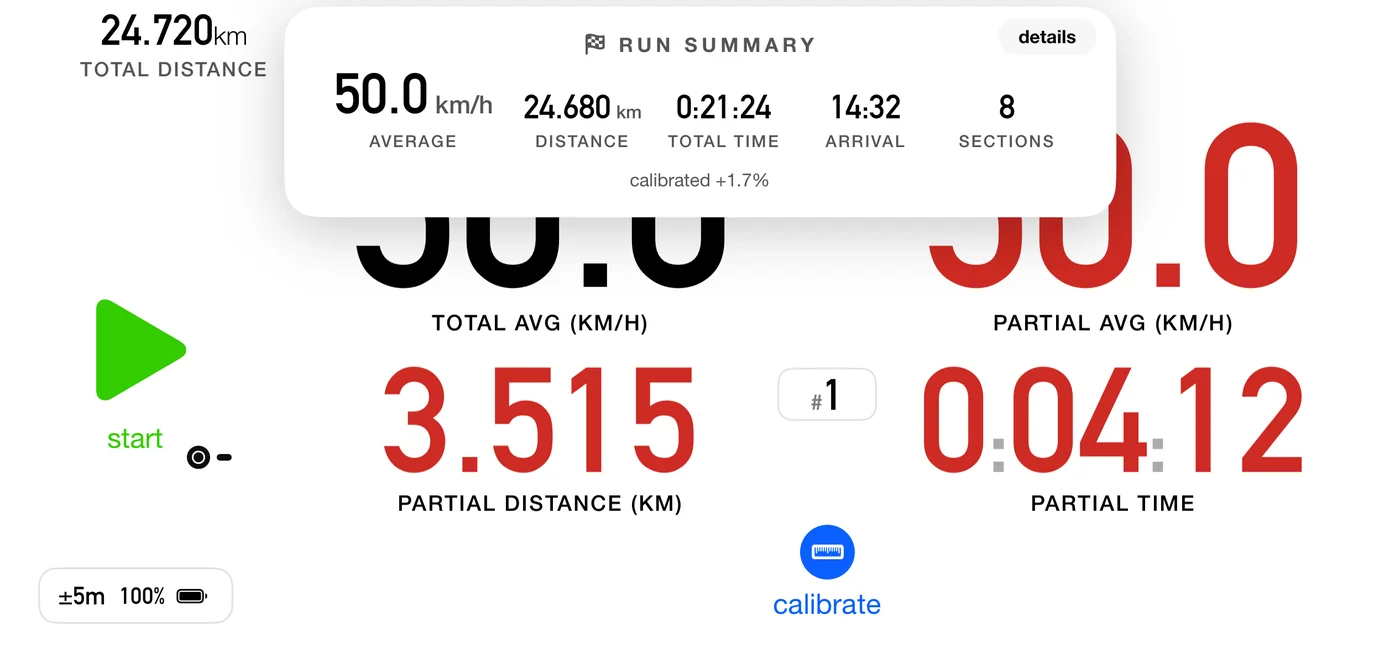
Afterwards, with Settings ▸ Controls ▸ Show run summary on, a card shows the average speed, distance, time, arrival and how many parts you completed. When the run was saved, its details button opens it in the track list, part by part. This one appears in every mode, and after a quick restart as well as a stop. Those two are the only actions that end a run, which is why they are the only ones that produce it.
If the app was killed mid-run
On the next launch it offers to resume the trip. If the state cannot be recovered it says so, and confirms the track was saved.
That includes being killed during a pause (fixed in 3pRally 5.1): the run comes back still paused, with the pause card up, the time and the average exactly as they were when you paused; leave the pause as usual when you move off, and everything since you paused counts as pause, not driving. The one exception is a roadbook pause row whose due-out time has already passed while the app was down: the regroup is over, so the run comes back running. Until 5.1 a pause threw the recovery data away, so a crash at a regroup lost the run.
It also comes back on the row you were on (3pRally 5.1). The recovery data is now saved at every control you cross, every reset and every undo, as well as every 30 seconds. Until then a crash just after a control could bring you back on the row before it: the app crossed that control a second time, scored it again and repeated its announcements, and a pause row it had just entered started its time over.
4.7 The independent average
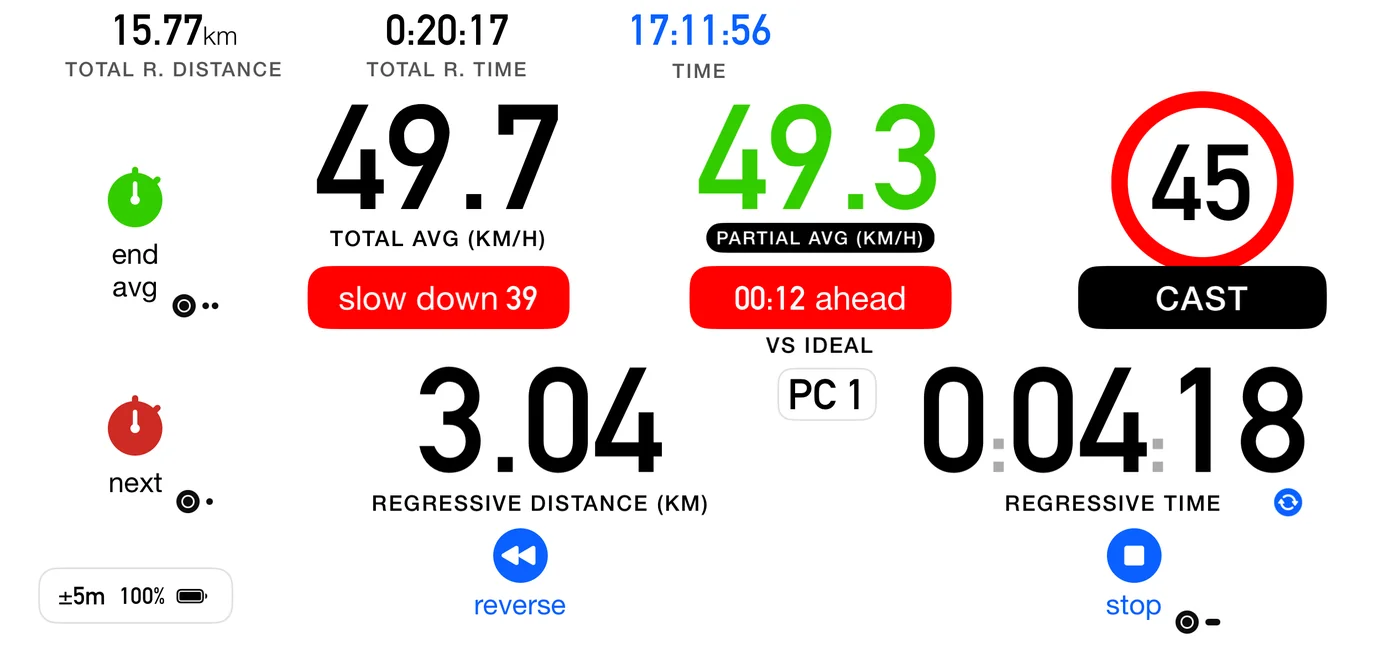
Settings ▸ Dashboard ▸ Independent partial avg speed turns the reset button into an A-to-B average tool:
- press once and a fresh average starts from that moment, shown in green;
- press again and it ends, and the readouts go back to the ordinary partial.
- a Flic double click does the same as pressing it.
Both are a single tap, and ending one is not held or confirmed even when Confirm stop & restart is on. That setting guards the two expensive actions on the same button, stopping the run and quick restart. Ending this window costs you one temporary readout that you can start again with another tap, so it is not worth a gesture of its own.
While it is running, the big average on screen is that window, shown in green like its distance and time, and it is not coloured against the schedule: it is measuring your stretch, not your pace, so being fast or slow for the roadbook says nothing about it.
It intentionally ignores control crossings, which is the point: "from this sign to that junction, what did I average?" is a different question from "how am I doing against the schedule".
It is available in every discipline. In a Special Stage it has no competitive meaning, since fastest elapsed time wins, but it is harmless and opt-in. In Open Road, where you are managing an average, it is genuinely useful.
4.8 The three resets people confuse
Keep these apart, because they get run together:
| What it zeroes | What survives | |
|---|---|---|
| next | the partial only, and it advances the roadbook | everything else |
| zero the odometer (a roadbook row flag) | the distance reading only | time, schedule, marked controls, your position |
| quick restart | the whole run | nothing, it starts again |
And a fourth that is easy to mistake for them: the independent average is a running average you arm by hand, and it ignores control crossings entirely.
4.9 Official time
Rallies run on the organiser's clock. Double-tap the clock on the dashboard to enter an offset; in Stage mode a single tap on the clock does it. The clock then turns green and reads official time, and Auto-Start and the countdown follow it.
4.10 Long runs
The app warns when the battery is low and not charging. For multi-hour work, set up Energy saving (11.9) before the start rather than during it, and keep the device on power.
5. Roadbooks: building them
A roadbook in 3pRally is the route the app follows for you. You transcribe the paper once, and from then on the app knows what is coming, what you are supposed to be doing, and how far you are off it.
Open it from Settings ▸ Mode ▸ Roadbooks. The row's right side names what is currently selected, so you can see what you are about to drive without opening anything.
A note on words. The app swaps the name for one timed piece of road depending on what your event calls it: section, leg or stage (Settings ▸ Mode ▸ Segment name). This chapter calls the thing you type a row, because that is what it is in the editor, and leaves the driven thing to whatever word your app is showing you.
5.1 The structure
Roadbook            "Mille Miglia 2026"        the shareable, syncable unit
└── one or more     "Day 1"                    the runnable unit, carries the DISCIPLINE
    └── rows        CAST 50 km/h, 12.40 km     what you drive
The middle level is what you select and run. A one day event is the simple case: one roadbook, one of them, and a list of rows.
⚠️ Only the selected one is driven. A roadbook holding a whole week is not chained together automatically. You select the next one between runs.
5.2 Disciplines
Tap the discipline chip in the editor header. The choice belongs to the middle level, and it decides which row types you may use:
| Discipline | Competitive row | Also available | What it models |
|---|---|---|---|
| Regularity | CAST, Target Avg | Time, Transit, Pause | TSD and regularity: hold a prescribed average |
| Special Stage | Special | Time, Transit, Pause | Flat out, fastest elapsed time wins |
| Open Road | Open Road, Target Avg | Time, Transit, Pause | Open-road racing, in either of its two scoring shapes |
| Transit | Transit | Pause | A non-competitive liaison |
Changing the discipline when rows exist that the new one does not use offers to convert them: they are re-typed to the new discipline's primary type and keep their distances.
5.3 Row types
| Type | Requires | Optional | Where its time comes from |
|---|---|---|---|
| CAST | distance, ideal speed | distance divided by the speed | |
| Target Avg | distance, target average | MAX ceiling | distance divided by the average |
| Time | distance, a time | the time you entered | |
| Transit | distance, a time | the time you entered | |
| Pause | a time. No distance | the time you entered | |
| Special | distance | unknown until you drive it | |
| Open Road | distance | base speed, max cap | distance divided by the base speed, or by the max when there is no base |
An Open Road row with neither a base speed nor a max is unbounded: it has no time of its own, so the schedule simply carries across it, and the dashboard shows no speed sign and no time-vs-base readout on it.
Time, Transit and Pause are three different things, and the difference is movement. A Time is a paced section given as a duration instead of a speed: "cover 3.5 km in 4:12" rather than "hold 50". A Transit is a liaison between competitive sectors, where you are due at the far end at a time and are not held to an average. The delta readout says so: it reads vs ideal on a Time and vs schedule on a Transit.
A Pause is neither, because you are not driving. It is a halt at a place: a regroup, a service point, lunch, parc fermé. It has a duration and no length, so the distance field is not shown for it, and the strip prints a dash where the length would be. That is how an event writes one: a road book gives the transit that reaches the stop, and the stop itself occupies time on the schedule, not road.
What a pause does while you are sitting in one is in 6.6b.
Roadbooks written before 5.0 have pauses with a distance, because the old editor required one. Those that describe a stretch of road are converted to Transits when the roadbook is brought across, which changes nothing about the schedule: a Transit is scheduled from the same distance and time. A pause that was already written at a single point stays a pause.
CAST and Target Avg both minimise error against an average, and they sit side by side in the Regularity palette. The difference is the ceiling: Target Avg carries an optional MAX, which is a limit you are flagged for crossing rather than a scored penalty.
Do not model a precision trial as a Special. The short precision rows some regularity events print, forty to sixty metres at a walking-pace target, are precision trials inside a regularity event. Author them as CAST or Target Avg. A true special stage cannot legally appear inside a regularity event at all.
5.4 Controls and references
This is the idea the rest of the chapter hangs on.
A roadbook has two kinds of rows. A control is a place the organiser measures you: a time control, a test, a start or a finish. A reference is a waypoint you tick off along the way ("at the church, keep left, still 50"), printed so you can follow the route.
The consequence while driving: your trip counter still zeroes at a reference, so the distance to the next instruction is always in front of you, but your average keeps running across it, because you are still being timed on the same average until the next real control. A reference tidies your navigation without disturbing the number you are judged on.
You do not mark a row as a reference. There is no such switch. You switch "is a control" off and leave the pace alone, and the row becomes a reference. The app works it out for you: a row is a real boundary when it is a control, or the first row, or the type changes, or the target speed changes. Anything else is a reference, and the editor dims it to show you.
Switching "is a control" off does not stop the app timing that stretch. It always banks a result at every row, because "+3 s at the speed change" is a real and useful fact. What it stops is the app claiming a control: an unscored boundary drops no pin on your map, is absent from the track recap and the export, does not count in the finish card's total, and never raises the "control not marked" warning. Your totals then still agree with the marshal's sheet.
5.5 How a boundary is crossed: tap or auto
The sport's own rule sets this up. SCCA RoadRally §E4: "All average speed changes must occur at a specific sign, landmark or at an official mileage." Those are exactly the two cases:
| The roadbook says | Who crosses it | Row mode |
|---|---|---|
| an official mileage | the odometer | auto |
| a sign or a landmark | your eyes | tap |
Set it per row. There is a roadbook-wide Advance default, off out of the box, and rows inherit it until you override them. Real route books mix both inside one run, so the row is the truth and the roadbook-wide setting is only the fallback.
Three things worth knowing:
- An auto boundary is still tappable. Odometer drift, a mis-transcribed row, a tunnel. The tap overrides, and rule E4 is why it has to.
- New in 5.0: tapping just after it fired does not cross a second control. The boundary crosses itself and announces it, but by then your thumb is already moving, and that tap used to bank a part of almost no length and step you past a control you never reached. The app now absorbs that tap and tells you the control was already crossed, so you do not have to know in advance not to press. It only absorbs a tap that cannot be a real crossing: on a short part, or one with no distance, your tap goes through as it always did. See 6.6a.
- Crossing early costs almost nothing. Auto fires against the cumulative authored distance, so one short part is followed by one long one and the book is back in step at the next boundary. Cross more than 300 m or 10% early, whichever is larger (but never more than half the part's own length, so a short part is still checked), and the app flags it as cut short and offers about nine seconds to undo it. A mis-tap that is not detectably early has no way back, so tap deliberately.
- Advance never ends the run. The finish is a press unless the roadbook's Finish is set to auto. See 6.8.
5.6 Row flags
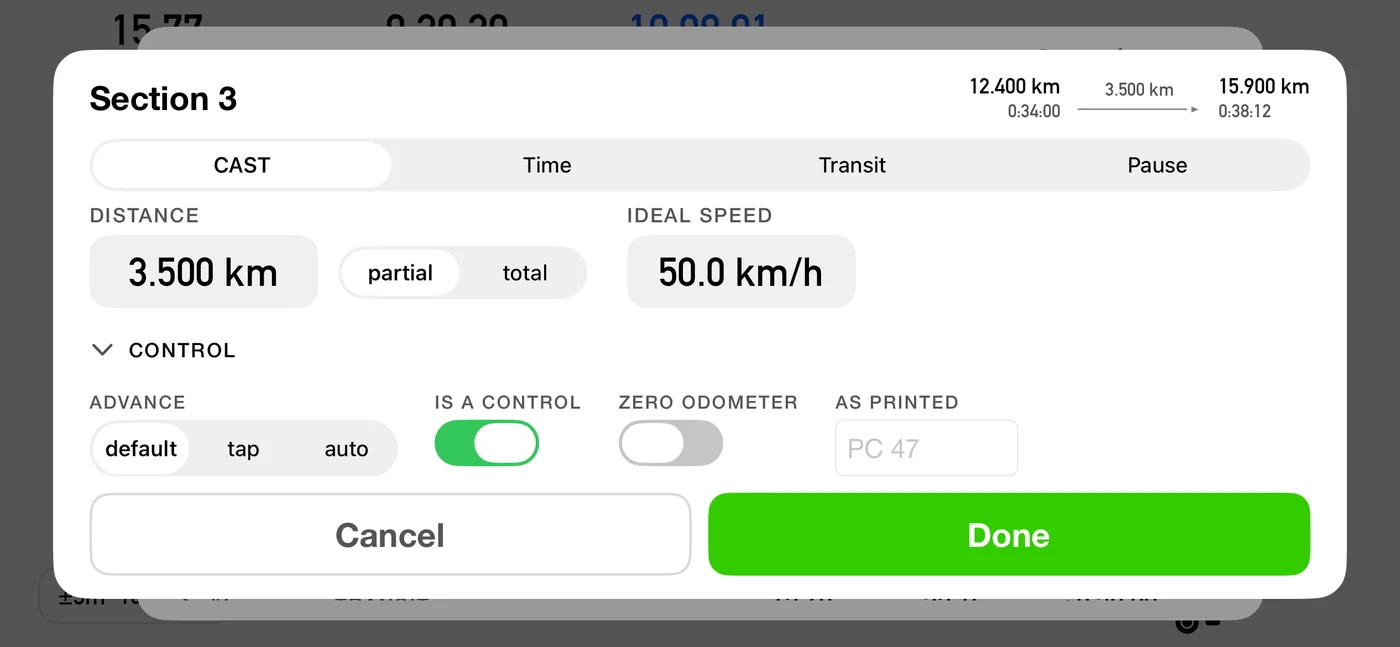
Beyond the type and the numbers, each row carries four switches. All four exist because they are printed on the paper, not because they are settings.
Is a control. Covered in 5.4. Off means the app still times the stretch and still shows you your error, it simply does not count it as a control.
Advance. Tap or auto, per 5.5.
Zero the odometer here. Some roadbooks tell you to reset your trip meter at a control. Switch this on for the row that control opens, and 3pRally does it for you the moment you mark the control. The total distance goes back to zero, so it keeps matching the paper. It is not a restart. Your time, your schedule, your marked controls and your position in the roadbook all carry straight on. Only the distance reading goes to zero, and the app keeps its own private count of how far you have really driven, so the finish still knows where it is.
As printed. A roadbook keeps several numbering systems at once, and they do not line up with the app's own count. Type what the paper calls the row ("PC 47") and the dashboard chip shows that instead of "#3", so what you read on screen is what you read on your knee.
5.7 Entering a row
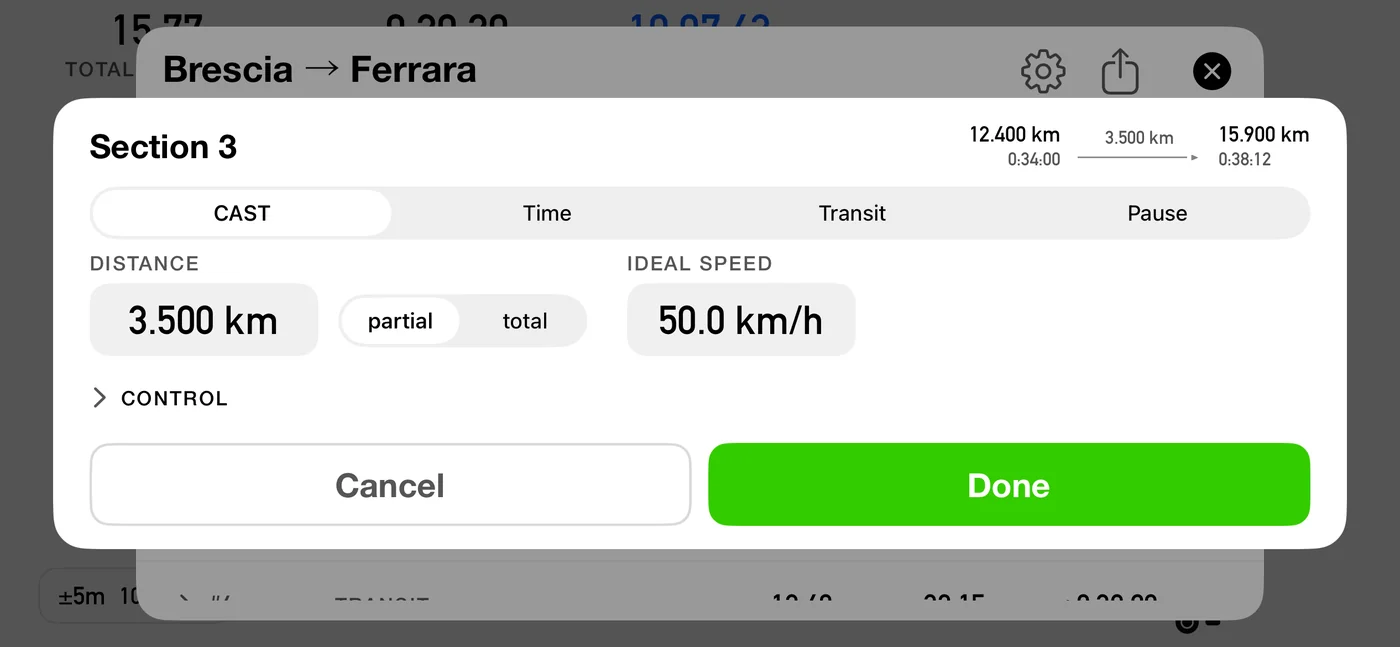
Tap + add a row at the bottom of the strip, or tap an existing row to edit it. The card gives you:
- a type picker, limited to the discipline's palette. A new row starts on the discipline's main type (CAST for Regularity, Open Road for Open Road, Special for a special stage, Transit for a transit), so the fields below already match it before you type anything;
- a distance, typed as either partial (this row's own length) or total (the cumulative distance at its end). A Pause has no distance field, because it has no length;
- the rate: a speed for CAST and Target Avg, a base speed and a max for Open Road, a time for Time, Transit and Pause, nothing for Special;
- the four flags above;
- an entry line,
starts <distance> · <time>, so a total has a visible starting point; - an exit preview,
ends … · … · partial …, computed live as you type.
Save + next saves and drops you into a blank row, carrying the type and your partial-or-total choice forward. The speed is left blank on purpose: typing it for each row is the moment you notice a row that is not really the same pace as the one before.
Long-press a row for insert above, insert below, duplicate and delete. Edit turns on drag to reorder, which re-derives every total.
5.8 What the app refuses, and what it warns about
Checked when you save a row:
| Rule | Message |
|---|---|
| A type must be chosen | please choose a … type |
| A distance is required | please enter a distance |
| Distance at most 9 000 km | the distance you entered is too big |
| CAST needs a speed | please enter the ideal speed |
| Target Avg needs an average | please enter the average speed |
| Time, Transit and Pause need a time | please enter a time |
| Every type except Pause needs a distance | please enter a distance |
| Open Road: max at or above the base speed | the max speed cannot be below the base speed |
| Target Avg: MAX at or above the average | the max speed cannot be below the target average |
Across the whole list, cumulative distance and cumulative time must keep increasing. If they do not you get the data in this section is conflicting with Distance / Time at section N, which almost always means a total you typed is smaller than the total already reached there. Rows whose time is unknown until driven, Special and an unbounded Open Road, are exempt from the time check by design.
The very short row warning. Under about 300 m the app stops you and explains why:
A stretch this short is below what GPS can place reliably, and the times for the sections around it are built from this row, so a chain of tiny rows drifts away from the organiser's schedule. Rows are for the stretches you drive between controls, not the short tests you are timed through separately. You can save it anyway.
You can Save anyway. The warning is a guard, not a veto.
5.9 Reading the strip as a table
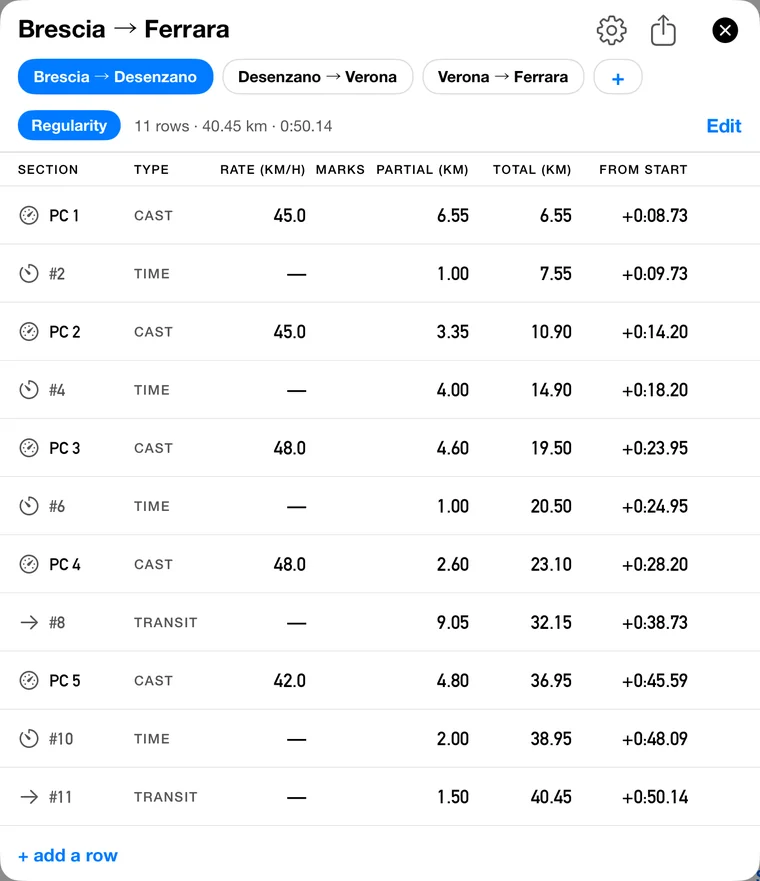
The strip is laid out like the printed roadbook: a grid you check column by column against the paper in your hand, not a list of sentences.
| Column | What it holds |
|---|---|
| Section | the type icon, plus the paper's own label if you typed one, otherwise the app's number |
| Type | the row type |
| Rate | the speed this row is driven to |
| Marks | the row's flags |
| Partial | this row's own length |
| Total | the cumulative distance |
| From start | how far into the run this point falls |
The units are stated once, in the header, so the rows stay clean. Two columns stay quiet where nothing changes: a run of the same kind of row prints its type once and then leaves it blank, and the Rate is left blank while both the type and the speed are unchanged. So a blank in the Rate column always means the pace carries straight on, which is the reading that matters at speed.
A printed speed therefore means something about the pacing changed at that row, and it can be the kind of row rather than the number: a CAST at 45 followed by a Target Avg at 45 reprints the 45, because being paced against a target average is not a continuation of a CAST, and a blank there would claim it was. The type icon still shows on every row, so you never lose track of what you are on.
You can read that off the figure. PC 1 is a CAST at 45.0, #2 is a TIME, and PC 2 comes back to CAST and prints 45.0 again: the same number as two rows earlier, reprinted because a TIME row fell between them, so the pacing restarted rather than carried on. The same thing happens at 48.0 either side of #6. Nothing in this stage runs two rows of one kind back to back, so no Rate cell is blank here: the blank is what you see down a chain of CASTs held at one speed.
The last column is written with a plus sign, "+0:15:53", so it can never be mistaken for a time of day. It is how long into the run this point falls, not the hour a clock would show.
From start is hidden while you are editing. Tapping Edit adds the delete and reorder controls on either side of every row, which leaves less width for the grid, so the widest column steps aside and returns when you tap Done. It is the one you are least likely to be reading while dragging rows around.
The legend under the strip names the marks, and lists only the ones this stage actually uses: dimmed = reference, not a control, blue = base speed, red = max cap, zero odometer, auto-advance.
5.10 Roadbook format
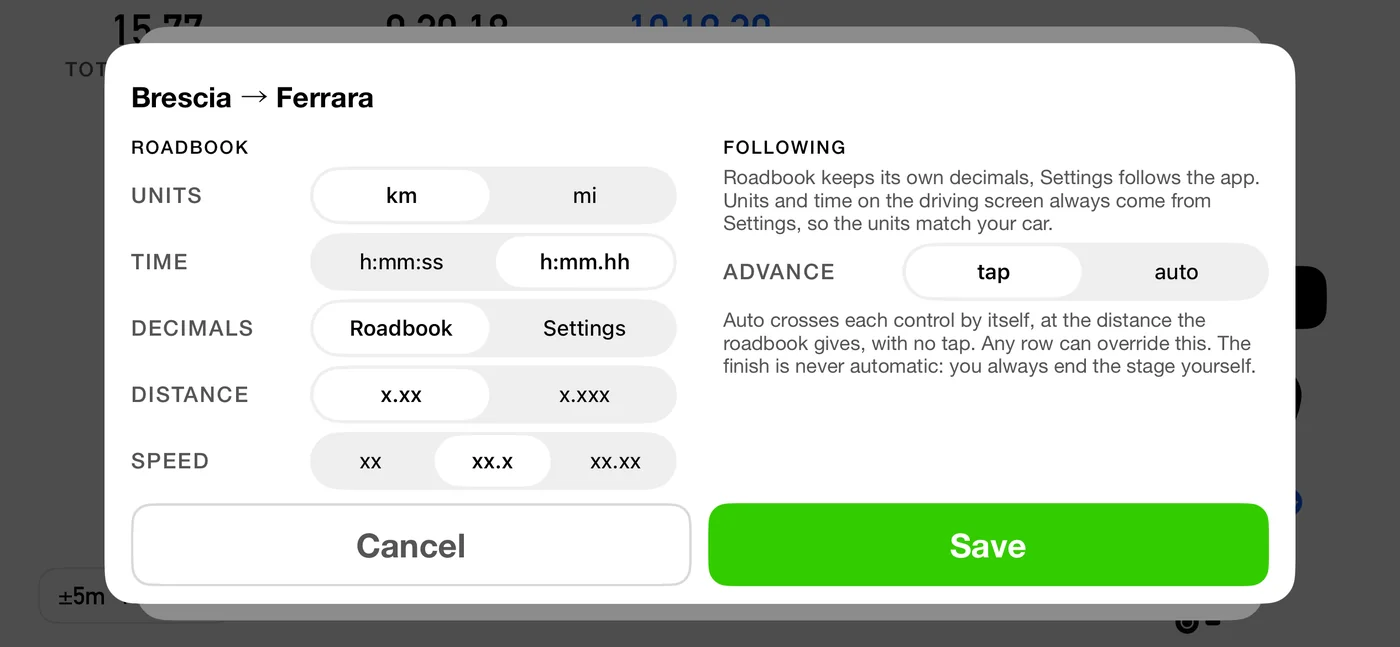
Each roadbook carries the units, precision and time notation it is printed in. Set it when you create the roadbook. To change it later, tap the gear icon in the roadbook editor's header, or swipe the roadbook in the library and tap Edit.
| Field | Options |
|---|---|
| Units | km or miles |
| Time | the same four as Settings: h:mm:ss, h:mm:ss.d (tenths of a second), h:mm.hh or h:mm.ttt (hundredths or thousandths of a minute); the time entry then takes exactly that precision (until 3pRally 5.1 it offered only seconds or hundredths of a minute) |
| Decimals | Roadbook, or follow Settings: governs the time notation and the two decimal rows under it (the time notation joined them in 3pRally 5.1) |
| Distance decimals | how many decimals distances show |
| Speed decimals | how many decimals speeds show |
| Advance | the roadbook-wide tap or auto default |
| Finish | tap, or auto to end the run at the last part's distance (6.8); not shown when creating a roadbook |
| Tech speed | Open Road only, see below |
You type exactly what is on the paper. Underneath, everything is stored canonically, so changing the format later only changes how numbers are shown and entered, never what is stored.
A new roadbook starts on Decimals: Settings, so if you never open this panel it keeps following your usual precision, including when you change it later. The moment you set the distance or speed decimals by hand, the roadbook switches to Roadbook and holds those figures: you have just told it what the paper says, and paper does not change because a setting did. The toggle says which it is, and puts it back either way.
Switching is always safe. Everything is stored canonically, so neither choice moves a single number in the roadbook, only how the figures are shown.
Once set, the two halves of this panel reach different distances, and it is worth knowing which is which: units follow your car, decimals follow your roadbook.
Precision is the roadbook's. The distance and speed decimals you set here are used everywhere the roadbook is loaded: the strip, the segment editor, the upcoming-part card, the driving screen itself and the run summary afterwards. That is the point of them. A book written to two decimals is driven against a dashboard showing two decimals, so the figure you are calling can be matched against the figure on the page.
A decimal appears only where it carries something. Set the book to one decimal and a target of 80 still reads 80, not 80.0, while a French regularity's 45,3 keeps its 3. This matters more than it looks: target speeds used to be rounded to whole numbers on the driving screen on the assumption that nobody writes a fractional one, which is true of SCCA and HRCR and false of French regularity, where showing 45,3 as 45 is about eight seconds over a twenty-minute test. Nothing was ever computed from the rounded figure, but you drive against what you read.
Units are yours, not the roadbook's. The driving screen always shows the units from Settings ▸ Units & Format, even while you are following a roadbook written in the other ones. This is deliberate. The instrument you are really checking against is the car's odometer, and a crew with a kilometre odometer following a roadbook printed in miles normally wants kilometres in front of them. If you would rather the screen matched the paper, change the units in Settings; nothing about the roadbook has to change, because the distances are stored canonically either way.
The time notation follows the roadbook, like its decimals (3pRally 5.1). While you follow it, the elapsed, regressive and ideal-gap times on the driving screen, the cards and the run summary are written in the roadbook's notation (a book in h:mm:ss.d shows 0:09:16.1 even if Settings says h:mm:ss), unless its Decimals switch says Settings. The time of day is a clock, not a time from the paper, so it stays in your Settings notation. (Until 5.1 every time on the driving screen used Settings.)
The roadbook screens (the strip, the segment editor, the library rows) show the book in its own units and notation, because they are showing you the paper as you transcribed it.
So of the three notation rows on the format sheet, the units are the only one that never crosses to the driving screen. The decimals and the time notation do, which is why those two are the ones the Decimals switch can point at Settings.
Trips driven outside a roadbook (Classic, Advanced, Stage) follow your settings for both.
One thing keeps your settings either way: spoken announcements. The voice reads distances and speeds at the precision from Settings, not the roadbook's, because a spoken number is not something you compare with the page and every extra decimal is another word to sit through at speed.
Tech speed is a class-wide never-exceed ceiling for the whole event, and it appears only when the roadbook has an Open Road part. Once set, it also caps every Target Avg row in the same roadbook, including one in a Regularity stage. The effective ceiling at any moment is the lower of the row's own cap and the tech speed.
5.11 The library
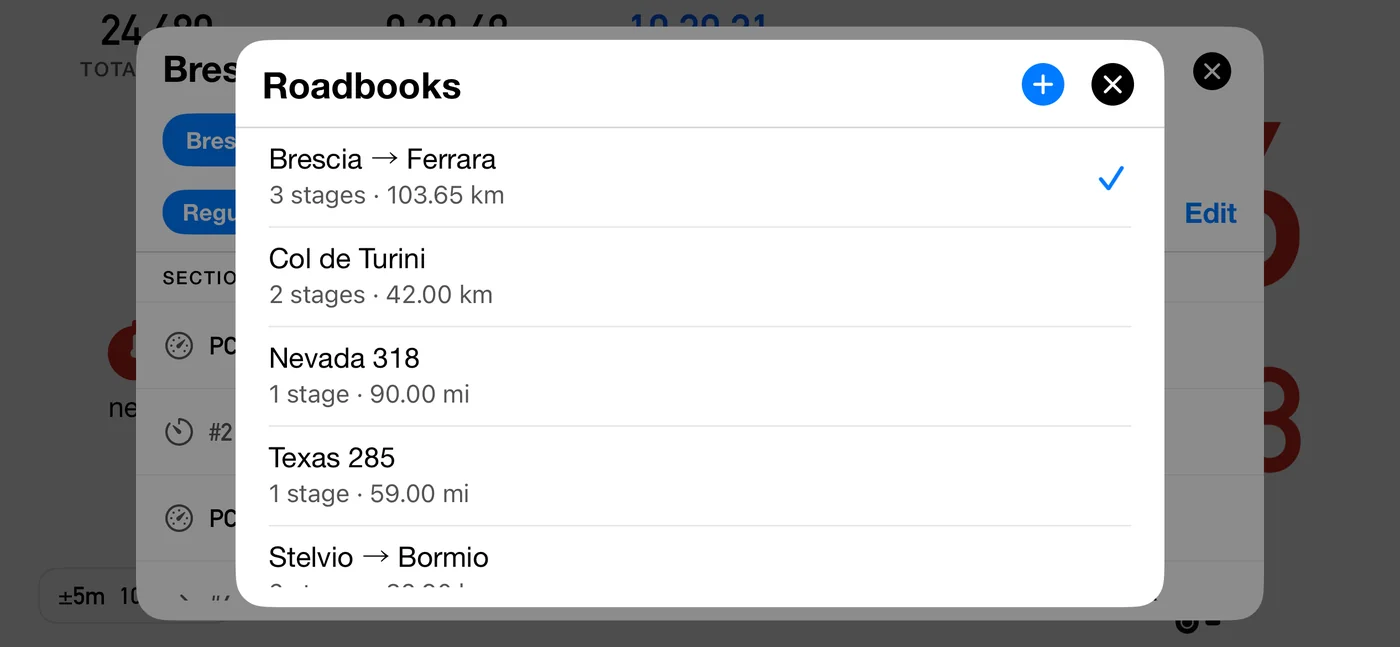
Tap the roadbook name to open it. Rows show the name and a summary in that roadbook's own units, with a checkmark on the active one. Tap to switch, swipe to Edit (name, format, tech speed) or Delete, and tap + in the header to create.
The one you are following is always at the top, and the rest follow in the order you last touched them, so yesterday's roadbook is the second row rather than something to scroll for. The order settles when you open the library and holds while it is open, so nothing moves under your thumb.
Creating one gives it one empty runnable part and drops you into its first row.
With iCloud sync on (Settings ▸ Tracks & roadbooks ▸ Sync to iCloud, off by default; see 5.14), a deleted roadbook waits in Recently Deleted with the days remaining, and restoring it brings it back on your other devices too.
5.12 Sharing and importing
Share exports the whole roadbook, everything in it, as a .3prbk file through the iOS
share sheet. Opening one of those files with 3pRally appends it to your library with a
fresh identity, so importing twice never overwrites anything.
An import never changes which roadbook you are driving. It arrives in the library and waits; you switch to it when you are ready. The only exception is a library that was empty, where the arriving book becomes the active one because there is nothing to displace. So importing three books at a control is safe: nothing moves under you, and nothing you have already loaded is disturbed.
An imported roadbook keeps the date it was last changed on the device it came from, so an old one does not arrive at the top of the library. If you import several, look further down the list.
This is how a co-driver prepares at home and hands the route to the driver's phone at scrutineering.
5.13 What is locked while you are running
The distinction is the whole explanation:
- Editing the roadbook you are driving stays available, and it recalculates live. You fix a row the moment you find it is wrong, which is what actually happens on an event.
- Changing which roadbook you are driving is not available until you stop. There is no coherent answer for what should happen to the distance and time you have already covered.
So while a run is under way the roadbook name stops opening the library and its chevron disappears, the selector chips and the add button go inert, and the long-press menu does not open. Each of those taps explains itself with a brief notice rather than doing nothing. When you stop, everything is available again.
Only roadbook following locks this. In Classic, Advanced and Stage the roadbook is not being followed, so switching it mid-run costs nothing and stays allowed.
5.14 iCloud
Roadbooks sync with the same switch as tracks, Settings ▸ Tracks & roadbooks ▸ Sync to iCloud. The section and the row are named for the two because, on Rally, that one switch covers both. Turning it on reconciles your tracks and your roadbooks together.
It uses your own iCloud: only devices signed in to the same Apple Account see your tracks and roadbooks. Nobody else, family included, can reach them.
3pRally and 3pRally Pro share the same iCloud storage, so moving from one to the other with sync on brings your tracks and roadbooks with you.
Opening the editor pulls the latest, so a change made on another of your devices shows up when you open it rather than whenever a push arrives.
⚠️ A sync never changes the route under a driver. If a remote edit lands while you are driving, the live route is left alone. Remote edits to the roadbook you are on take effect the next time you enter Roadbook mode.
6. Roadbooks: following them
Set Settings ▸ Mode ▸ Mode to Roadbook, check that the right roadbook and the right runnable part are selected, and drive.
Before any of the detail, the honest frame:
We are your instrument, not the beam. The organiser's timing owns the result. What we give you is a clock where there is none, and the splits nobody hands you. GPS distance is good to roughly three to five metres, which is about a second, not hundredths. Some events time to whole seconds, some to tenths, some to hundredths, and none of those are ours to choose. So our number and the official one can differ, and when they do, theirs is the one that counts.
6.1 What is on screen
| Element | What it tells you |
|---|---|
| Chip | which part of the route you are on, showing the paper's own label if you typed one |
| Type pill | CAST, Target Avg, Time, Transit, Pause, Special, Open Road |
| Speed sign | the number you pace on this part |
| MAX chip | on a capped part, the ceiling: the chip replaces the current-speed caption, SPEED · MAX 155 or SPEED · LIMIT 100 |
| Pace tip | the speed to drive right now (6.3) |
| Time pill | how many seconds off the ideal you are (6.2a) |
| Average pill | the average's caption on a black pill, reading PROV. · AVG. SPEED, while the run is recorded at the roadbook's distances (6.11) |
| The average | your average since the last real control |
| Two distances | how far to the control, and how far to the next waypoint |
| Look-ahead | a brief preview of the next real boundary |
| Puck | the button you press at the boundary, and what it will do |
Both tips are on by default. Settings ▸ Roadbook ▸ Show speed / ideal time tips shows All (default), only the Speed tip, only the Time pill, or Off.
The big circle is always the number you pace, never a ceiling: the blue disc is an Open Road base speed, the red ring a CAST target average. The ceiling is on the dashboard too, though never as a sign. It is the MAX chip under the current speed. Only the look-ahead card signs a ceiling: a red ring while it is in force, and a thin grey ring struck through where it ends.
Coordinates are off by default. On a roadbook built from distances there is nothing to check them against, so they are off entirely for a roadbook that uses references. Turn them on in Settings ▸ Dashboard ▸ Show coordinates if your event actually gives you coordinates.
6.2 The average holds to the next control
In a regularity you are scored on holding an average, and that average belongs to the whole stretch between two controls, not to each little waypoint inside it.
So the big average on screen is your average since your last control, and it keeps counting straight through the references. It needs two or three seconds of real driving before it means anything, because over the first moments it is mostly GPS noise.
That is why there are two distances. One counts down to the next control, so you always know how much road is left to hold or recover the average on. A smaller one counts down to the next waypoint, for the navigation.
The average is a reading, not an alarm, so it does not change colour. It stays in the dashboard's own ink whether you are above the target or below it. Being told off in red for running fast while running slow passed in silence would say something false about a regularity, where early and late cost you the same. What you are doing about the target is the tip's job and the time pill's job, and both of them work in both directions. The one time the average takes a colour is when the independent window owns the slot, and then it goes green, because it is a different measurement rather than a judgement (see 4.7).
6.2a The time pill, and the state that means "this one is gone"
Beside the tip, the time pill shows the live difference between the time you should have taken for the distance covered so far and the time you have taken. On a part where you are holding an average (CAST, Target avg, Time, and a Transit liaison), its colours are instructions, not verdicts, matching the tip next to it. (An Open Road part reads the pill differently, because the rule there is different; see 6.6.)
| Pill | Means |
|---|---|
| Blue | within 2 seconds either way, which is where you want to live |
| Red | you are ahead, so ease off |
| Green | you are behind, so push |
| An outline, with no fill | the time you are down can no longer be recovered on this part |
The pill says which way it means, in a word. It carries the direction beside the number:
00:26 ahead, 00:37 behind, 00:01 on time. There is no plus or minus, because the word is
the sign. Read it with the colour above rather than against it. The word states the fact (where
you are), the colour states the instruction (what to do about it), so on a regularity part
00:37 behind is green, because behind is the side you can still recover.
That last state matters. Green means push, and there is a point beyond which pushing is a promise the road cannot keep: twenty minutes down on a 40 km/h average is not a "speed up", it is a part you have lost. The app works it out directly: on a part with a MAX, it asks whether driving all the remaining distance at that MAX would still bring you back; on a part without one, whether the time you are down is more than all the ideal time left, so that even arriving at once would be late. When the answer is no, it stops instructing you and simply shows the number.
When you stop, both go. The tip and the time pill are instructions for driving, and a stopped run has nothing left to instruct, so both disappear at the stop and the run summary gives the result. The other readouts stay as they were at the moment you pressed. The pill measures against the distance the dashboard shows, the same figure as the partial distance beside it. (Until 3pRally 5.1 a part without a MAX assumed you would never drive faster than one and a half times its average, so on a 40 km/h part it gave up on a deficit 65 km/h could still win back.)
6.3 The pace tip names a speed
The tip does not say "faster". It says the speed to drive, because that is what a right foot can act on. "Speed up 137" means go to 137.
When it expects you to recover depends on how the part is scored:
- On a CAST, the controls are hidden and can sit anywhere along the stretch, so the error has to be cleared promptly: the tip asks for the speed that clears it inside roughly the next kilometre, then settles back to the CAST on its own. Recovering only by the end would leave you late through the middle, which is exactly where an unannounced control catches you.
- On a Target Avg, Time or Transit, you are scored at the end, either on an average over the whole stretch or on a due time at a control you already know about. So it recovers by the end, which is gentler.
It works both ways: when you are ahead it asks you to slow to a number.
On a Target Avg the tip never contradicts the time pill. The tip compares your current speed with the speed still needed to finish on time, and names that speed. The time pill decides which tips are allowed:
| Time pill | "speed up" | "slow down" |
|---|---|---|
| On time (within 2 s) | when you are slower than the speed needed | when you are faster than the speed needed |
| More than 2 s behind | when you are slower than the speed needed | never |
| More than 2 s ahead | never | when you are faster than the speed needed |
"Slower" and "faster" mean by more than about 3 km/h, as for every tip. While on time, the tip still follows your current speed, so a corner can bring "speed up" and a straight "slow down" even with your average on target. "Too far behind" and "over max" are not held back by this table.
⚠️ The number is arithmetic, not advice about the road. The app knows the distance, the clock and the target. It does not know the corner ahead, the surface, the traffic or the weather. Whether "speed up 137" is safe or even possible is the crew's decision, every time.
A tip has to earn its way on, and it does not flicker. It appears once you are more than about 3 km/h off the speed it wants, and it only clears once you are genuinely back, within about 1 km/h. The band you cross to turn it off sits inside the band that turned it on, so a driver sitting on the target does not watch it strobe. The bands are wider for the instantaneous readings, which jitter, than for an average, which barely moves: the Open Road base speed works on your average and uses about 2 km/h on and 0.5 km/h off.
Two limits on it, both deliberate:
- It will never ask you over the ceiling. On a capped part the requested speed is clipped to the MAX. If the time you lost can only be recovered above the limit, the app asks for the limit and no more, and eats the loss. It must never instruct you over the very line it reddens you for crossing. On a part with no MAX it asks for at most twice the part's speed (3pRally 5.1; one and a half times before), so a big deficit never becomes an absurd instruction, nor above your own Max speed (Settings ▸ Dashboard). Where the roadbook sets a limit, that limit is the ceiling, as it is for the "over max" alert.
- Near the end of a part it stops recomputing. With almost no distance left the arithmetic would demand an absurd speed, and by then the error is what it is, so the tip simply goes away.
When it stops asking
There is a point where no speed helps, and the tip says so instead of naming one.
Every part is worth a fixed time: its distance at its speed. A 5 km CAST at 50 km/h is worth 6:00. Once the part's clock passes that time by more than 2 seconds (the time pill's on-time band) and you have not reached the end, the part can no longer be finished on schedule at any speed: arrive instantly and you are still late. From then until the next part, the tip shows "too far behind" instead of a speed, and Voice says it once.
Until that point the tip always names a speed, however far behind you are, within the limits above. Being three minutes down at 4:00 is still "speed up", because the time is still there to be won back. In practice "too far behind" appears when you have stopped, been held up, or pressed next late.
Like the other tips it shows only while your speed is more than about 3 km/h away from the part's own speed, so it can come and go on screen; the voice says it once per part. Inside a dense chain it is not spoken. Open Road keeps its plain "speed up" and never shows it. It is the one tip with no icon: it is drawn as an outline rather than a filled pill.
⚠️ Note what this does not claim. It is a statement about this part's schedule, not about your run and not about what you could do with the road. A driver willing to press on can still change the rest of the route. The app is only saying it has stopped having a number worth giving you.
This works in both directions. Near the end of a part the tip stops naming a number at all rather than falling back to that part's own rate, because that rate is not advice: told to a driver who is behind and pressing on, "slow down" to it would make the loss worse, which is the opposite of what is needed.
Being pinned at the ceiling is a different thing and stays as it is: "speed up 90" on a 90 cap is real advice, floor it to the limit.
6.4 The MAX cap
A part with a MAX behaves differently, on purpose:
- the readout is forced to current speed, overriding your speed preference, because a ceiling is a limit on the speed you are doing right now and not on your average;
- the ceiling is shown as a MAX chip for the whole part, in place of the current-speed caption, so the number is in front of you before you are anywhere near it. It names the readout and the ceiling: SPEED · MAX 155 when the limit is your class ceiling for the whole event, SPEED · LIMIT 100 when this part posts a lower one of its own. Where a language's wording would not fit the column, the chip drops SPEED · rather than spill over;
- over the cap, the current-speed digits turn red, with a beep or a spoken "over max".
One deliberate absence:
- No "slow down" tip. The pace tip is about the schedule and never about the cap. When you are over, the tip area carries "over max" on red instead, which is also what the voice says. The two are kept apart in words so they can never be confused.
The chip is the only place a ceiling appears, on every type. Whenever a MAX binds it is shown, and the big circle never carries it. There is only ever one ceiling in force: where a part posts its own cap and your class also has one, the lower of the two applies. So it gets one home, and the word says which of the two you are under:
| Chip | Means |
|---|---|
| MAX 155 | your class ceiling, in force for the whole event |
| LIMIT 100 | this part posts a lower limit, so it is the one that binds here |
Both are mandatory. The distinction is scope: a limit is local and unusual, a max is yours and constant.
Your own Max speed. Outside a roadbook, or on a row the roadbook leaves uncapped, the ceiling can come from Settings ▸ Dashboard ▸ Max speed instead: the same chip, the same red digits, the same "over max". The roadbook still speaks for its event: wherever it sets a limit, that limit is used, even when yours is higher or lower. Unlike a roadbook cap, your own setting does not force the readout to current speed, so with the average in that slot the limit is only heard. See 11.5.
6.5 Special Stage parts
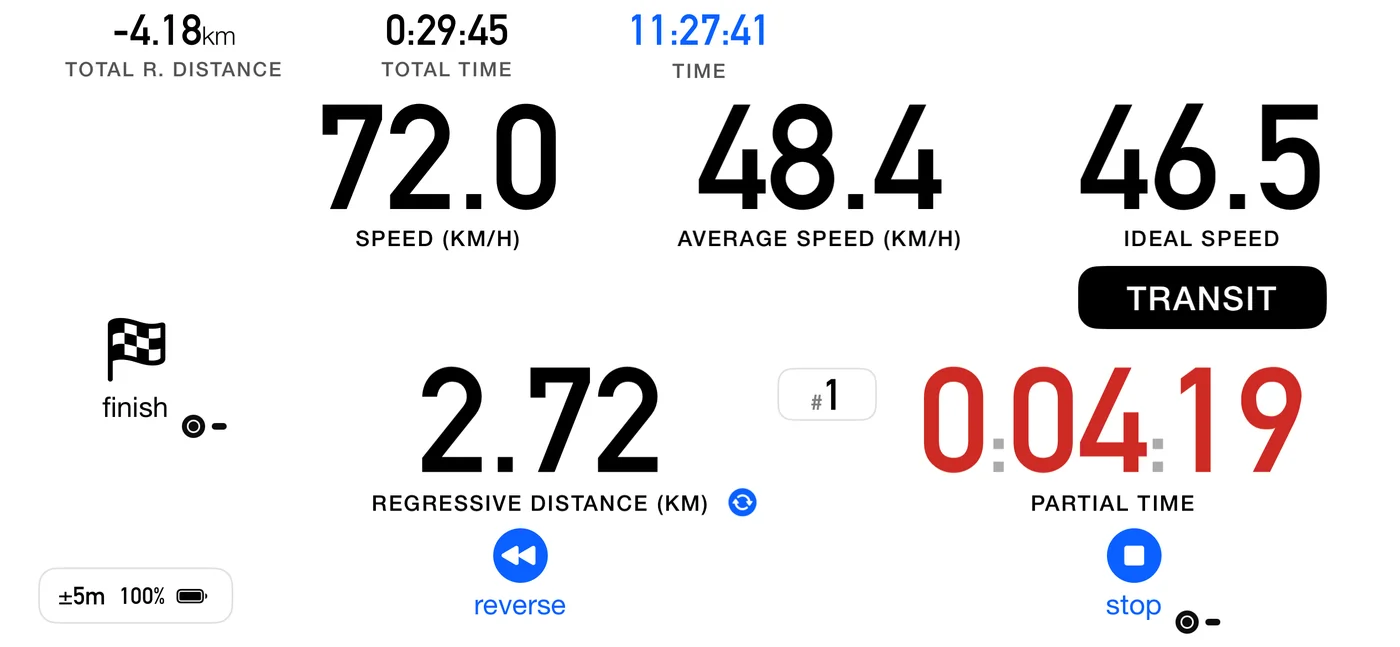
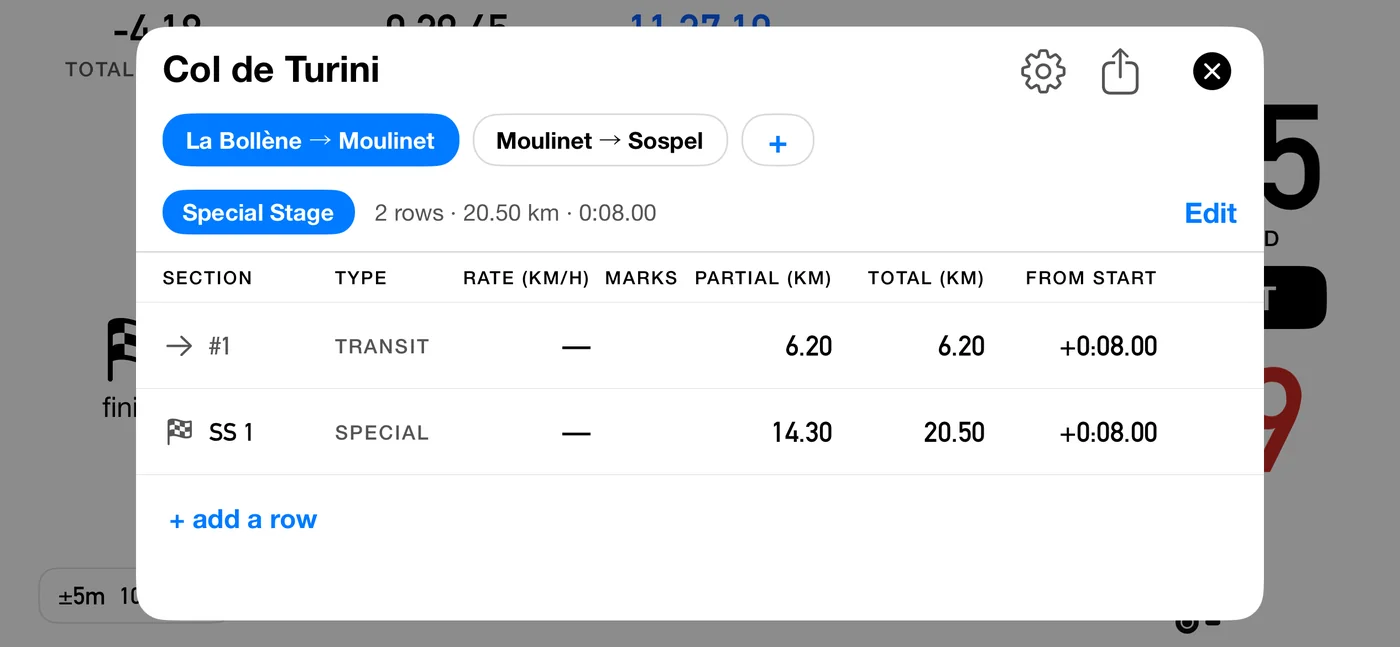
Flat out, fastest elapsed time wins, so there is nothing to hold and nothing to be off. No speed sign, no pace tip, no ideal time. The readout is current speed, time is elapsed only, and the pause button is hidden because there is no clock you may legitimately stop.
Each crossing banks a split.
A Special Stage part lives inside a roadbook, as one piece of a whole event. If what you want is to repeat the same course and keep your best run, that is Stage mode, not this: see 3.1.
6.6 Open Road parts
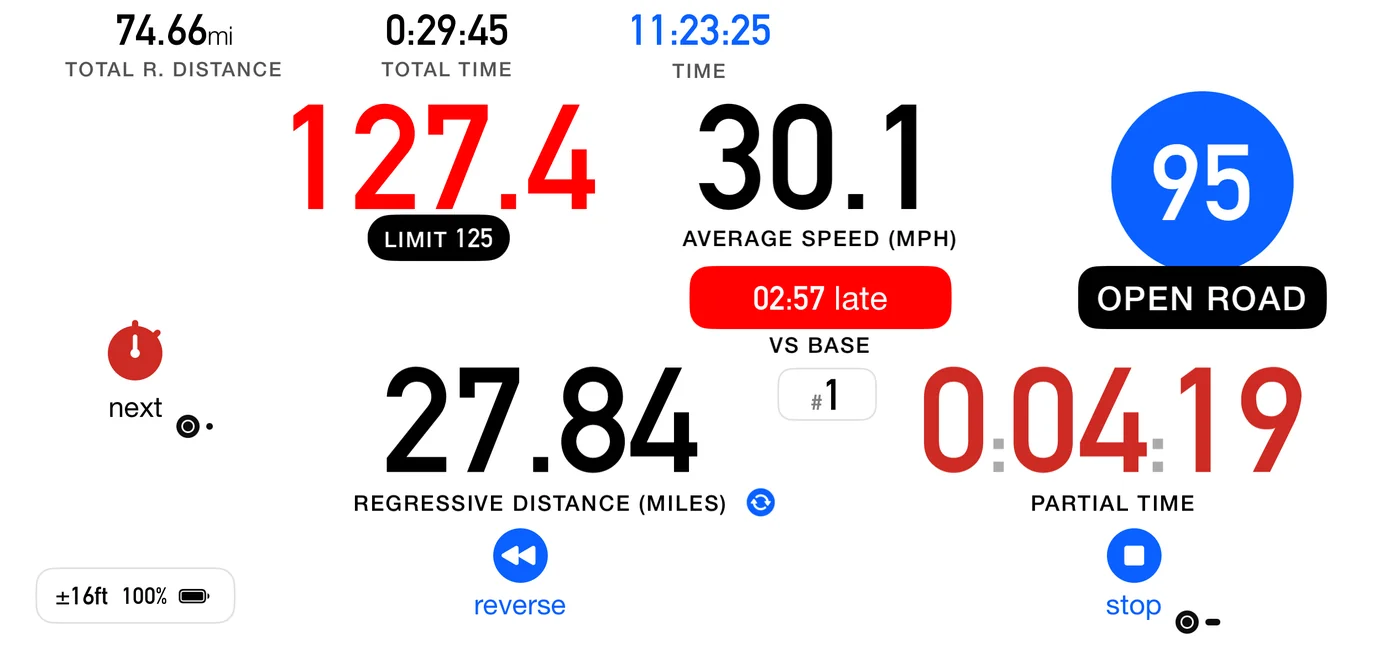
You are managing an average over a long stretch, with posted zones inside it.
- The base speed is the big blue circle: the average you are pacing, and the one the part's base time is computed from. The big circle on an Open Road part always holds the number you pace, never a ceiling. If your average since the last control falls below it, the tip asks you up to it.
- A max cap is shown as the MAX or LIMIT pill under the current speed, as described in 6.4.
- Pause is hidden.
The time pill reads differently here: same shape, opposite sense. An Open Road part is
scored against a base time: you are asked to meet it, and being early is not an error to
correct. The pill carries a direction word like it does everywhere else, but the on-target
word is on base rather than on time, its direction words are early and late
rather than ahead and behind (02:25 early, 00:00 on base, 02:56 late), and its caption
is vs base. The part that matters most: its colours are verdicts, not instructions.
| Pill | Means |
|---|---|
| Green | on the base time, within a couple of seconds. This is where you want to live |
| Blue | early: you are inside the base time and have margin in hand |
| Red | late: you are over the base time |
Green sits on on base, not on early, and that is the rule rather than a preference. An open-road base time is a time you are asked to meet, and there is no advantage in beating it: a part finished a minute under scores exactly what a part finished on the second scores. So green marks the state worth holding, and blue says you have room rather than saying well done. That is useful, because the margin you are spending buys nothing and your class ceiling is still there.
Late is the only side that costs you, which is why it is the only side that reddens. The three colours are the same three your per-leg card and your finish card use for the same run, so what you read at speed, at each control and at the end all agree.
Red stays red however far behind you are. The empty-outline state described in 6.2a belongs to parts where green is a promise that can stop being keepable; "behind the base time" is simply true, and stays true.
6.6a A part that crosses itself, and the tap that follows it
A row set to advance by distance crosses its own boundary at its mileage, and says so. With Voice on: if the part ahead was already announced on the approach ("CAST 40 ahead"), it only clicks; if not, it names the part you have just entered ("CAST 40", "Transit, ideal 40", or "target 120" for a Target Avg part). A pause row always says its length. With Voice off it clicks, and the target flashes either way. (Until 3pRally 5.1 it said the bare target, "40 km/h", which sounded exactly like the current-speed readout.) The puck under your thumb shows a circled A instead of the stopwatch, with the word auto in Advanced and Roadbook, for as long as the boundary ahead is one of these, so you can see at a glance that this one does not need you.
Tapping it anyway is allowed, and always will be. Your odometer can drift, a row can be mis-transcribed, and plenty of route books put a change at a sign rather than at a mileage, so your eyes have to be able to outrank our distance. The tap crosses the control there and then.
New in 5.0: a tap in the moment just after it fired is absorbed. You are told the control was already crossed, and nothing is banked. Before, that tap recorded a part of almost no length and moved you past a control you had never reached, which then shifted every part after it. You do not need to know in advance that you should not press: press, and if it was already done, the app says so.
This only ever applies to a tap that could not be a real crossing, which means one made while you are still at the very start of the new part. On a genuinely short part your tap goes straight through however soon it comes, because by then you have driven the part and the crossing is real. The same is true of a part with no distance on it, where your tap is the only thing that can cross it.
6.6b Pause parts
A pause is a halt at a place: a regroup, a service point, lunch, parc fermé. It has a duration and no length, so driving it is mostly a matter of what the app stops doing.
The odometer stops. Shuffling forward in a queue is not road, and counting it would walk your distance away from the organiser's for the rest of the route. The clock keeps running, because the time you spend there is real and the schedule already budgets for it: the regressive time counts your dwell down to zero, and that is your due-out.
The pause button does not stop a dwell, and neither does anything else you can press. The halt belongs to the organiser: it lasts as long as the road book says it does whether you sit in the car or walk to the coffee van. Pause still freezes your own clocks, which is what it is for when you are held unexpectedly, but it has no say over a scheduled halt. See 4.3.
Three readouts print a dash for as long as the pause lasts. The ideal speed, because a halt has no pace to hold. The average, because with the odometer stopped there is nothing to average. And the distance to the next control when you are running regressive, because a pause ends on time and not on a mileage, so a countdown there could never reach zero. A dash means the quantity does not apply here, the same thing the Rate column of the strip means by it. There is no pace tip either, for the same reason: you are not off a pace, there is no pace.
The regressive time keeps counting, and that is the one to watch: it is counting your dwell down to your due-out. If you are running progressive rather than regressive, the partial distance stays a real reading and simply does not move, which is true rather than meaningless. The average announcement goes quiet for the length of the pause too, so that what you hear agrees with the dash you are looking at. Current speed carries on being announced: it is a measurement of what you are doing, and it stays true while you shuffle forward in a queue.
The total average keeps falling while you sit, and that one is not a fault. Time passes and distance does not, so the figure drops for as long as the halt lasts. An organiser computes it the same way: a march table divides a sector's distance by its imposed time whatever happens inside it, which is why a sector holding two stamp controls can publish an average of 14 km/h on roads where every other sector runs at 32.
A pause set to advance by itself leaves when the dwell reaches zero rather than at a mileage, since it has none. On tap, you leave when you press next, whenever that is.
The app counts you out, as the start line does, because leaving a regroup is a start against a due-out time. With Settings ▸ Start ▸ Countdown on 5 or 10 sec, the last seconds of the dwell get the same numbers (Voice) or short beeps (Sounds), then Go! or the long beep. On a pause of 2 minutes or more you also hear one quiet One minute. (a double short beep with Voice off); on a shorter one that call would land too early to help. Off silences all of it. The countdown only talks; it never moves you on by itself. A pause set to advance by itself leaves at zero, as it would anyway. One set to advance on tap still waits for your next, and Go! is your cue to press it. The pause button has no countdown, since it ends whenever you say so.
6.7 When the app goes quiet
Where the route is chopped into pieces too short to read, the app tells you it is standing down rather than flashing things you cannot use: a GOING QUIET notice, then a small QUIET chip under the number for as long as it lasts. What remains is the time counting up, the distance and the current speed, which is to say the roadbook collapses into something close to Classic. That is exactly what experienced crews already do by hand on those parts.
6.8 The finish
Out of the box, the finish is never automatic (to make it automatic, see Finishing by distance below). Two things happen at the end of the route, and only one of them is automatic. Noticing is: the puck becomes a checkered flag as soon as you enter the final part, so you can see the end coming. Ending the run is not. You tap the flag and confirm Finish, or, with Confirm stop & reset off, you hold it. That crosses the last control, scores the final part and saves the track.
Your time and distance are taken the moment you press, when your finger or the Flic button goes down, so the hold or the dialog costs you nothing.
The confirmation, or the hold, is the point. Ending a run is not something to be one accidental press away from, because there is no way back into it. Every other boundary has one behind it to absorb a mistake: cross early and the next part simply runs long, and the route is back in step by the following control. Cross well early and the app notices, and offers you about nine seconds to undo it. The finish has neither. It is the only boundary with nothing after it, so the drift the whole route has gathered arrives there at once, with nothing left to put it right.
Flagging the last row to advance by distance is still useful and still allowed. It carries you into the final part by itself. It does not end the run.
Finishing by distance (Finish: auto)
Some events end where the organiser's distance says they do, with nobody at the line. For those, set Finish to auto in the roadbook's format sheet (5.10). It is off out of the box and works in every discipline.
With it on, the run ends by itself when the final part reaches its authored distance, measured the same way auto advance measures a part. Your time and distance are taken at that instant, the dashboard holds them, and a banner over the bottom buttons says FINISHED, with automatic · tap to cancel under it and a thin bar emptying over 5 seconds. With Voice on the app says "Finished" as the banner appears, so you know without looking; with Sounds only, it clicks. Then the app finishes exactly as if you had pressed: it crosses the last control, scores the final part and saves the track.
While Finish is on auto, the button that ends the run says so: the checkered flag reads auto instead of finish, and on a one-part roadbook, where stop is the finish, the stop button reads auto. After a cancel they go back to finish and stop.
- Tap the banner to cancel. Nothing is lost: the dashboard carries on, and you finish by hand as usual. It stays off for the rest of that run.
- Your own finish still wins. Finish by hand before the distance, or press during the 5 seconds, and your press decides.
- Calibrate first. The app can only be as precise as its distance. At 100 km/h, 1% of a long stage is several seconds; calibrate to the organiser's distance (7.2) before you rely on it.
- A final part that is a pause, or that has no distance written in, always ends with a press.
Finishing and stopping are different acts. Ending on the final part completes the route: it crosses that last control and scores it. Ending anywhere earlier is an abandon, and the button deliberately keeps saying stop rather than showing you a flag.
6.9 If you miss a control
The app tells you at the time. Once the odometer says you are more than 300 m, or 10% of the section, past a control you never marked, a notice appears and is spoken once: Past this control. Tap next if you crossed it. It says it once per section, and it stays quiet on the last section (past the end there means you have finished) and inside a dense chain.
It tells you rather than advancing for you. Marking the control itself would record a crossing that never happened, putting a control on your map and in your results that was never on the road.
Nothing is lost even if you drive on. The run summary tells you plainly, for example 1 control not marked, those sections were scored as one leg, and the parts either side are scored merged rather than silently mis-attributed. The app can also still recognise the finish by distance when your crossing count says you are further back than you really are: the puck becomes the checkered flag on distance alone, without waiting for a crossing you are never going to make.
6.10 Learning the calibration from your controls
Settings ▸ Roadbook ▸ Learn calibration from controls is off until you have driven with it, and it only works while following a roadbook.
Every control you mark pairs a surveyed distance with a measured one. What matters is why it takes a few kilometres, because a user expecting an instant correction will think it is broken:
- It measures across the whole run of controls, not one part at a time. A mark is late by a reaction time, and that lateness varies: at 40 km/h half a second is 5.5 m, so a single part carries about 11 m of uncertainty. On a 500 m part that is over 2%, which is larger than the error being corrected. Measured across several parts it becomes a fraction of a percent.
- The reason that works is that the marks cancel. The mark that ends one part begins the next, so its error counts once each way and disappears from the total. Only the first and last marks of a run are left, spread over everything between them, so the answer gets better the further you drive.
- Automatic crossings break the run. They fire when the app's own odometer reaches the roadbook distance, so they would compare the odometer with itself. A part that was cut short, or that swallowed a control you never marked, breaks it too.
- Your own calibration is used until it has enough road, and is replaced once it has, because by then the app has measured over kilometres of the actual event.
- Calibrating by hand starts the count again. Setting a calibration yourself, or clearing one, puts aside whatever run had built up; collecting begins at your next marked control. So a figure you have just entered is never replaced moments later, and the app has to drive a fresh few kilometres of marks before it may disagree with you.
The correction shows on the dashboard, and the first time it happens you get a one-shot notice: Distance calibrated from your controls.
6.11 Which distance a part is measured by
New in 5.0. A part is 800 m because the surveyor said so, and if our GPS reads 791 that difference is our error, not a fact about the road. So by default each completed part is now recorded at the distance your roadbook gives, falling back to the measured one when the part was cut short or was never given a distance. Settings ▸ Roadbook ▸ Use roadbook distances turns it off, and the run uses the distance measured as you drive, as it was before 5.0 and as every other mode still is.
You do not have to decide in advance, and you are not expected to. At the first control where the two distances visibly disagree, the result card says which one it used and offers USE MEASURED DISTANCE. Tapping it switches the run to your own distances instead, including the parts already behind you, so you never end up with one run measured two different ways. Your answer is remembered for the next run.
With roadbook distances on, the average caption sits on a black pill. The pill itself is the signal, and it is the one to read: it is there whenever the run will be recorded at the roadbook's distances, and it is absent when the run will be recorded at yours. Inside it the caption reads PROV. · AVG. SPEED. The figure above it is built from the ground you have actually covered, while the part itself will be recorded at the roadbook's distance the moment you cross its control. Both statements are true, so the caption says which one you are looking at.
Starting your own average takes PROV. off the pill, not the pill off the screen. While the
independent average is running (4.7 The independent average) that readout is your own measurement
and is never scored at all, so PROV. would be saying something untrue about it and the word goes.
The pill stays, because roadbook distances are still armed: end the window and the part's average
comes back under them, marker and all.
The offer is made once per run, and it always gets made. If no control ever shows a difference worth mentioning (on a one-part roadbook there is no intermediate control at all), it appears on the run summary at the finish instead, where you are parked and every part is already recorded. So a route with a single timed part still gets the choice.
With the setting off, the run summary makes the opposite offer. When the roadbook's distances would change the run's average on the summary, even only in its last decimal, the summary says it used the measured distances and offers USE ROADBOOK DISTANCE, which recalculates the run on the roadbook's distances and turns the setting on. The summary then offers USE MEASURED DISTANCE, so you can look at both and go back. The summary's USE MEASURED DISTANCE follows the same rule.
The saved run follows the last basis you picked on the summary. Its distance and average in Tracks and on the share card, and the legs in its leg table, are the ones the summary shows when you close it. With iCloud sync on, the run is uploaded once you close the summary, so your other devices get those figures too.
The time ahead or late on a card never depends on this setting. It is your arrival against the roadbook's schedule at the control, and there is no distance in it. Only the average beside it changes. That is why, with the setting off and your distance a little short, a card could read 2.4 s ahead beside an average just under the target: the time was against the schedule, the average against your own distance. The offer above is there to bring the two onto the same basis. If you calibrate (7.2 Calibrating against a measured distance), the measured distance is the calibrated one you saw on the dashboard.
Changing the setting in Settings part-way through a run does the same thing: the parts you have already driven are recalculated to match, rather than leaving the first half of the run on one distance and the second half on the other.
What you gain is the numbers agreeing: that part's average, its ideal time and its error all tell one story, built on the same distance the organiser is judging you against, and the app's own distance error no longer moves your averages.
⚠️ It does not protect you from marking late. The distance is pinned but the clock is not, so a mark a second late lands entirely in the time and pulls that part's average down, slightly more than it would with the setting off, where the extra metres you rolled are counted too. Over a whole run it comes out in the wash, because the mark that ends one part begins the next, so the errors cancel. It is on a single part's card that a late mark shows.
What you give up is the measured truth. If you drive a different route from the one surveyed, by reversing or by taking a wrong turn, that extra distance is real and the setting hides it.
Which one should you pick? On answers "did I hold the schedule", which is what the organiser is judging. Off answers "what did my car actually do", which is the honest number the day you drive a different route from the one surveyed.
The app does not decide this for you, and deliberately so: it cannot tell a wrong turn from a slipping wheel, and a large gap on a rough stage is usually calibration drift rather than a navigation error. You know which one it was.
The saved track always keeps its physical GPS distance either way, because the trace is a different object from the score. Each part keeps both distances, the roadbook's and yours, and a saved run's results show as they were recorded.
⚠️ The final average can differ from the one on screen as you finish. The live average is built from the distance you have actually covered. At the finish the run's average is worked out again from the recorded parts, which with this setting on means the roadbook's distances. If the two disagree, the run summary shows a slightly different average from the last one you saw while driving.
Because the two answers really do differ, the run card says which one it used, but only when the difference is large enough to see on screen.
6.12 The look-ahead
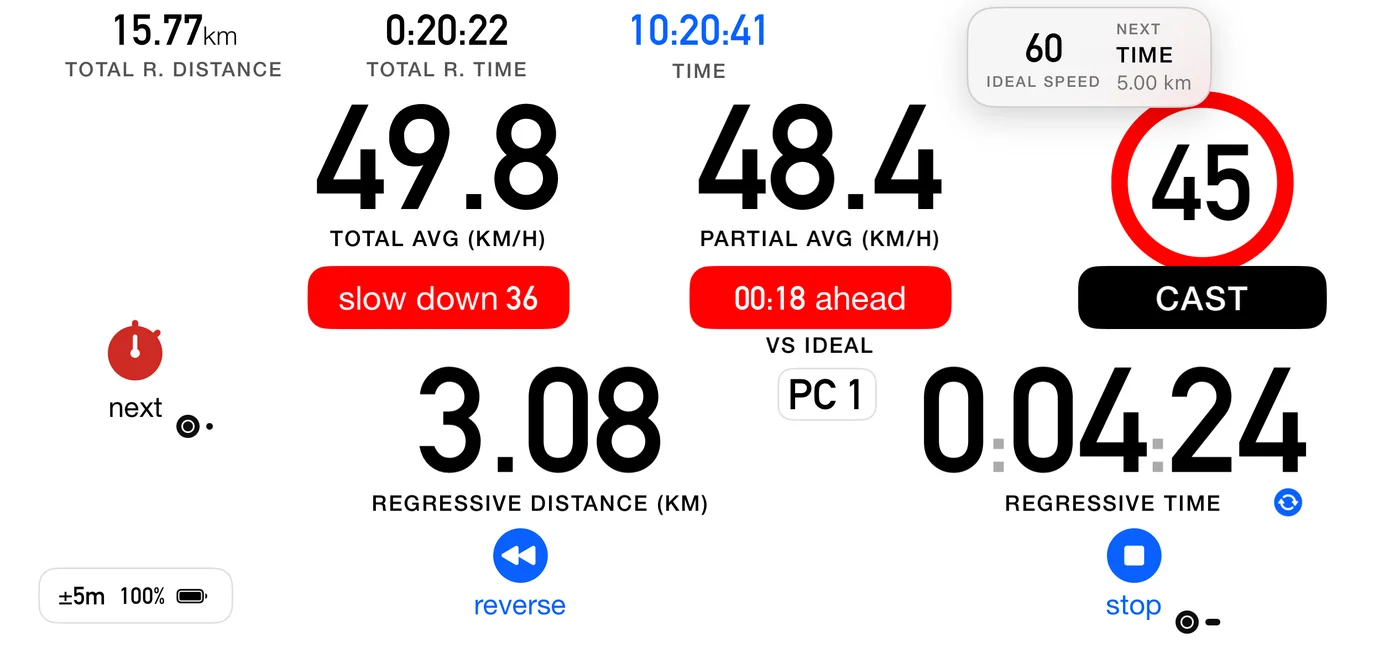
Show upcoming section reveals a brief frosted card as you approach a boundary, previewing the next real one: its type and its sign. It follows the same relevance rule as the voice, so it stays quiet through references. It reveals about twelve seconds out at your current speed, never later than 150 m, holds a few seconds and slides away, once per part.
Inside a pause it counts the twelve seconds on the clock instead, because a pause is a point and has no distance to run down: measured on the odometer it was satisfied the instant you arrived, so the card appeared at the start of the halt and told you what was next before the halt had begun. It now reveals about twelve seconds before your dwell is due to end, which is the same moment the pause is about to release you. A pause with no authored dwell has nothing to time the glance against and gets none.
The card names the length of what is coming, and for a pause that length is a time, because how long you are held is the only thing about a halt worth reading in advance. The spoken callout does not read the length out, for a pause any more than for a driven part: it tells you what you must act on, and a duration is something you glance at.
With Voice on and Announce upcoming section on, it also speaks a one shot callout.
6.13 Recaps
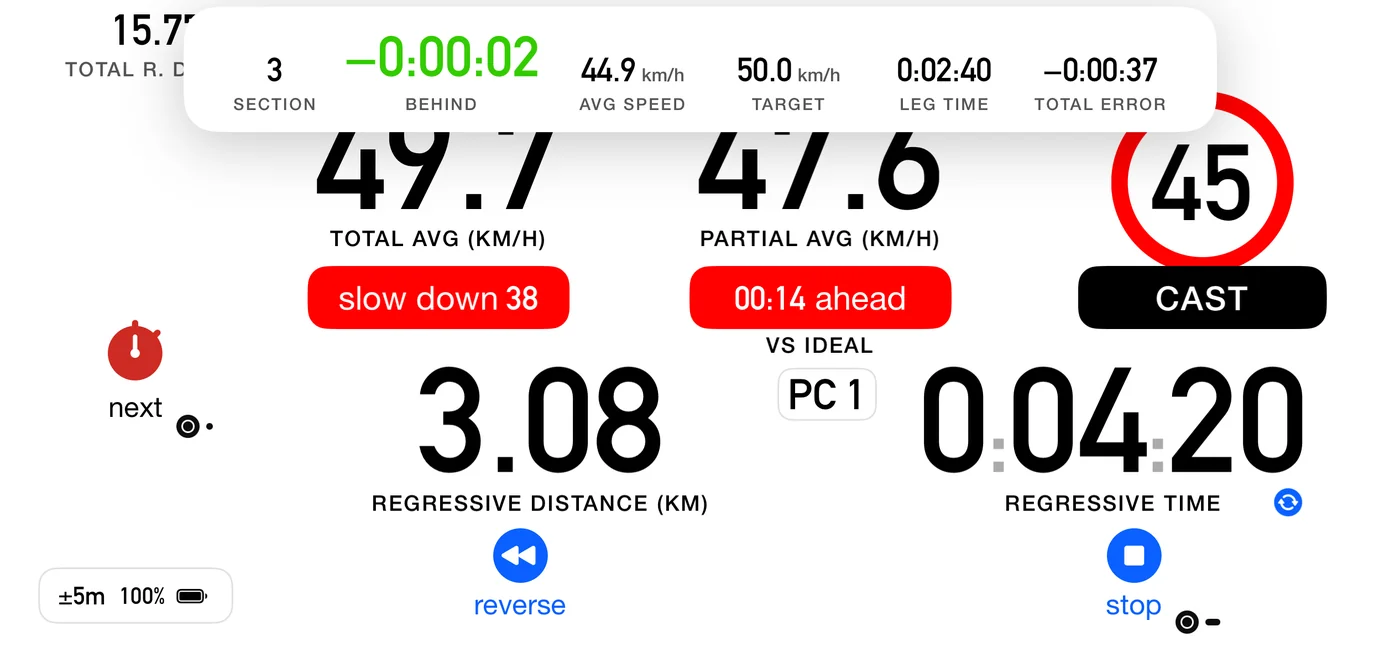
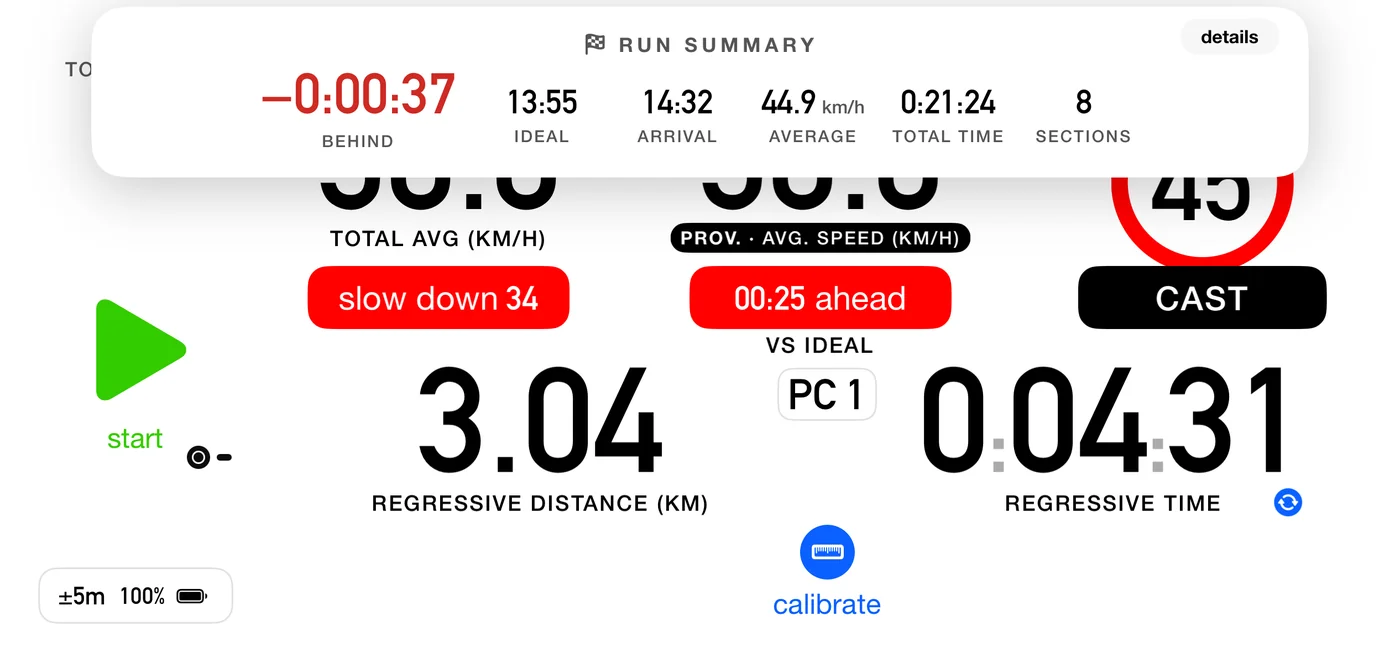
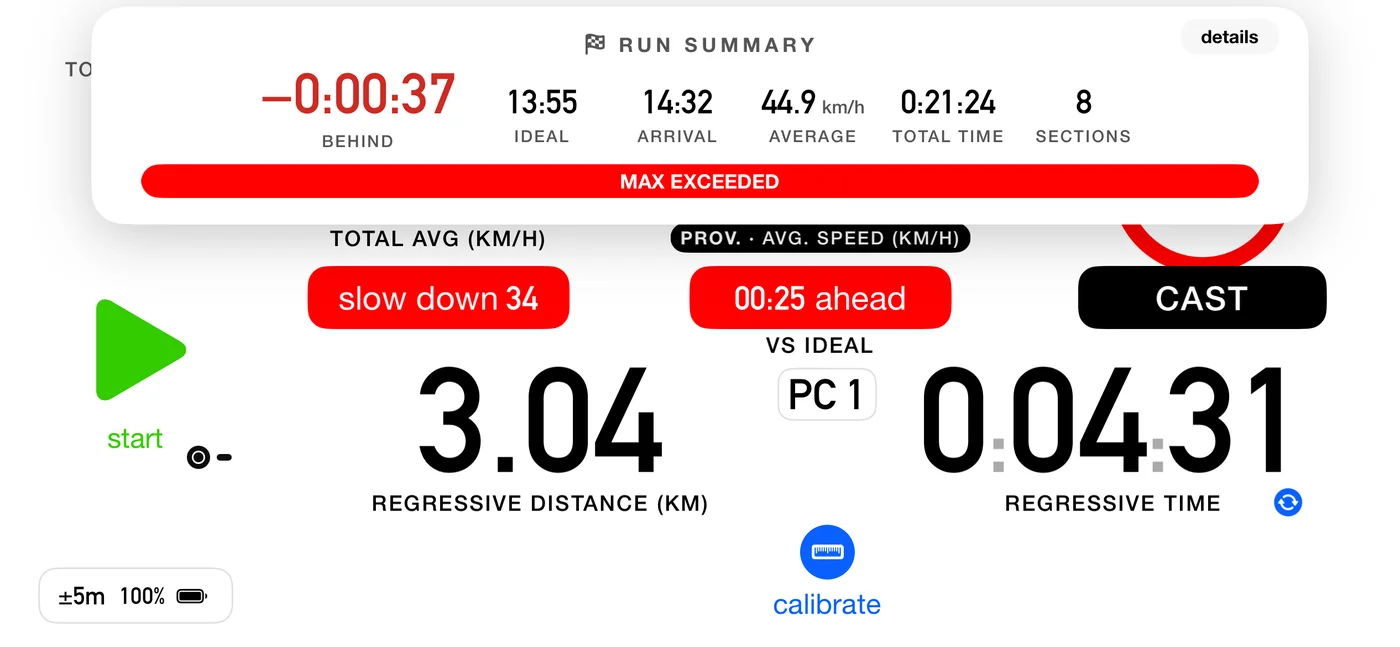
After each crossing a card shows that part's result, governed by Show result at each control. The card at the end of the whole run is a separate setting, Show run summary:
| Type | Hero | Colour |
|---|---|---|
| CAST and Target Avg | signed delta against the ideal | blue on time, green behind, red ahead |
| Open Road | signed delta against the base time | green on base, blue early, red late |
| Special | elapsed time, neutral | there is no target, elapsed is the score |
Note the flip: on a regularity part still being driven, being slow is green because you can still make it up. In Open Road nothing is recoverable in that sense, so green marks the base time itself and being early is merely blue.
The card also shows your ARRIVAL, the time of day at the moment you pressed, on the same clock and in the same format as the run summary. Crossing a control is when you write that time on your time card, and while the card is up it covers the dashboard clock, so it carries the time itself. On a part driven to a schedule, the time you were due sits beside it, captioned as your roadbook's vocabulary names it (due, target or ideal). A Special part, or a part cut short, shows the arrival alone: there is no schedule to be due against.
The count on the summary is CONTROLS crossed, not rows in your roadbook, and the two are not always the same number. A row whose boundary is an instruction rather than a control (a speed change, a reference you zero the trip at) moves you on to the next row without being something an organiser has a time for, so it is not counted. A nine-row roadbook with one such row reports eight. If you want the count to match your paperwork, that is the flag to check on the row: see 5.6.
The card at the end of the run is coloured differently, and deliberately so. While you are driving, those colours are instructions: green means push, because being behind is the recoverable side. Once the run is over nothing is recoverable, so the same colour would be a verdict, and it would be congratulating you on your worst result. In a regularity both directions are penalties and they are scored the same way, so the final summary greens neither:
| Final summary | Colour |
|---|---|
| Within half a second of the schedule | blue, on time |
| Anything else, in either direction | the warning accent, with the word saying ahead or behind |
Open Road greens a run that finished on the base time, and blues one that came in early: beating a base time earns nothing, so the colour does not congratulate it. A liaison likewise mutes early rather than rewarding it.
Splits are yours, and that is the point. In-stage splits are not official anywhere. That is exactly why we give them: where you lost the time, or the turnaround on an out and back, is information no board hands you. Not official does not mean not useful.
6.14 Counting down instead of up
The distance and the time can count down to the end of what you are on, instead of up. A toggle on the dashboard switches them, and from 5.0 so does Settings ▸ Dashboard ▸ Regressive distance and time. They are the same setting, not two: change it in either place and both agree. It is on by default.
New in 5.0: your choice is remembered. Before, the toggle only existed on the running dashboard and it reset to counting down every time the app was restarted, so a crew who preferred counting up had to set it again each morning.
- Distance counts down in every discipline. A known length can always be counted down.
- Time counts down everywhere except Special Stage and Open Road, where it stays elapsed even with the toggle on.
- A countdown that goes past zero means you are past the ideal, and it turns red.
On Special Stage and Open Road the toggle moves next to the distance, since that is the only thing it still governs there.
6.15 A one-part roadbook
New in 5.0. Some roadbooks are a single part: a total distance and a target average, which is how a lot of open-road classes are written. On those, counting down would tell you the same thing twice, because "how far to the finish" and "how far to the next part" are the same number.
So on those roadbooks the big partial is not a countdown. It is a trip, exactly like the one in Classic and Advanced: it counts up, and you can zero it whenever you like, at a sign, a junction or a village, to call distances off the roadbook. The total keeps counting down to the finish as usual, so nothing is lost.
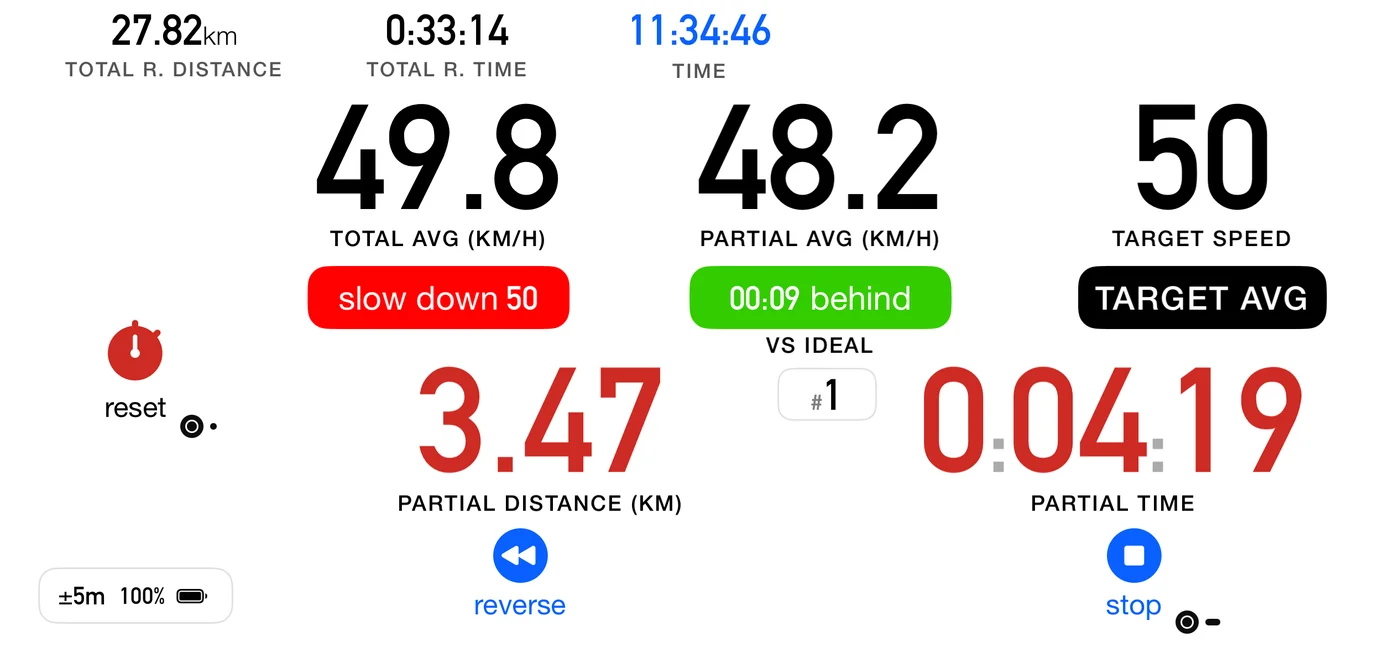
To zero it: tap next, or a single click on a Flic. On these roadbooks there is no control to cross, so that press has nothing else to do. The control is labelled reset rather than carrying the chequered flag, because a tap here does not finish anything.
To finish: press stop, exactly as you would in Advanced. It asks Finish? rather than Stop?, and it scores the part properly. That has always been true and has not changed.
If you have driven a one-part roadbook before, next did nothing at all: there was no control to cross and nothing to advance to, so the button sat there unused for the whole run. It now zeroes your trip. That is a button gaining a job, not changing one, so there is nothing to unlearn.
The badge counts your zeros. The small # badge shows #1 when you start and steps to #2,
#3 and so on each time you zero. On these roadbooks the part number would say #1 all day and
tell you nothing, so it counts your instructions instead: it answers which line of the paper am I
on, the same way Classic and Advanced have always counted.
Zeroing the trip changes nothing you are scored on. Your result and the distance recorded for the part carry on measuring the whole part. The trip is a counter for you, not for the organiser.
What the partial average does when you zero depends on the part's type, because the two kinds of part are asking different questions:
- On a CAST, Target avg or Time part, the partial average starts again from the zero. You are holding an average, and if you authored a single part in order to zero at landmarks off the paper, what have I averaged since that landmark is the question you are asking. It behaves exactly as the same readout does in Classic and Advanced.
- On an Open Road part, it keeps measuring the whole part, and its caption says total average speed rather than partial. There you are beating a base time over the part as a whole, so an average since a landmark scores nothing, and the readout says what it really is.
Counting down is a Settings choice here. The dashboard's countdown button is not shown on these roadbooks, because the only thing left for it to govern is the total, and it sits beside the partial. Use Settings ▸ Dashboard ▸ Regressive distance and time, which is the same setting, not a second one. The total still counts down to the finish when it is on, and can pass zero if you go beyond the distance in the roadbook.
If your roadbook has more than one part, none of this applies, whatever those parts are: next and the click go to the next part, and the partial counts down to it as described above.
The independent average is a separate thing and is unchanged: switch it on in Settings and it gives you a distance and time window that survives a control. On a Flic, a double click resets it, on any roadbook.
6.16 A row that zeroes the odometer
If the row you just opened carries the zero-odometer flag (5.6), the trip reading goes back to zero at that control. It zeroes the reading, not the measurement: your schedule, the distance to the finish, the marked controls and the recap totals all carry on untouched.
How you are told depends on whether you could see it happen:
- You tapped, and the odometer is on screen: the counter pulses. You crossed the control yourself and the number answers you directly, so there is no card.
- The row fired by itself, or the regressive readout is on: a brief "Total distance zeroed" card. With the regressive readout the total slot shows distance still to go, which this flag deliberately does not move, so without the card the instruction would fire with no visible trace at all.
Which of the two you get therefore follows Settings ▸ Dashboard ▸ Regressive distance and time (11.5). With it on, which is the default, the odometer is not the number in the total slot, so you get the card. Turn it off and the odometer is on screen, so a control you tapped yourself pulses instead. New in 5.0: that setting now keeps its value between sessions, so if you have switched it off you will see the pulse from then on, where before it went back to the card every time the app was restarted.
⚠️ It is the total that zeroes, not the partial. Both counters do read zero at that control, which is what makes it easy to misread, but for unrelated reasons: the partial is zeroed by every crossing, flagged or not, and the total only by this flag.
7. Distance: accuracy and calibration
Read this early. A tripmaster is only as good as its distances, and the organiser's kilometre will never equal your GPS kilometre. The organiser measured the route with a surveyed wheel; you are measuring it with satellites. Calibration is the setting that reconciles the two, and it matters in every discipline.
7.1 Required accuracy
![The GPS Diagnostic sheet: signal GPS [internal], signal health 94.0% with a green bar, latitude and longitude, accuracy ±5 m, altitude 1,200 m ±8 m, speed 72.0 km/h ±1.8, course 259°W ±2.0°, and the time of the last update.](/manual/img/gps.webp)
Settings ▸ GPS & devices ▸ Required accuracy: Low, Medium, High (default: High).
| Level | Accepts fixes within |
|---|---|
| High | 10 m |
| Medium | 20 m |
| Low | 50 m |
This is the horizontal accuracy a fix must meet before it counts toward distance. Demanding more gives cleaner distances but discards more fixes, which matters under trees, in canyons and between buildings.
- High is right for open roads and competition.
- Drop to Medium if the app is visibly ignoring movement in difficult terrain.
- Low is a last resort, and it will let noisy fixes into your totals.
A jump no car could drive is not counted. At the start, under a poor sky, the first position can be a rough one hundreds of metres from where you are, and the next good fix would add that whole gap to your distance. So a step between two positions that implies more than 300 km/h (or twice your Max speed, if that is higher) counts only what your speed covered in that time. A tunnel is not affected: after 40 seconds without signal, the kilometre since the entrance is a normal speed, and it counts in full.
A start under a poor sky waits for a usable position. If the accuracy is worse than your setting when you press go, the app is more lenient for the first 20 seconds and takes fixes within 50 m (or your setting, if that is looser), never worse. The run's distance starts from the first such fix, and until one arrives it counts no distance and shows no speed. A Wi-Fi or mobile-network position, typically hundreds of metres to 2 km off, never counts. (New in 3pRally 5.1. Before, any fix counted in those 20 seconds: a start in a car park or at a tunnel entrance could add hundreds of metres and show a speed and an average you were not doing.)
Settings ▸ GPS & devices ▸ GPS diagnostic, or a double tap on the GPS accuracy readout on the dashboard (the ±5 m), shows the live picture: the fix source, the accuracy, and why individual fixes were rejected.
The source reads GPS [external] when iOS is taking positions from an external receiver (a Bluetooth GPS such as a Bad Elf or a Garmin GLO), and GPS [internal] when they come from the device's own receiver (until 3pRally 5.1, plain GPS). iOS decides which one is used, not the app: if your external receiver is connected and the diagnostic says GPS [internal], iOS is not using it. GPS [simulated] means the position comes from software rather than a receiver, for example a location tool on a connected computer. Do not drive on it.
7.2 Calibrating against a measured distance
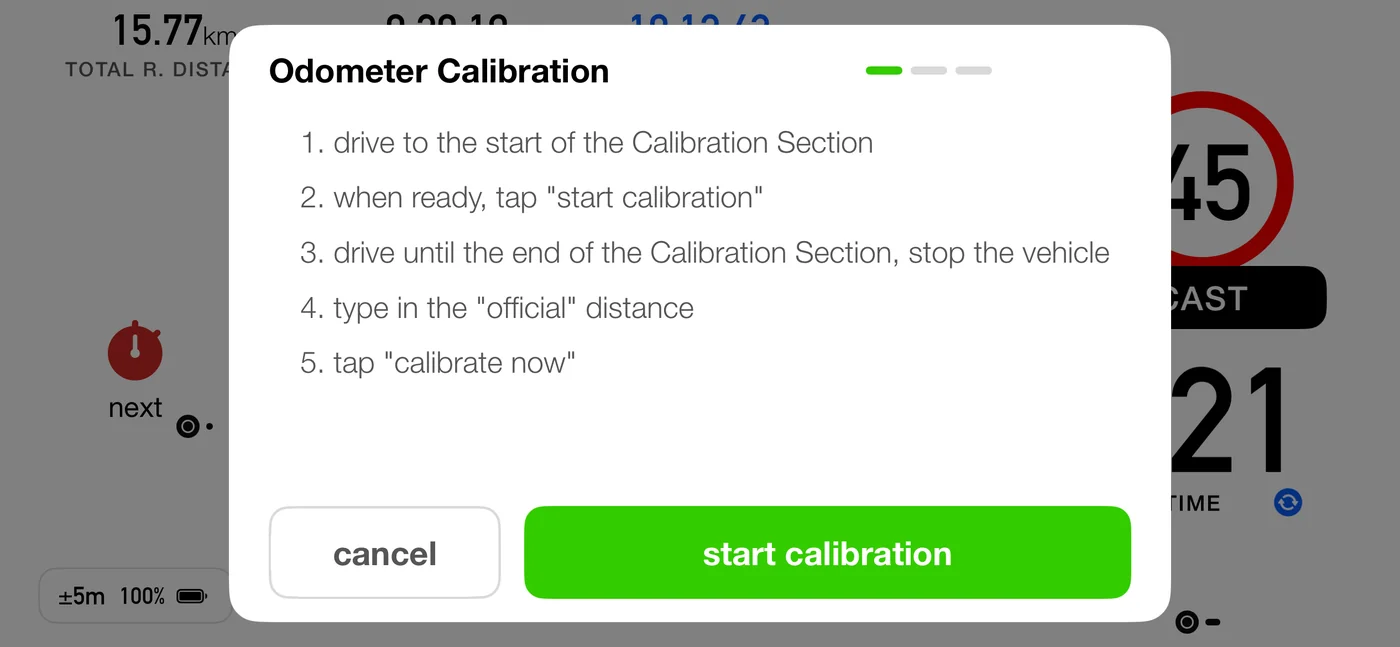
Reach the calibration screen from the calibrate button on the idle dashboard, in every mode. In Advanced and Roadbook it sits in the bottom row; in Classic and Stage it sits where stop appears once you are running, on the side opposite go. While running in Classic there is also a quicker way: double-tap a distance and set the correction as a percentage in the adjust dialog (7.4).
- Go to a known measured distance, ideally the organiser's own calibration leg.
- Tap start calibration at the beginning.
- Drive it, and stop at the end.
- Type the official distance.
- Tap calibrate now. It reads the distance you typed, so type it first.
- The screen shows
measured X · official Yand the correction it will apply. Confirm it, or restart to try again.
The measurement runs from the first tap to the second, and nothing outside them counts, so you can start and finish it while moving. A longer leg is still the safer one: any small error at either end matters less the further you drive.
The distance on the calibration screen can step back a few metres as you come to a stop. That is the reading correcting itself: between satellite fixes the screen runs slightly ahead of your car, and this screen always shows exactly the figure it would save, so it does not hold the extra metres the way the dashboard does. The dashboard lets them go too when the signal drops for more than two seconds (a tunnel, a car park): it steps back to the last measured distance rather than keep metres no fix will confirm.
reset calibration clears any correction back to zero.
⚠️ If you calibrated with 3pRally 5.0 or earlier, calibrate again. Those versions saved the calibration screen's correction the wrong way round, so it made the distance error larger instead of removing it. The update does not change a correction you already have, so redo the calibration or reset it. A correction the app learned from your controls (7.3) is not affected: it was always stored the right way round.
The sanity checks
A wrong calibration silently poisons every distance afterwards, so the app pushes back:
| Result | What happens |
|---|---|
| Correction over 30% | Rejected. The resulting calibration is too high. Please repeat the calibration. |
| Correction over 10% | Warning. Are you sure the distance you typed in is correct? |
| Difference smaller than your accuracy threshold | Warning: the difference is inside the noise, so the result means nothing |
⚠️ Calibrate over a long leg. A 1% error over 2 km is 20 m, which is inside GPS noise. Over 20 km it is 200 m, and the result is trustworthy.
7.3 Letting the app learn it from your controls
Settings ▸ Roadbook ▸ Learn calibration from controls (the Roadbook section appears while Mode is set to Roadbook) does the same job continuously while you follow a roadbook. Every control you mark pairs a surveyed distance with a measured one, which is a free calibration sample taken on the day's surface and pressures.
It is off until you have driven with it, and it needs a few kilometres of marked controls before it says anything:
- It measures across the whole run of controls, not one part at a time. A mark is late by a reaction time, and that lateness varies from mark to mark. At 40 km/h half a second is 5.5 m, so a single part carries roughly 11 m of uncertainty, which on a 500 m part is over 2%. That is larger than the error being corrected, so one part on its own can never answer the question.
- The marks cancel, which is what makes it work. The mark that ends one part begins the next, so its error counts once each way and drops out of the total. Only the first and last marks of an unbroken run remain, spread across everything between them, so the estimate improves the further you drive rather than staying as rough as its worst part.
- Automatic crossings break the run, since they fire when the app's own odometer reaches the roadbook distance and would compare it with itself. So does a part that was cut short, or one that swallowed a control you never marked.
- It has limits. The learned correction never goes beyond 5% either way. If your marked controls disagree with the roadbook's own distances by more than 3%, the app treats that as a mis-tap or a mistyped row rather than a car that far out, and starts counting again.
- Your own calibration is used until it has enough road, and replaced once it has. By then the app has measured over kilometres of the event you are actually driving, which beats a figure set before the start.
- Calibrating by hand starts its count again. If you set a calibration yourself, or clear one, the app puts aside whatever it had accumulated and begins collecting from your next marked control. Your figure stands until it has driven a fresh few kilometres of marks, so it can never replace something you have just set.
The correction shows on the dashboard, and the first time it moves you get a one-shot notice: Distance calibrated from your controls.
7.4 Adjusting a distance mid-run
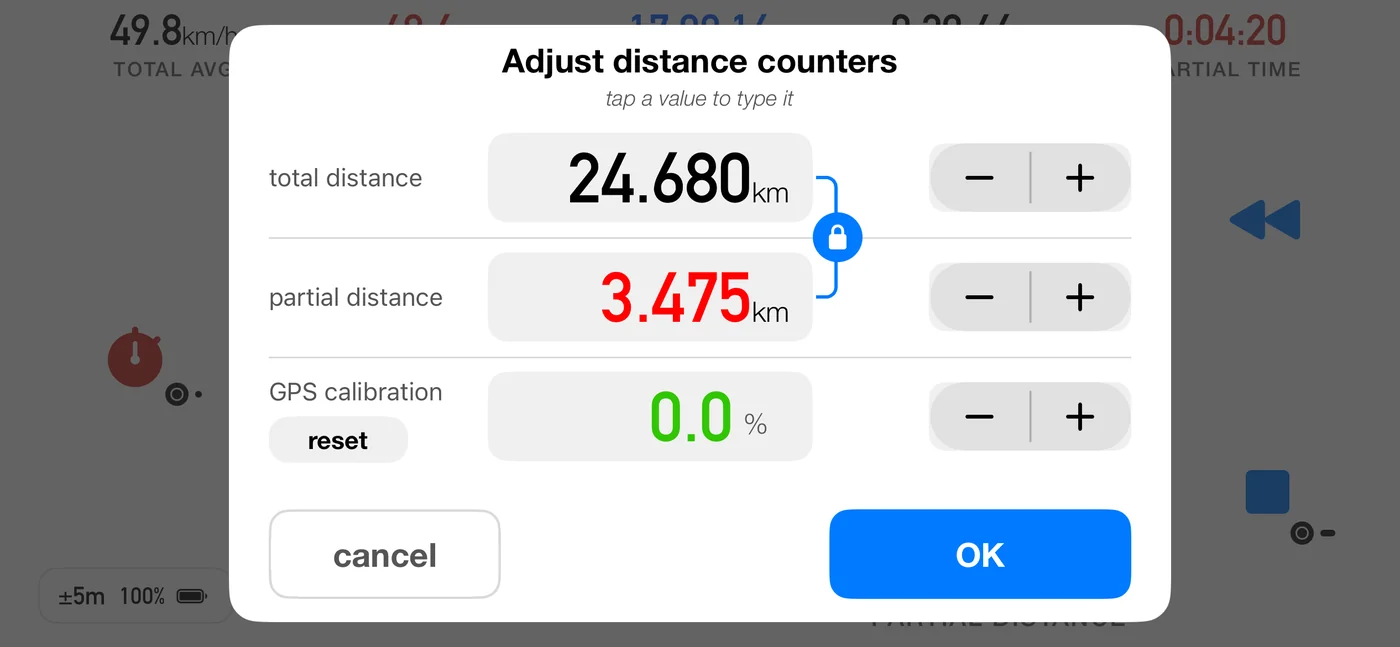
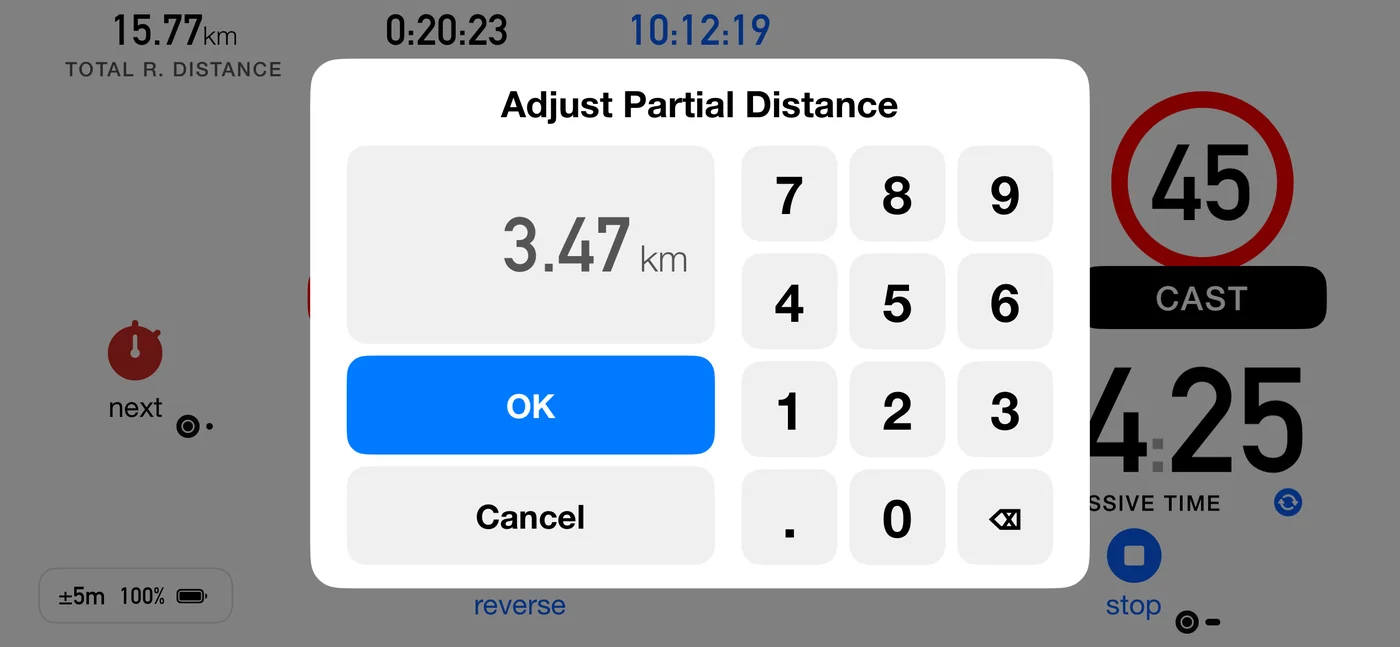
Double-tap a distance while running to open the adjust dialog.
- Adjust the total and the partial independently, or link them with the lock.
- The ± step is Settings ▸ Controls ▸ Adjustment steps: ±1 (default), ±10 or ±100.
- You can also type a value.
- The calibration chip sets the correction as a percentage, in 0.5% steps, up to 30% either way, when you already know the percentage.
When you apply:
- If you moved while the dialog was open, the app says how far and asks whether to apply anyway or cancel. Outside Roadbook mode it also offers to restart with the updated data.
- If you changed a distance and have no calibration set, it offers to turn that correction into an overall calibration for the whole track. Accept, decline (the distance change still commits), or cancel. It is only offered within ±30%.
Typing a percentage by hand is bounded the same way: Calibration must be between -30% and +30%.
7.5 When a calibration is active
Distances shown are the corrected ones, average speeds are computed from them, and a chip shows the active percentage beside the dashboard captions.
A calibration belongs to the car, so it is kept as a setting. It persists until you change or reset it. Stopping a run does not clear it, and neither does closing the app or iOS shutting it down in the background on a long liaison or overnight. The switch that applies it is kept with it, so a calibration is never restored in a state where it is loaded but not in use.
Changed: before this, a calibration lived only inside the crash recovery data, which the app deletes at the end of a normal run. Calibrating, driving, stopping and then quitting the app lost it silently, and the next leg was driven on raw GPS with nothing on screen saying so. If you are on an older build, re-check your calibration after any restart.
⚠️ A scored part in a roadbook can be recorded on the authored distance instead of the measured one, which is a setting and is separate from calibration. It is on by default, and the first leg where the two visibly disagree offers you the other basis. See 6.11.
7.6 What else moves your numbers
| Factor | Effect |
|---|---|
| Reverse | Distance is subtracted while it is engaged |
| Pause | No distance accumulates, and measuring restarts from your position on resume |
| Reduce GPS when parked | Lowers GPS power while stopped; full accuracy returns when you drive |
| Units | Settings ▸ Units & Format ▸ Units: Auto (default) follows the device region, Miles or km override it. This choice governs the driving screen at all times, including while you follow a roadbook written in other units, so the display can match your car's odometer |
| Distance format | Display only, with no effect on measurement. While you follow a roadbook, the driving screen shows the roadbook's decimals instead, so the figures match the page |
8. Sound and voice
Both exist for the same reason: keeping your eyes on the road. Voice is the richer of the two, and Sounds is the one that still works when you cannot make out speech over the engine.
Everything here lives under Settings ▸ Sound & voice.
8.1 Sounds
Sounds (default: on) is the master switch for tones:
- a click when you mark a crossing, where Voice is off and speaks instead,
- the audible countdown, at an auto-start and at the end of a roadbook pause,
- the partial-distance beep,
- the over-max alert on a capped part, for crews running on sound rather than voice.
8.2 The partial distance alert
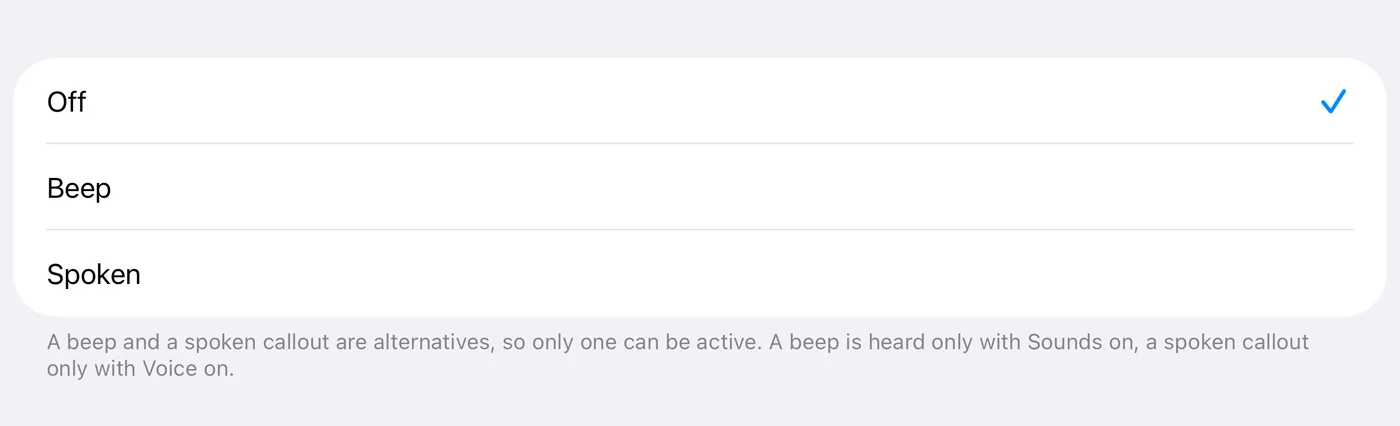
Partial distance alert is a single setting with three states: Off (default), Beep, or Spoken. Alert every sets the distance between two of them.
A beep and a spoken callout are alternatives, so only one can be active. That is why it is one row rather than two that could contradict each other. Picking one does not touch the main switches: a beep is heard only with Sounds on, a spoken callout only with Voice on.
The spoken distance is the partial distance on your screen, whichever way it runs: in a roadbook with Regressive distance and time on, the distance still to go to the next control; with it off, the distance driven, which a trip zero restarts. (Until 3pRally 5.1 a roadbook always said the distance to go, even when the screen counted up.) A distance that counts down says so: "0.7 kilometres to go". Within 50 m of a control, on either side, it says nothing, because the crossing has its own callout, and nothing is said while the FINISHED card is up. Further past a control you did not tap, the overshoot is still said, as a negative distance.
It is said with the decimals the screen shows: a roadbook's own while it is loaded, otherwise your Distance format setting. (Until 3pRally 5.1 it always followed your setting, so a two-decimal roadbook on a three-decimal phone showed 0,22 and said "0.223".)
Say time with distance (new in 3pRally 5.1; on for a new install, off if you updated) adds the partial time on your screen to the spoken distance: "1.2 kilometres, 3 minutes 20". With Regressive on it is the time still to go, and once that is past zero (you are late) nothing is added: the red readout and the time-to-ideal tip already say so. It is said to the second, without the word "seconds" once past the first minute, and as "1 hour 3 minutes 20" past the hour; in the first minute it is "45 seconds", because a bare number after a distance would sound like part of it. The row appears with Spoken, and the time is only said when Alert every is 0.5 or more: at 0.1 the callouts come every few seconds at speed, and the longer sentence would pile up behind itself. The words follow the app's language.
8.3 Voice
Voice (default: off) activates the audio session with ducking, so announcements dip your music rather than fight it. With the Bluetooth media button on, your music pauses while the app is open instead (9.6).
Announcement voice picks which installed voice speaks, from those installed for the app's current language. The name tells you the quality, and "Default" shows what it resolves to. Choosing one speaks a sample immediately so you can judge it.
Announcements are spoken in a slightly lower voice than normal, and the ones that repeat, speeds and time to ideal, a little faster too, so each one is finished before the next is due. That is deliberate, not a fault with the voice you picked.
To get more voices, install them in iOS Settings ▸ Accessibility ▸ Spoken Content ▸ Voices. iOS gives an app no way to do that for you. The list follows the app language, so changing the language changes the voices, after a relaunch.
What Voice says without being configured
| Event | Spoken |
|---|---|
| Voice turned on | "Voice On" |
| Tapping next | the word on the button: "next", also when it reads auto and you tap it anyway; "reset" on a roadbook with a single row, where it zeroes the trip (until 3pRally 5.1 next said "Reset", and that trip zero was silent) |
| Tapping reset | "reset" for a Quick restart (until 3pRally 5.1, "Go!"); "Average started" or "Average ended" when it starts or ends the independent average |
| Marking a split in Stage | the elapsed time, spelled out |
| Reverse on and off | "Going Backward", "Going forward now" |
| A row that crosses by itself | a click if the part ahead was already announced, otherwise its name ("CAST 40", "target 120"); for a pause, how long it lasts ("Pause, 1 minute"), so it never changes silently |
| The automatic finish arming (new in 3pRally 5.1) | "Finished", the word on the banner, as it appears; with Sounds only, a click |
| Arming and ending the independent average | "Average started", "Average ended" |
| No usable GPS fix for 10 seconds during a run (new in 3pRally 5.1) | "No GPS Signal!" once, then "GPS signal back" once when a usable fix returns. Usable means within 50 m (where the accuracy readout turns red), or your Required accuracy if that is looser, so a merely imprecise fix under trees does not set it off. Not in a pause, and never repeated, so a long tunnel costs two sentences |
Spoken speeds follow your Speed format setting, not the roadbook's, and drop a decimal that carries nothing. A target of 45,3 is announced as "45,3" when your setting has a decimal; a target of 80 is announced as "eighty", never "eighty point zero". A spoken number is not something you compare against the page character by character, so it answers to your own setting, and every needless decimal is another word to sit through at speed.
The warning and the confirmation say it the same way. When a part is coming up you hear the new target, and when it takes effect you hear it again; both come from the same formatter, so the number cannot appear to change between the two.
8.4 Announcements
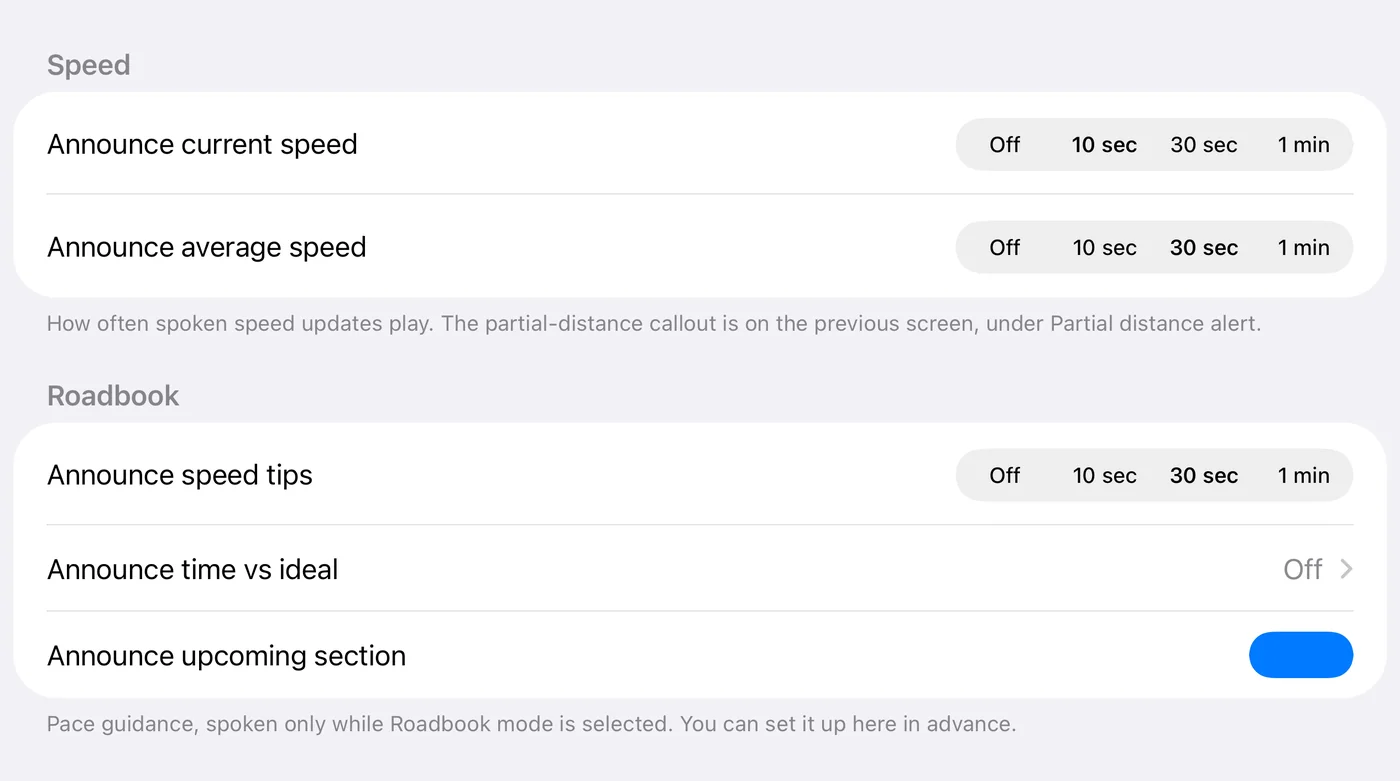
Confirmations cut in. When you press something the app answers immediately, stopping whatever it was saying. Announcements are periodic and come round again in a few seconds; the press does not, and a confirmation you hear once the readout has finished is answering a question you have stopped asking. The one-shot upcoming section callout cuts in too, because heard late it is no use. The periodic announcements never interrupt: they wait their turn.
Sound & voice ▸ Announcements holds everything the app beeps or says while you drive, in three groups: Distance (the partial distance alert of 8.2), Speed and Roadbook. It opens with Voice off too; the spoken rows are greyed until Voice is on.
Speed
| Row | Options | Default |
|---|---|---|
| Announce current speed | Off · 10 sec · 30 sec · 1 min | 10 sec |
| Announce average speed | Off · 10 sec · 30 sec · 1 min | 30 sec |
The average announcement carries the current pace tip with it, so you hear one phrase rather than two. It goes quiet inside a roadbook pause part, where the dashboard prints a dash in that slot for the same reason: with the odometer stopped there is nothing to average (6.6b).
It also waits for the first 10 seconds of each new section (3pRally 5.1): an average over a second or two after a control means nothing. If its interval comes round in that time, you hear it at the 10-second mark instead. (Until 5.1 it could say "299 km/h average" just after leaving a pause.)
Roadbook
Pace guidance, spoken only while Roadbook mode is selected. You can set it up here in advance.
| Row | Options | Default |
|---|---|---|
| Announce speed tips | Off · 10 sec · 30 sec · 1 min | 30 sec |
| Announce time vs ideal | Off · every 0.5 / 1 / 2 units | Off |
| Announce upcoming section | on / off | On |
- Speed tips speaks the pace instruction, and it never speaks when there is no tip to give.
- Time vs ideal speaks the live delta to the tenth, for example "3.2 seconds to ideal" (3pRally 5.1: to the hundredth before; the screen keeps its own precision). This is the announcement that lets a driver hold a regularity without looking at the screen.
- Upcoming section speaks a one-shot callout when the look-ahead appears, for example "CAST 80 ahead".
⚠️ Over a MAX cap, the spoken warning is "over max", not "slow down". The two mean different things: the pace tip is about the schedule, the cap is a limit. They are kept apart in the voice for the same reason they are kept apart on screen.
"Over max" is said the moment you go over (3pRally 5.1), ahead of anything else the voice was about to say, because a limit told late is told wrong. While you stay over it repeats on your Announce speed tips interval (or not at all with speed tips Off), and once you have been back under for 5 seconds the next crossing is announced at once again, so hovering right on the limit does not make it chatter. (Before 5.1 the first "over max" waited for the tips interval, up to a minute.)
In a roadbook pause row it stays silent (3pRally 5.1), as it already did with the pause button: a regroup is not timed, so moving the car around the parc is not a warning.
8.5 Choosing a setup
| You are | Suggested |
|---|---|
| Driving a regularity alone | Voice on, time vs ideal every 0.5, speed tips 30 sec, current speed off |
| Two-up with a navigator on the paper | Voice off, Sounds on, partial alert on Beep |
| On a capped part | Voice on for the spoken over-max, or Sounds on for the alert. One or the other, not neither |
| Touring | Partial alert Spoken every 1, everything else off |
8.6 Language
Settings ▸ Language overrides the app language independently of the device. It is saved at once but applied only on a full relaunch, because iOS reads an app's language when the app starts. While a change is pending the section says so and offers Restart now to apply.
9. Flic and media buttons
A Flic is a small Bluetooth button. Stuck to the wheel, the dash or the roll cage, it lets you start, mark and restart without reaching for the phone, which is the difference between a clean crossing and a fumbled one.
9.1 What each press does
| Press | Action |
|---|---|
| Click & Hold | Start or stop the counters |
| Click | Mark the crossing, the same as next. On a one-part roadbook, zero the trip (6.15) |
| Double-Click | Whatever the reset button does: quick restart where it is available, or start and end the independent average when you have that switched on (Stage has no independent average) |
A Flic stop saves the run (unless it is shorter than 20 m, a mis-start that is never saved). It cannot do anything else: with auto-save off the on-screen Stop? dialog asks you, offering Stop & Save Track as a second button (4), and a Flic press has no dialog to ask in. Keeping the run is the only safe reading of a question nobody can answer, so that is what it does.
While a Flic is connected, the dashboard shows small Flic badges beside the buttons your Flic can operate, so you can see which on-screen button your thumb is mapped to: one dot for a click, a dash for a hold, two dots for a double-click. With no Flic connected there are no badges, unless the Bluetooth media button is on: then they show its keys (9.6).
A hold does not cost you time. The press is timed the moment the button goes down, so the second or so you hold it is not added to your time or distance.
Starting is the one exception, and it happens when you release. On a parked dashboard a click does nothing, because only a hold starts a run, and a Flic cannot tell a hold from a click until you let the button go. So nothing happens while you are still holding, and the run begins the moment you release. The app says hold, then release to start at the bottom of the screen as soon as you press, so you are not left wondering, and the notice goes the moment the run starts. If it was a click after all, a reminder of the Flic gestures takes its place, in the same spot. Everything that ends a measurement is the other way round and is taken at the moment the button goes down, as above. If your start has to be exact, use Auto-Start (4.1), where the start is a clock rather than a press.
⚠️ At the finish of a roadbook, the click is refused and the finish fires on a HOLD. The badge changes to say so. Ending a run must never be one accidental press away. See 6.8. The exception is a roadbook with no control before the finish: there the click has no crossing to mark, so it zeros your trip instead and you finish with stop.
9.2 Which generation you have, and why it matters
This is the single most likely thing to go wrong, so be deliberate about it. When you tap Connect, the app asks which hardware you have:
- Flic 2 or Duo is what flic.io sells today, and what the app's own buy link points at. If you have just bought a button, this is almost certainly yours. Pairing happens inside 3pRally: a panel appears and you press and hold the button until it is found. You do not need to remove it from the Flic app first, since a Flic 2 can be paired with both at once.
- Flic 1 (legacy) is the original 2014 button, discontinued in 2019. Choosing it hands the button off to the Flic app, which is the only correct way to pair that generation, and the only reason the option still exists.
⚠️ Picking Flic 1 while holding a Flic 2 produces "button not compatible", and that message comes from the Flic app, not from us. The button then cannot be selected at all. It looks like a fault in 3pRally and is not. If you land there, come back and choose Flic 2 / Duo.
9.3 Setting one up
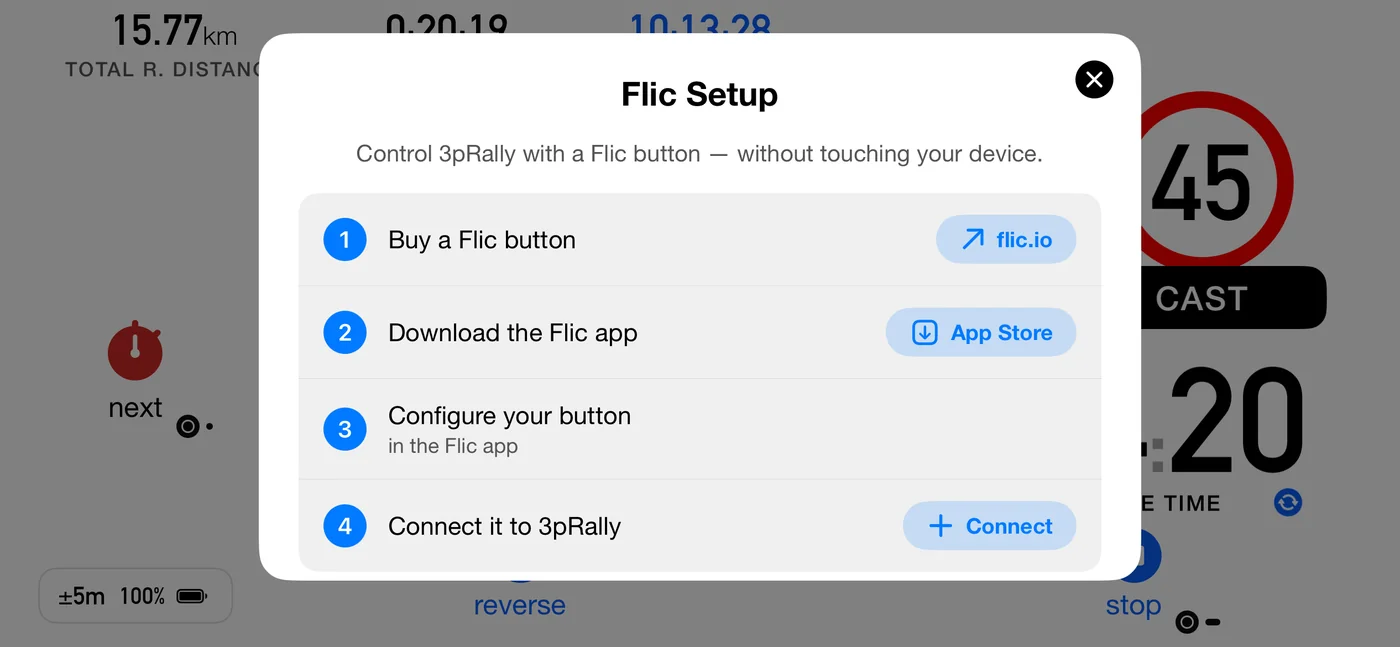
Settings ▸ GPS & devices ▸ Flic button. The row shows the status: no button connected, the button's name, or that several are connected.
If Bluetooth is off or not permitted, a banner appears above everything else, because nothing below it can succeed until that is fixed.
The sheet walks four steps:
- Buy a Flic button, linking to flic.io.
- Download the Flic app. This step ticks itself once the app is installed.
- Configure your button in the Flic app. Your button must be known to that app before 3pRally can use it.
- Connect it to 3pRally, which asks the generation question above.
Then, for a Flic 2:
- Click and hold the button. Tap to cancel.
- A Flic was discovered. You can now release the button.
- Connected to [name]
Once connected the screen switches to the connected state: a status banner, the gesture legend, and a Disconnect action.
9.4 When pairing fails
The app names the fix rather than showing a bare error where it can. The most common cause by far is simply that the button was never put into pairing mode: the instruction says click and hold, and it is easy to read that as a tap. Hold it for about seven seconds, until it appears on screen.
Backing out is not a failure. Tapping the panel to stop the scan, or cancelling the iOS Bluetooth dialog, is treated as a cancel rather than an error.
Other things worth checking:
- Firmware. Keep it up to date in the Flic app.
- Several buttons. If more than one is connected the app says so, and they all drive the same three presses. Disconnect removes one button at a time; tap it again for each.
- Bluetooth must be on and permitted for 3pRally.
9.5 Where to put it
- Wheel spoke, for a driver running alone: hold to start at the control, click at each crossing.
- Navigator's armrest, the usual rally arrangement: the navigator marks each control while reading the roadbook.
⚠️ Pair and test it before the event. The first connection needs the Flic app, an App Store download and a Bluetooth handshake, none of which you want at a start line.
9.6 Bluetooth media button
New in 3pRally 5.1. No Flic? A clip-on Bluetooth media button for the steering wheel (several brands make one, with Play/Pause, Next and Previous keys, sending the same media keys as a headset; what a held key sends varies, see below) can drive the run. Turn it on in Settings ▸ GPS & devices ▸ Bluetooth media button (off by default). Turning it on opens Test your button: press each key and watch a green ✓ appear at the end of its row. Under the rows, Last key received names what the phone actually got, with a count when a key repeats, so you can see what a hold sends. Nothing happens to your run while that screen is open.
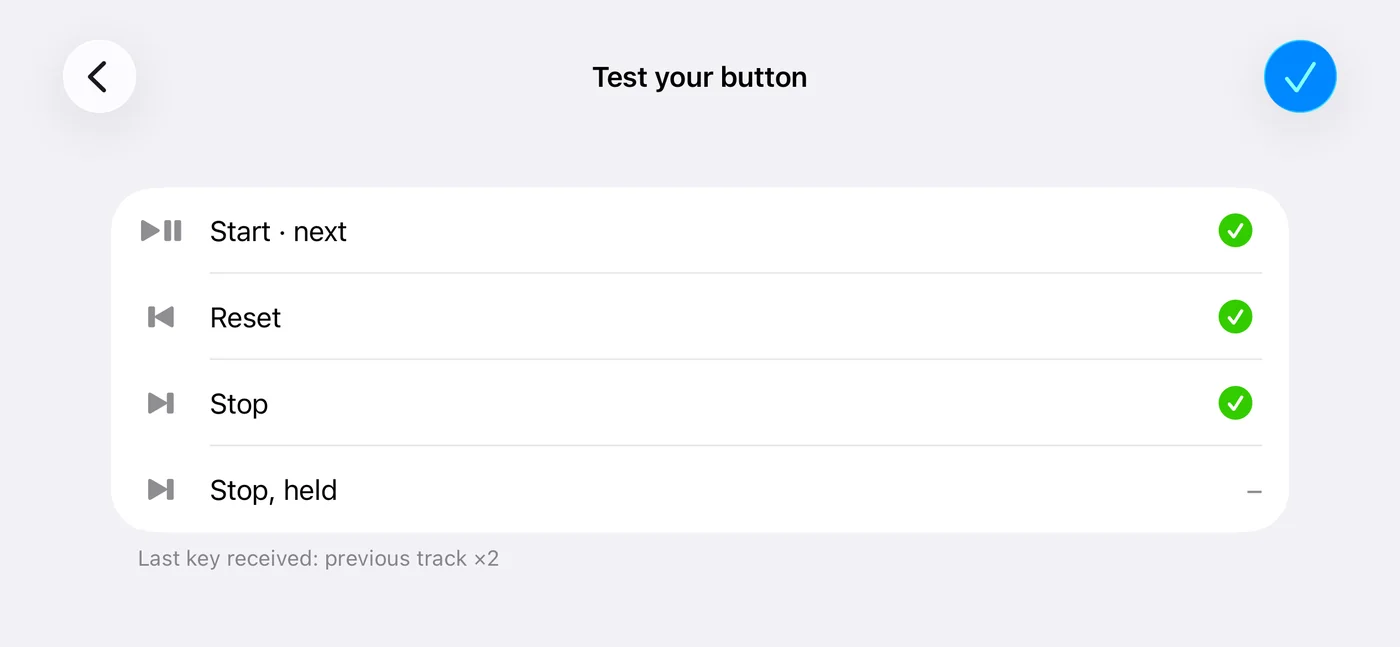
One wheel button at a time. While the media button is on, a Flic is ignored: it stays paired, and its row in Settings says Off (media button on). Turn the media button off to use the Flic again.
The badges show the media keys. While the media button is on, the small Flic marks on the dashboard buttons become the key that drives each one: ▶❚❚ on next and go, ⏮ on reset (where reset does something), ⏭ on stop and on the finish. They are faint until a key has reached the phone since the app opened: iPhone does not tell an app whether a Bluetooth button is connected, only when a key arrives, so faint badges mean "press a key to check the button is there".
| Key | Parked | Running | In a pause row |
|---|---|---|---|
| Play/Pause | Start | Mark the crossing, the same as next | Carry on |
| Next | Stop: press twice within 3 seconds, or hold it once if your button can | Stop, the same way | |
| Previous | Whatever the reset button does (a quick restart takes two presses) |
Play/Pause is usually the biggest key, so it gets the job you do most: start, then every crossing.
Stopping takes two presses because a press is not a hold, and the hold is what stops a Flic finish from being one accidental press. The first press says Press again to stop (on screen, and spoken with Voice on), and the run is timed at that first press, not at the second. Some buttons also send a signal when Next is held: if yours does (the test shows Stop, held ticked), one hold stops at once. A button stop is a Flic stop: it saves the run without asking (a run under 20 m is never saved), and at a roadbook's finish it is the finish. Any other command (another key, a button on screen, a Flic) answers Press again to stop with a no, and the message goes away.
A quick restart also takes two presses of Previous, for the same reason: it throws the run away. The first says Press again to restart. Where Previous starts the independent average instead, one press does it, because the moment you press is the measurement. Where reset has nothing to do (parked, paused, or a roadbook without the independent average), Previous says Reset is not available here.
Headsets are not supported. They send the same media keys, but they have no separate Next and Previous keys, so the test will not pass.
⚠️ Music and podcasts pause while the app is open and during a run. iPhone sends these keys only to the app that is playing audio, so 3pRally holds the audio, silently, the same way Voice turns other audio down as soon as the app opens. If something was playing, the app says so (Music paused for the media button). Leave the app while parked and your music is free again.
Some presses are ignored on purpose: any in the first 3 seconds after the button or a car connects (many send "play" as they connect), any in the first second and a half after 3pRally takes the audio over (a car can answer that with a "play" too), and a second press within half a second of the first (some send two signals for one press). A start is stricter: Play/Pause starts a run only with 3pRally on screen, and not in the first 10 seconds after a device connects, so the play button in Control Centre, on the lock screen or on a watch, or a car's late "play", never starts one. A start refused that way says so on screen (Button just connected: press again in a few seconds).
10. Tracks, map and sharing
Every run you record is a track: the line you drove, plus the pins for the start, each control you marked, and the end.
10.1 Saving
Settings ▸ Tracks & roadbooks ▸ Auto save tracks (default: on). With it on, stopping a run saves without asking: the stop dialog offers a plain Stop, and that one button saves. With it off, the dialog gains a second button, Stop & Save Track, and once you have a few tracks saved the app offers to turn auto-save on for you. On a roadbook's final control the same dialog reads Finish?, with Finish and Finish & Save Track.
A quick restart always saves the run it ends, whatever this setting says; with auto-save off, its confirmation tells you so.
New tracks are stored with no title. The app then looks up the start point and fills in a place name for you. Until it does, the list shows the date plus a prompt to name it, and each row also offers a description.
10.2 The map
Swipe left from the dashboard.
| Icon | Control | What it does |
|---|---|---|
| Folded map | Map type | Standard, satellite or hybrid |
| Location arrow | Follow | Keep the map centred on your movement. The arrow fills while it is on |
| Diagonal arrows | Zoom out | Fit the whole route on screen |
| Square with an up arrow | Share track | Render a share image of the route |
| List | Show saved tracks | Open the track list |
Two things it will tell you rather than do: the saved-track list does not open mid-run, and there is nothing to share before anything is recorded.
10.3 The share image
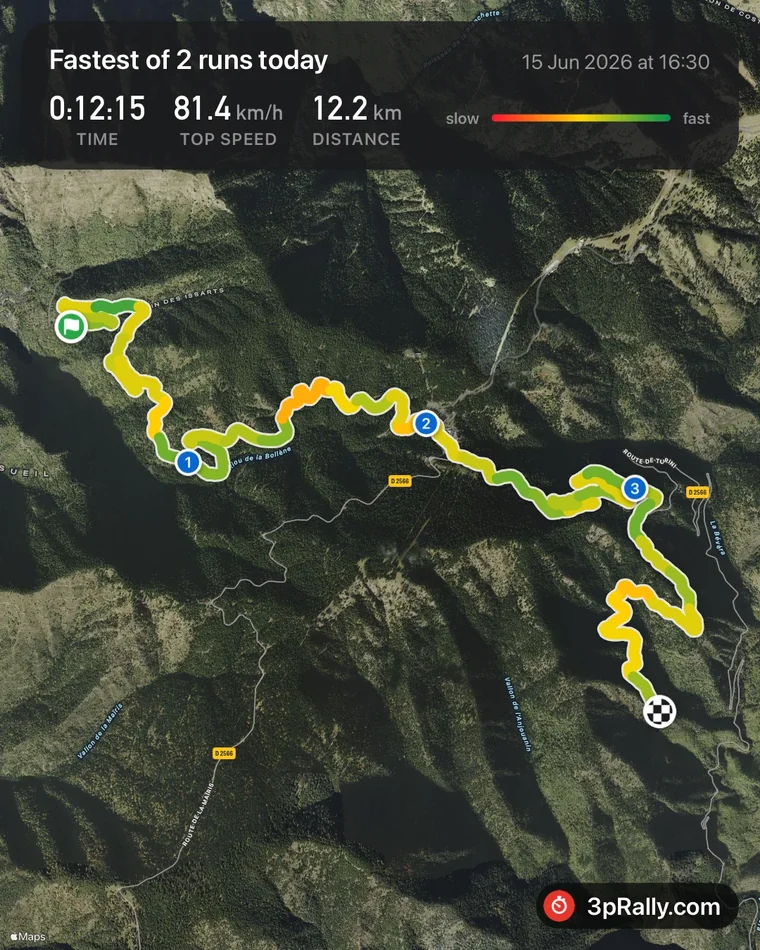
Share track renders a map card of your route with the headline figures, distance, time and average speed, and hands it to the iOS share sheet. You see a preview first.
On an ordinary card, time reads in minutes, as 40 min, or 2:05 h past the hour, with the unit in the same small type the distance and the speed use. A Special Stage card shows the exact elapsed time instead, as 0:12:15, because that time is the result.
A Special Stage run shares as what it is, rather than as a generic outing, and the headline counts the runs on that course, not everything you did that day.
It needs a network connection for the map tiles, and says so if rendering fails.
10.4 The track list
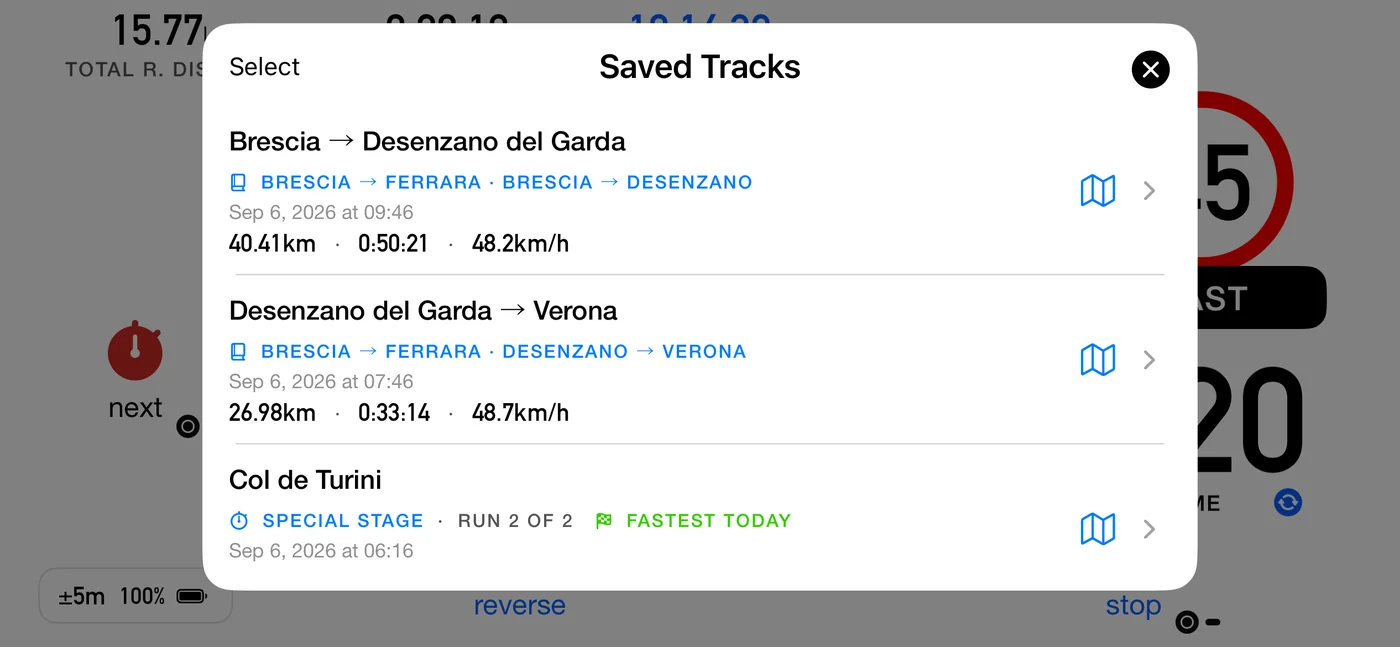
From the map's Show saved tracks.
| Action | How |
|---|---|
| Rename | Tap the title |
| Add a description | Tap the description line |
| Export | Tap the track to open its card, then Export, then GPX or KML |
| Delete one | Swipe, then Delete |
| Delete several | Select, then Delete |
Deleting confirms first. With iCloud sync on, the track stays in Recently Deleted for 30 days; without sync the deletion cannot be undone, and the confirmation says so.
Runs of the same course are grouped. Where you drove one course several times in a day, the list says which run of how many each track is, flags the fastest, and marks any run you discarded as not counted. It works out the grouping the same way the Stage screen does, so the two can never disagree: same day, starting within 500 m, and covering about the same distance (within 15% of the longer run).
Export formats
- GPX for most mapping and analysis tools.
- KML for Google Earth.
Both hold the track line and the waypoints, and the text inside them is always English regardless of your app language, because it is file content rather than interface.
The recap CSV
A roadbook run offers a third option in the same export sheet, alongside KML and GPX: Export results in CSV format. KML and GPX carry the coordinates; this one carries the outcome. It appears only on tracks that have a roadbook result to export, because a path format has nowhere honest to carry a scored table.
It writes a CSV file: one row per part, so you can sort, chart and compare two runs of the same course side by side. Open it in Numbers, Excel or any spreadsheet.
| Column | Holds |
|---|---|
roadbook, stage, segment |
which part of which book, numbered in driving order |
type, type_code |
the part's type: the word in your language, then a fixed code |
distance_km or distance_mi |
the distance the part was scored on |
distance_measured_km or _mi |
the distance the app measured |
distance_authored_km or _mi |
the distance the roadbook gives. Parts recorded before these two columns existed leave both empty |
time_s, ideal_time_s, delta_s |
seconds, always, so nothing has a clock format to misread |
avg_speed_kmh or _mph, target_speed_kmh or _mph |
held and asked-for pace |
max_exceeded, completed |
yes or no |
Three things are worth knowing before you build anything on top of it. The column headings
are always English, so a formula you write once keeps working after you change the app
language. The type word is translated and type_code beside it never is, so use
type_code when you compare files, and the readable word when you are just looking.
Numbers always use a dot and never group thousands, whatever your region shows on
screen, because a comma would collide with the commas separating the columns. Distances and
speeds follow your km or miles setting, which is why the heading names the unit.
10.5 iCloud
Settings ▸ Tracks & roadbooks ▸ Sync to iCloud keeps a copy of your saved tracks and your roadbooks in your own iCloud account. The section and the row are both named for the two, because on the Rally apps the one switch covers both.
Everything stays on this device, and the app works fully without iCloud.
Turning it on checks the account is usable first and explains any failure rather than silently doing nothing: not signed in, temporarily unavailable, restricted, or unreachable. If the check fails the switch flips back.
Once on, existing tracks and roadbooks are copied up, opening a list pulls the latest, and deletions become soft deletes that reach Recently Deleted on every device.
⚠️ iCloud is a backup and a convenience, not a competition tool. It never rewrites the route you are currently driving. See 5.14.
10.6 What a track holds
- The recorded line.
- Pins: the start, each control you marked, and the end. Tap a pin to see what it is, its number and the distance at that point, with its coordinates underneath. An unscored boundary drops no pin, which is what keeps your totals agreeing with the organiser's sheet. A control pin is titled with your own Segment name word, so it says the same thing the dashboard and the summary say.
- Your own landmarks. Zeroing the trip on a single-part roadbook drops a pin too, where you pressed. It is drawn differently from a control pin on purpose: a control is a place the organiser measured and scores you at, and this one claims nothing except that you zeroed there. It stays out of the summary and out of the exported results for the same reason. Useful when you are zeroing at landmarks off the paper and want to see afterwards where you actually did it.
- The title and description you gave it.
That is what makes a track useful afterwards. An argument about whether you really were at that junction is settled by opening the pin.
11. Settings reference
Swipe right on the dashboard to open Settings, or on iPad tap the gear icon at the top left. The sections appear in this order:
- 11.1 Mode
- 11.2 Roadbook or 11.3 Stage, depending on the mode
- 11.4 Start
- 11.5 Dashboard
- 11.6 Controls
- 11.7 Sound & voice
- 11.8 Units & Format
- 11.9 Energy saving
- 11.10 Tracks & roadbooks
- 11.11 GPS & devices
- 11.12 Subscription
- 11.13 Language
- 11.14 About
Every screen inside Settings has Back at the top left, one level up, and Done at the top right, which closes Settings from any depth and takes you straight back to the dashboard. A setting takes effect as soon as you change it, so closing from a deep screen loses nothing. A screen with its own buttons at the top right, such as an editor's Save, keeps those instead.
The second section is mode-scoped: it holds the settings that configure only the screen you are about to drive, and it sits directly under the mode that summons it. Classic and Advanced have none, so nothing appears there at all.
Below, each row is listed with its options, its default, and what it implies once you are moving. The names are the English ones; if your app runs in another language, chapter 15 gives every section and every row in yours.
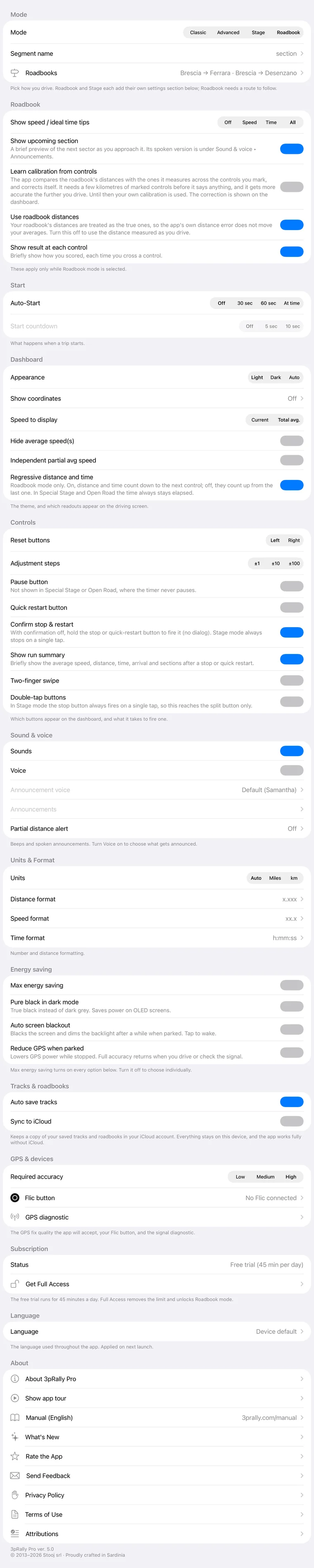
11.1 Mode
Pick how you drive. Roadbook and Stage each add their own settings section below; Roadbook needs a route to follow.
| Row | Options | Default |
|---|---|---|
| Mode | Classic · Advanced · Stage · Roadbook | Advanced |
| Segment name | picker: section · stage · leg · section · stage · leg | section · stage |
| Roadbooks | opens the library and editor |
- Mode is covered in chapter 3. Selecting Roadbook with nothing to follow does not switch: it offers to create one. Legacy customers are shown the Lifetime Pass offer rather than the mode.
- Segment name sets the word the whole app uses for one timed piece of road, and the grouping word that follows it. Each option in the picker shows that pair: section · stage, leg · section, stage · leg. It is the pair that differs, not always the first word, because in some languages two of the choices share the same word for the timed piece and are told apart by the grouping. The three words swap roles rather than nesting. Pick the one your event's paperwork uses. See 1.4.
- Roadbooks shows what is currently selected on its right-hand side, so you can see what you are about to drive without opening anything.
11.2 Roadbook (only while Roadbook mode is selected)
These apply only while Roadbook mode is selected.
| Row | Options | Default |
|---|---|---|
| Show speed / ideal time tips | Off · Speed · Time · All | All |
| Show upcoming section | on / off | On |
| Learn calibration from controls | on / off | Off |
| Use roadbook distances | on / off | On |
- Show speed / ideal time tips decides which of the two live guidance readouts appear. On Speed you get the tip and no seconds, which is why the tip itself carries the deficit and names a speed to drive. Changed in 5.0: the default is now All, so the time-against-ideal readout is there from the start. It used to be Speed, which hid the number most regularity crews steer by until you went looking for it. If you had left this on Speed, the update switches you to All once; if you had switched the tips Off, that is left alone. Either way the row is still yours to set. The spoken announcements are separate and are not changed: see Sound & voice ▸ Announcements.
- Show upcoming section is the brief look-ahead. Its spoken version lives under Sound & voice ▸ Announcements.
- Learn calibration from controls lets the marks you make refine the distance calibration as you drive. It is off until you have driven with it, and it never acts on a single mark: it measures across an unbroken run of marked controls and needs a few kilometres of them. A calibration you set yourself is used until it has that much road, and is replaced once it has, because by then the app has measured over kilometres of the event you are driving. Setting or clearing a calibration by hand starts its count again, so it can never replace a figure you have just entered. See 6.10.
- Use roadbook distances decides which distance a finished section is recorded at. On, the default, it is the distance your roadbook gives: your average answers "did I hold the schedule" and the app's own distance error no longer moves it. (It does not protect you from marking late. See 6.11.) Off, it is the distance measured as you drive, and your average answers "what did my car actually do". You do not have to decide in advance. The first control where the two visibly disagree, the result card says which one it used and offers USE MEASURED DISTANCE, which recalculates the whole run, including the parts already behind you. That offer appears once per run. See 6.11.
11.3 Stage (only while Stage mode is selected)
These apply only while Stage mode is selected: splits, distance prominence, and the partial-time line.
| Row | Options | Default |
|---|---|---|
| Distance | Large · Compact · Off | Compact |
| Partial line | on / off | On |
| Live gap to best | on / off | On |
- Partial line is the second time under the main clock. Tap the timer to swap which one leads.
- Live gap to best shows, while driving, how far ahead or behind your best run of the day you are at the same point. It is your own measure, not official timing. See 3.4.
There is deliberately no toggle for the runs strip. It is hidden while you drive and only appears once you are parked with two or more comparable runs, so hiding it would buy nothing and cost the point of the mode.
11.4 Start
What happens when a trip starts. Countdown counts you down at an auto-start and at the end of every roadbook pause, with a call one minute before a long pause ends. Off silences all of it.
| Row | Options | Default |
|---|---|---|
| Countdown | Off · 5 sec · 10 sec | 5 sec on a new install; an update keeps yours (Off if you never set it) |
| Auto-Start | Off · 30 sec · 60 sec · At time | Off |
Countdown needs Sounds or Voice to be audible. It plays before an auto-start and at the end of every roadbook pause (6.6b). 30 sec and 60 sec start on a round clock time, not exactly that long after go. See 4.1 for that and the "At time" rules.
11.5 Dashboard
The theme, and which readouts appear on the driving screen.
| Row | Options | Default | Notes |
|---|---|---|---|
| Appearance | Auto · Light · Dark | Light | Auto follows the device |
| Show coordinates | Off · Decimal degrees · Degrees, minutes, seconds | Off | Off by default: on a distance-based roadbook there is nothing to check them against |
| Speed to display | Current · Total avg. | Total avg. | Disabled when averages are hidden. Overridden in Special Stage and Open Road, and on any sector carrying a posted MAX, all of which force current speed |
| Hide average speed(s) | on / off | Off | The average is replaced by current speed, so the slot is never left blank. Turning it on disables Speed to display and forces the independent average off |
| Independent partial avg speed | on / off | Off | Turning it on forces Show reset button off |
| Max speed | Off · a speed in your units, in steps of 5 | Off | Your own never-exceed speed, in every mode. A roadbook that sets its own limit replaces it for that event |
| Regressive distance and time | on / off | On | Roadbook mode only. Same setting as the toggle beside the readout on the dashboard |
- Speed to display. Changed in 5.0: the default is now Total avg., not Current. You pace a leg against its average, so that is the number a crew actually drives to; current speed was a general trip-meter's default from before the app had rally modes. If you never touched this row, the update moves you to Total avg.; if you had set it yourself, your choice is kept.
- Max speed. New in 3pRally 5.1. Your class top speed, set once instead of written into every roadbook, and it applies in all four modes. Go over it and the speed digits turn red, the alert beeps (or the voice says "over max") and the run summary records it. The limit sits under your speed on a dark pill, SPEED · MAX 180, in every mode. It does not change Speed to display: if that slot shows the average, there is no speed on screen for the limit to sit on, so you only hear it. A roadbook that sets its own limit (a Tech speed, or a row's own max) speaks for that event and is used instead, higher or lower than yours. See 6.4.
- Regressive distance and time. With it on, the roadbook distance and time run down to the next control instead of up from the last one, which is what the dashboard captions mean when they say regressive distance and regressive time. Not to be confused with Countdown under Start, which is the call before you move off, at the start or out of a pause. New in 5.0 as a settings row: the toggle beside the readout on the dashboard has always existed, but it only lives there while you are running, and it forgot your choice every time the app was closed. It is one setting with two places to change it, and it now sticks, including a change you make mid-run. One thing worth knowing: distance counts down in every discipline, but time only counts down where there is a schedule to follow. Special Stage and Open Road have no ideal clock, so their time is always elapsed time whatever this row says.
11.6 Controls
Which buttons appear on the dashboard, and what it takes to fire one.
| Row | Options | Default | Notes |
|---|---|---|---|
| Reset buttons | Left · Right | Left | Which side the reset controls sit on |
| Adjustment steps | ±1 · ±10 · ±100 | ±1 | The step in the distance-adjust dialog |
| Pause button | on / off | Off | Never shown in Special Stage or Open Road, where the timer never pauses |
| Show reset button | on / off | Off | Turning it on forces the independent average off |
| Confirm stop & reset | on / off | On | Off means those buttons must be held instead of tapped. In Stage mode stop is always a single tap |
| Show result at each control | on / off | On | The brief card after each next: the score in Roadbook, the sector's time, distance and average in Classic and Advanced, none in Stage. Turning it off never hides a cut short crossing, because that card carries the undo |
| Show run summary | on / off | On | The card after a stop or a quick restart, in every mode |
| Two-finger swipe | on / off | Off | The screen swipes then need two fingers |
| Double-tap buttons | on / off | Off | In Stage mode the stop button always fires on a single tap, so this reaches the split button only |
Three rows compete for the same button and the same readouts, so they constrain each other: Hide average speed(s), Independent partial avg speed and Show reset button. Settle those before an event rather than during one.
11.7 Sound & voice
Beeps and spoken announcements. Turn Voice on to choose what gets announced.
| Row | Options | Default |
|---|---|---|
| Sounds | on / off | On |
| Voice | on / off | Off |
| Announcement voice | the voices installed for the app language | Default |
| Announcements | sub-screen: everything the app beeps or says, and how often |
Announcement voice is always listed, even when iOS has only one voice for the app language; its picker then tells you where in iOS Settings to add more. Announcements opens with Voice off too, because the partial-distance beep lives there and needs only Sounds; the spoken rows are greyed until Voice is on. (Until 3pRally 5.1 the partial-distance rows sat on this level and Announcements opened only with Voice on.)
Announcements ▸ Distance
| Row | Options | Default |
|---|---|---|
| Partial distance alert | Off · Beep · Spoken | Off |
| Alert every | a distance in your units | |
| Say time with distance | on / off | On for a new install; an update keeps it Off. Shown with Spoken; says the time only when Alert every is 0.5 or more (8.2) |
Alert every is not shown at all while the alert is Off, because an interval under an off alert is a value that is not true. Partial distance alert replaces what used to be two separate settings. A beep and a spoken callout are alternatives, so only one can be active. Picking one does not switch on Sounds or Voice: a beep needs Sounds on, a spoken callout needs Voice on.
Announcements ▸ Speed
| Row | Options | Default |
|---|---|---|
| Announce current speed | Off · 10 sec · 30 sec · 1 min | 10 sec |
| Announce average speed | Off · 10 sec · 30 sec · 1 min | 30 sec |
Announcements ▸ Roadbook
Pace guidance, spoken only while Roadbook mode is selected. You can set it up here in advance.
| Row | Options | Default |
|---|---|---|
| Announce speed tips | Off · 10 sec · 30 sec · 1 min | 30 sec |
| Announce time vs ideal | Off · every 0.5 / 1 / 2 units | Off |
| Announce upcoming section | on / off | On |
See chapter 8 for what each announcement actually says, and for how to install more voices.
11.8 Units & Format
Number and distance formatting.
| Row | Options | Default |
|---|---|---|
| Units | Auto · Miles · km | Auto |
| Distance format | 2 decimals (x.xx) · 3 decimals (x.xxx) | 3 decimals |
| Speed format | No decimals · 1 decimal · 2 decimals | 1 decimal |
| Time format | h:mm:ss · h:mm:ss.d · h:mm.hh · h:mm.ttt | h:mm:ss |
Units on Auto follows the device region. This row governs the driving screen at all times, including while you are following a roadbook written in other units: a roadbook carries its own units for the strip and the editor, but it never takes the dashboard off this setting. That is on purpose, so the screen can agree with your car's odometer rather than with the paper. Set it explicitly when you want the opposite.
Distance format and Speed format are the one place a loaded roadbook does override you: while you are following one, the driving screen shows its decimals, so the numbers you call match the page. Everything else, and every trip driven without a roadbook, uses the values here. See 5.10.
Time format offers seconds, tenths of a second, and decimal minutes to hundredths or thousandths, which are the notations roadbooks are actually printed in. Like the two above, a loaded roadbook's own notation wins on the driving screen while you follow it (3pRally 5.1), unless its Decimals switch says Settings; the time of day always stays on this setting.
The decimal separator is not a setting. Distances, speeds and percentages are written
the way your device region writes them, so a phone set to Italy or Germany shows
3,500 km, and one set to the UK or the US shows 3.500 km. It follows the region, not the
app language: an English-speaking crew on a European region gets the comma, which is what
their paperwork uses.
Two things stay a dot deliberately, because they are notations rather than numbers: the
time (1:17.02 is hours:minutes.hundredths, written with a period in motorsport
everywhere) and map coordinates.
⚠️ These are your global display settings. A roadbook carries its own format profile, which wins inside the roadbook editor. See 5.10.
11.9 Energy saving
| Row | Options | Default |
|---|---|---|
| Max energy saving | on / off | Off |
| Pure black in dark mode | on / off | Off |
| Auto screen blackout | on / off | Off |
| Reduce GPS when parked | on / off | Off |
Max energy saving turns on every option below it and locks them, each then showing Controlled by Max energy saving. Turn it off to choose individually.
- Pure black in dark mode is true black instead of dark grey, which saves power on OLED screens.
- Auto screen blackout blacks the screen and dims the backlight after a while when parked. Tap to wake.
- Reduce GPS when parked lowers GPS power while stopped. Full accuracy returns when you drive or check the signal.
⚠️ Enabling Max energy saving while Appearance is fixed to Light moves Appearance to Auto, and tells you it did, because a black screen only saves power when the screen is actually dark. A fixed Dark choice is left alone, and turning Max off restores your previous choice unless you have since changed Appearance yourself.
11.10 Tracks & roadbooks
| Row | Options | Default |
|---|---|---|
| Auto save tracks | on / off | On |
| Sync to iCloud | on / off | Off |
iCloud sync also covers your roadbook library. Enabling it verifies the iCloud account first and explains any failure rather than silently doing nothing. See 10.5.
11.11 GPS & devices
The GPS fix quality the app will accept, your Flic button or Bluetooth media button, and the signal diagnostic.
| Row | Options | Default |
|---|---|---|
| Required accuracy | Low (50 m) · Medium (20 m) · High (10 m) | High |
| Flic button | pairing and status | |
| Bluetooth media button | On · Off, and Test your button | Off. A clip-on wheel button: Play/Pause start / next, Previous reset, Next stop (twice, or held). Pauses other audio while the app is open; a Flic is ignored while it is on (9.6) |
| GPS diagnostic | opens the diagnostic screen |
Required accuracy is a measurement setting, not a cosmetic one. See 7.1.
11.12 Subscription
| Row | What it shows |
|---|---|
| Status | Free trial with its daily limit · Lifetime Access - Legacy · Lifetime Full Access · Full Access Subscription |
| The row below it | The purchase and management screen. Its name follows your status, because most statuses have no subscription to manage: Get Full Access while you are on the trial or on a legacy purchase, Subscriptions & Passes once you own the Lifetime Pass, and Manage Subscriptions only if you actually hold a recurring subscription. In 3pRally it reads Download 3pRally Pro or Upgrade to Pro, since that app sells nothing in app |
See chapter 12. In 3pRally, which sells nothing in app, this explains how to move to 3pRally Pro to purchase.
11.13 Language
| Row | Options | Default |
|---|---|---|
| Language | Device default, or one of the six app languages | Device default |
Saved immediately, but applied only on a full relaunch. Switching away and back is not enough. While a change is pending the section says so and offers Restart now to apply.
Changing the language also changes which announcement voices are available.
11.14 About
| Row | What it does |
|---|---|
| About | App icon, version, and where it is made. On screen the row reads About 3pRally |
| Show app tour | Replays the onboarding tour |
| Manual (English) | Opens this manual at 3prally.com/manual. The language is in the title, not a setting: the manual is English only |
| What's New | This release's highlights |
| Rate the App | The App Store page, where one is known |
| Send Feedback | A support email, pre-filled with diagnostic information; the support portal in a browser if there is no mail app |
| Privacy Policy | The privacy policy |
| Terms of Use | Where published for that app |
| Attributions | Third-party credits |
The section footer carries the exact build version. Quote it in any bug report, and leave the diagnostic block in the support email in place: it is what makes a report actionable.
12. Access, trial and subscription
Both apps are free to download. What you get depends on your status, shown in Settings ▸ Subscription ▸ Status.
12.1 The statuses
| Status | What it means |
|---|---|
| Free trial (45 min per day) | No purchase. Every feature works, but running time is limited to 45 minutes per day |
| Lifetime Access - Legacy | You bought the app before version 4.0. Unlimited access to the legacy features, forever. Roadbook mode is not included |
| Full Access Subscription | An active monthly, three-month or yearly subscription. Everything, no limits |
| Lifetime Full Access | The one-off Lifetime Pass. Everything, forever |
12.2 The free trial
The trial does not expire in calendar days. It limits running time:
- 45 minutes per day, counted while the counters run, accumulated across runs within a day, and reset on the next calendar day.
- While running, a panel periodically shows the time remaining.
- When it is used up, the run is stopped, and saved if auto-save is on, and the app offers the upgrade.
Everything else works on the trial: all four modes, building and following roadbooks, voice, Flic, tracks, export and iCloud.
⚠️ 45 minutes is enough to evaluate the app. It is not enough for a rally. Settle your access before the event.
12.3 Legacy customers
If you bought either app before version 4.0, you keep what you paid for: lifetime access, with no subscription and no time limit. Nothing you had has been taken away.
New features are not part of that promise. Your purchase covers the app you bought. Stage mode, added since, is available to you, but a feature added in the future may need the Lifetime Full Access Pass.
Roadbook mode already needs it. It is unlocked with a one-off, discounted Lifetime Full Access Pass. Until then, selecting Roadbook mode shows the upgrade offer instead of switching. You can still build and explore roadbooks: tap Settings ▸ Mode ▸ Roadbooks, and the same offer has a Roadbook button that opens the editor.
If you bought 3pRally on iPhone
3pRally sells nothing in app, so the pass lives in 3pRally Pro, but you do not have to prove anything to claim it. Install 3pRally Pro alongside 3pRally and it recognises your original purchase by itself, then offers you the discounted upgrade instead of the full price. Subscriptions are not offered to you at all. Until you upgrade, Pro shows Free trial (45 min per day) for you and runs as a trial: every mode, 45 minutes a day. Your unlimited legacy access stays in 3pRally.
- Download 3pRally Pro
- Launch it, with 3pRally still installed
- Go to Settings
- Tap Get Full Access, under Subscription
- Follow the instructions
⚠️ Keep 3pRally installed until the upgrade is done. The two apps recognise each other through a shared container on the device, so this works when both are installed on the same iPhone. Removing 3pRally first can leave Pro unable to see the original purchase.
If instead you bought 3pRally Pro itself before 4.0, there is nothing to do: Apple tells the app which version you originally bought, so it recognises you wherever you sign in.
12.4 Buying
Settings ▸ Subscription, in 3pRally Pro, opens the card that shows what suits your situation. The row is called Get Full Access until you own something:
- Subscriptions, monthly, three-month or yearly, with the saving against the monthly price shown, and cancellation any time.
- The Lifetime Full Access Pass, a single payment covering everything, including future features.
If you already subscribe it suggests the better-value option rather than selling you the same thing twice. If you are on the yearly plan it notes that upgrading to Lifetime is an additional purchase, because Apple does not refund the unused part of a yearly plan.
12.5 Restoring purchases
Restore Purchases re-checks your Apple ID for a previous paid purchase, an active subscription, or a Lifetime Pass.
- It can take a moment.
- In 3pRally Pro, once a restore completes, whether or not it found anything, the button locks for 24 hours. One that fails with an error can be tried again, up to three times, before it asks you to come back later. 3pRally applies no limit.
- If there is nothing to restore, it says so, and it says so plainly rather than reporting a success.
Use it after reinstalling, on a new device, or if the app has fallen back to the trial unexpectedly.
12.6 If access changes underneath you
Two situations drop you back to the trial, each with an explanation:
- Subscription expired.
- The Lifetime Pass could not be confirmed, which can happen if it was refunded or revoked. If you think that is wrong, tap See Options and then Restore Purchases.
12.7 Cancelling
Cancelling happens in iOS, not in the app:
- Open the Settings app.
- Tap your Apple ID at the top.
- Select Subscriptions.
- Tap Cancel Subscription.
A cancelled subscription runs to the end of the period you paid for. The app shows the expiry date and notes that it will not renew.
13. Troubleshooting and limits
13.1 Every hard limit, in one place
| Limit | Value |
|---|---|
| Free trial running time | 45 minutes per day, reset next calendar day |
| Roadbook row distance | at most 9 000 km |
| Very short row warning | below about 300 m |
| Cut short, and the undo offer | more than 300 m or 10% early, whichever is larger, with about 9 seconds to undo |
| Calibration, measured | rejected above 30%, warned above 10% |
| Calibration, typed | -30% to +30% |
| Auto-start time | at least 10 seconds ahead, at most 90 days |
| Auto-start countdown screen | counts only inside the last 5 minutes |
| GPS accuracy thresholds | High 10 m, Medium 20 m, Low 50 m |
| Pace tip appears / clears | about 3 km/h off, clearing within about 1 km/h (an average-based tip: 2 on, 0.5 off) |
| On-time band | 2 seconds |
| CAST recovery horizon | about 1 km |
| Look-ahead | about 12 s at current speed, floor 150 m, holds about 6 s, once per part |
| Runs grouped into one session | same day, starting within 500 m, and within 15% of the longer run's distance |
| Restore Purchases | 3pRally Pro: once per 24 hours after a success, up to 3 tries after a failure. No limit in 3pRally |
| Recently Deleted | 30 days |
| Parts per roadbook | at least 1, and the last cannot be deleted |
13.2 Messages, and what to do
Roadbook
| Message | Meaning and fix |
|---|---|
| No roadbook yet: Roadbook mode needs a route to follow… | Roadbook mode selected with nothing to follow. Create Roadbook opens the editor, Not now leaves the mode as it was |
| the data in this section is conflicting with Distance / Time at section N | Cumulative totals stop increasing at N. Usually a total typed lower than the total already reached |
| please enter a distance / the ideal speed / the average speed / a time | A required field for that row type. CAST asks for the ideal speed, Target Avg for the average |
| the distance you entered is too big | Over 9 000 km. Check the units and the decimal point |
| the max speed cannot be below the base speed / the target average | The bounds are inverted |
| This section is very short | Under about 300 m. You can save anyway, but see 5.8 |
| This stage has sectors that X doesn't use | A discipline change. Convert keeps the distances |
| That roadbook file could not be imported | A damaged or wrong-format file. Re-export it from the source device |
GPS
| Message | Meaning |
|---|---|
| Low GPS accuracy | The fix does not meet your Required accuracy. Consider lowering it |
| No GPS Signal received | No usable fix. Metal mounts, heated windscreens and tunnels all do this |
| Location services are not available or enabled | Location Services are off for the whole device (Settings ▸ Privacy & Security ▸ Location Services), or location is blocked by Screen Time or device management |
| Please allow 3pRally to access your location in Settings | The app's location access is set to Never. Settings ▸ 3pRally ▸ Location |
| Precise Location off | Positions are only good to a few kilometres, so no fix can pass the accuracy check. The app asks iOS once to allow precise location for this session; to fix it for good, turn on Precise Location in Settings ▸ 3pRally ▸ Location |
| accuracy too low, coordinates too old, in the diagnostic | Individual fixes being rejected, with the reason |
| location service disabled, Precise Location off, in the diagnostic | The same causes as above, on the signal row |
| WiFi / Cellular as the signal, in the diagnostic | The position comes from Wi-Fi or the phone network, not from GPS: no clear sky, or a device with no GPS at all (a Wi-Fi-only iPad). An external GPS receiver solves the second |
| GPS [internal] while an external receiver is connected | iOS is using the device's own receiver, not yours. iOS chooses, not the app: an external receiver is usually used only once it has its own satellite fix, so give it a clear view of the sky |
| The phone's compass needs calibrating | Move the phone slowly in a figure-8, away from metal. It also self-corrects as you drive |
Calibration and adjustment
| Message | Meaning |
|---|---|
| The resulting calibration is too high | Over 30%, rejected |
| …is quite high. Are you sure… | Over 10%. Check what you typed |
| The difference … is lower than the current GPS accuracy threshold | Your calibration leg was too short to mean anything |
| You moved by X while adjusting the distances | Apply anyway, restart with the new data, or cancel |
| Calibration must be between -30% and +30% | A typed percentage out of range |
Tracks and iCloud
| Message | Meaning |
|---|---|
| Sorry, you didn't save any track, yet | Nothing recorded |
| Functionality not available while the tripmaster is running | The track list does not open mid-run |
| Sign in to iCloud in the iOS Settings app | No iCloud account on the device |
| iCloud is temporarily unavailable | Network or service. The switch reverts rather than pretending |
| …your device ran out of space | Free up storage and try again |
Flic
| Message | Meaning |
|---|---|
| button not compatible, from the Flic app | You picked Flic 1 with a Flic 2 in your hand. Go back and choose Flic 2 / Duo |
| Encountered an error while connecting | Usually the button was never held long enough to enter pairing mode |
Access
| Message | Meaning |
|---|---|
| You've reached your daily limit of 45 minutes | The trial is spent for today |
| Your subscription has expired | Back on the trial until renewed |
| We could not confirm your Lifetime Pass | Try Restore Purchases |
| You have reached the maximum number of restore attempts | The restore limit in 3pRally Pro. Try again tomorrow |
13.3 Situations
"It is not counting distance." In order: location permission, GPS accuracy (the diagnostic names the rejection reason), whether you are paused, whether reverse is engaged, and whether the run was actually started.
"My distances are consistently short or long." That is what calibration is for, over a long leg. Chapter 7.
"The time pill is red and I am driving the right speed." Red means ahead of the ideal, so too fast for the schedule so far. Green is behind. Blue is on time.
"The pause button disappeared." You are on a Special Stage or Open Road part, where the timing is continuous.
"The app will not let me change roadbook." Not while a run is under way. You can still edit the one you are driving. 5.13.
"My tap did nothing at a boundary." If the row crosses automatically the app may have crossed it already. The chip is the confirmation.
"I crossed a control by mistake." If it was detectably early, the card offers an undo for a few seconds. If it was not, there is no way back, which is why the tap deserves deliberation.
"The averages disappeared." Hide average speed(s) is on. Current speed takes the slot they were in, so the dashboard is not left with a hole, and the setting also disables the speed selector and the independent average.
"The reset button does something unexpected." The independent average takes over that button, and it and quick restart exclude each other.
"My language change did nothing." It applies on a full relaunch. Use Restart now to apply.
"The app died mid-rally." On relaunch it offers to resume, and if it cannot, it confirms the track was saved.
13.4 Known constraints
- Only the selected part of a roadbook is driven. Multi-part books are not chained automatically.
- A road driven twice cannot be compared with itself inside a roadbook. That comparison exists only in Stage mode.
- iCloud never rewrites a route mid-drive. Remote edits apply on the next entry into Roadbook mode.
- Special Stage and Open Road override the speed selector and keep time elapsed-only.
- The look-ahead shows once per part, by design.
- Exported file text is English regardless of the app language.
13.5 Getting help
Settings ▸ About ▸ Send Feedback opens a support email, pre-filled with diagnostic information. Leave that block in place, and add what you were doing when the problem appeared. The build version is in the About section footer. If your device has no mail app, the same button opens the support portal in a browser instead, which needs no account. Long-pressing the app icon on the Home Screen and choosing Something wrong? opens the same pre-filled email.
14. Glossary
App terms
Advanced. The default dashboard: a dense four-up grid of readouts with compact in-drive buttons.
Auto (row advance). A boundary the odometer crosses by itself, at the distance the roadbook gives. The opposite of tap.
Base time. In Open Road, the schedule derived from a part's base speed, or failing that its maximum cap: distance divided by the base speed, summed sector by sector. It is a time you are asked to meet, not a floor you must stay above. Finishing under it earns nothing, which is why the card greens on base and only blues early.
CAST. Constant Average Speed Time. A part driven at a prescribed average, whose ideal time is distance divided by that speed. The competitive row of a Regularity discipline.
Classic. The two-big-counters dashboard, where tapping a readout promotes it.
Control. A place the organiser measures you: a time control, a test, a start or a finish. The opposite of a reference.
Discipline. A property of the runnable part of a roadbook (Regularity, Special Stage, Open Road, Transit) that decides which row types it may hold and how the dashboard behaves.
Ghost, or live gap to best. In Stage mode, how far ahead or behind your best run of the day you are at the same point on the course.
Ideal time. The time you should have taken, for the distance covered so far, at the prescribed speed. The dashboard pill shows the live difference against your actual time.
Independent average. An average you arm and end yourself, ignoring control crossings.
Look-ahead, or coming next. The brief preview of the next real boundary as you approach it.
MAX. A speed ceiling on a part. Over it, the speed number turns red with a beep or a spoken "over max". It is never the subject of the pace tip.
Official time. The organiser's clock. You enter an offset, and the app's clock, countdown and auto-start follow it.
Open Road. A discipline, and its row type, for open-road racing: a target average with optional posted caps.
Partial. Since the last crossing. Total. Since go.
Puck. The dashboard button you press at a boundary, which tells you what it is about to do.
Quick restart. Reset everything and start again, without a separate stop.
Reference. A waypoint you tick off along the way. Your trip counter zeroes at it, but your average keeps running across it. Derived, not authored: a row that is not a control and changes nothing you are paced on.
Regressive. Counting down to the end of a part or a route, instead of up.
Roadbook. The top-level unit: one event, shareable and syncable as a .3prbk file.
Roadbook format profile. The units, precision and time notation a particular roadbook is printed in. Display and entry only, since the data is stored canonically. The two halves do not reach equally far: its decimals and its time notation follow the roadbook onto every screen including the driving one (the time of day excepted), while units follow your car, so the driving screen stays on your Settings ▸ Units & Format choice. See 5.10.
Row. One line of a roadbook: a distance plus a rule. What the app calls the road it covers depends on your Segment name setting.
Segment name. The setting that chooses the vocabulary. A picker with three options, each shown as the pair it sets: section · stage, leg · section, stage · leg. The same three words fill both roles depending on the choice, rather than forming one fixed hierarchy, so it is the pair that identifies a choice, not the first word alone.
Session. In Stage mode, the runs the app infers belong together: same day, starting within 500 m, and covering about the same distance, within 15% of the longer run.
Special. A discipline, and its row type, for flat-out timed running where fastest elapsed time wins and there is no speed to hold.
Split. A time banked by marking a crossing in Stage mode, or in a Special Stage part.
Stage. Three different things, told apart by context: the middle level of a roadbook and the runnable unit; one of the four dashboard modes; and part of two of the three Segment-name vocabularies (section · stage and stage · leg).
Target Avg. A Regularity row that paces an average like CAST, with an optional MAX ceiling.
Tech speed. A roadbook-wide never-exceed ceiling for Open Road, matching a class limit. The effective ceiling is the lower of it and the row's own cap.
Transit. A non-competitive connecting part, or a whole runnable part made of them.
Zero the odometer. A row flag that sets the distance reading back to zero at that control, while time, schedule and position carry on. Not a restart.
Rally terms
Liaison. The untimed public-road transfer between competitive parts. Modelled as Transit, and it never scores: only penalties do.
Precision trial. A very short timed exercise inside a regularity event. Author it as CAST or Target Avg, never as a Special.
Regularity. The European name for the discipline where you hold prescribed averages and are scored on timing accuracy rather than speed. The same discipline as TSD.
Special stage. In stage rallying, a closed competitive section where fastest elapsed time wins.
TSD. Time-Speed-Distance. The US name for regularity.
Open-road racing. Events scored on hitting a target average over a long section, with posted speed zones inside it.
Tripmaster. A rally odometer, the instrument this app replaces. 3pRally is the time-speed-distance sibling of 3pMaster, the off-road tripmaster.
15. The app in your language
This manual is written in English, and the app is not: it runs in German, Spanish, French, Italian and Dutch as well. So when a chapter says to open Settings ▸ Sound & voice ▸ Announcements, and your screen says something else entirely, this is where you find out what to look for. The screenshots are English for the same reason.
Find your language below, then read down the left column until you meet the English the manual used. The right column is the word on your screen, exactly as the app prints it. The bold rows are the sections of Settings; the rows under each belong to it.
Settings and Map are not in the tables because they are not labelled anywhere. They are the screens either side of the dashboard: swipe right for Settings, left for the Map. Nothing on screen names them in any language, including English.
Chapter 8 sends you into iOS Settings ▸ Accessibility ▸ Spoken Content ▸ Voices to install a better voice. Those are Apple's words, not ours, and your iPhone already shows them in your language, so they are not listed here.
⚠️ Some rally terms stay in English on purpose, and the rest use each country's own. CAST, Open Road, Target Avg and Roadbook read the same in every language: they name formats and tools that crews everywhere call by their English names. The other rally words are not translated literally but replaced by the terms each country's federation and crews actually use, such as Trasferimento or Wertungsprüfung. So a row that reads the same in both columns is usually right, not missing.
If a word in your language looks wrong, or is not the one your events use, tell us: Settings ▸ About ▸ Send Feedback, or email [email protected].
Jump to your language:
15.1 Deutsch
| In this manual | On your screen |
|---|---|
| Mode | Modus |
| Mode | Modus |
| Segment name | Segmentname |
| Roadbooks | Roadbooks |
| Roadbook | Roadbook |
| Show speed / ideal time tips | Tempo-/Sollzeit-Tipps |
| Show upcoming section | Nächsten Abschnitt anzeigen |
| Learn calibration from controls | Kalibrierung an Kontrollen lernen |
| Use roadbook distances | Roadbook-Distanzen verwenden |
| Stage | Wertungsprüfung |
| Distance | Distanz |
| Partial line | Teil-Zeile |
| Live gap to best | Live-Abstand zur Bestzeit |
| Start | Start |
| Countdown | Countdown |
| Auto-Start | Auto-Start |
| Dashboard | Dashboard |
| Appearance | Darstellung |
| Show coordinates | Koordinaten anzeigen |
| Speed to display | Anzuzeigende Geschwindigkeit |
| Hide average speed(s) | Schnitt(e) ausblenden |
| Independent partial avg speed | Unabhängiger Teil-Schnitt |
| Max speed | Max. Tempo |
| Regressive distance and time | Regressive Distanz und Zeit |
| Controls | Steuerung |
| Reset buttons | Reset-Tasten |
| Adjustment steps | Anpassungsschritte |
| Pause button | Pause-Taste |
| Show reset button | Reset-Taste anzeigen |
| Confirm stop & reset | Stopp & Reset bestätigen |
| Show result at each control | Ergebnis an jeder Kontrolle anzeigen |
| Show run summary | Zusammenfassung anzeigen |
| Two-finger swipe | Zwei-Finger-Wischen |
| Double-tap buttons | Tasten doppeltippen |
| Sound & voice | Ton & Sprachausgabe |
| Sounds | Töne |
| Voice | Sprachausgabe |
| Announcement voice | Ansagestimme |
| Announcements | Ansagen |
| Partial distance alert | Teildistanz-Warnung |
| Alert every | Warnung alle |
| Say time with distance | Zeit mit Distanz ansagen |
| Announce current speed | Aktuelle Geschwindigkeit ansagen |
| Announce average speed | Schnitt ansagen |
| Announce speed tips | Geschwindigkeitstipps ansagen |
| Announce time vs ideal | Zeit zur Sollzeit ansagen |
| Announce upcoming section | Nächsten Abschnitt ansagen |
| Units & Format | Einheiten und Format |
| Units | Einheiten |
| Distance format | Distanzformat |
| Speed format | Geschwindigkeitsformat |
| Time format | Zeitformat |
| Energy saving | Energiesparen |
| Max energy saving | Max. Energiesparen |
| Pure black in dark mode | Reines Schwarz im Dunkelmodus |
| Auto screen blackout | Automatische Bildschirmabschaltung |
| Reduce GPS when parked | GPS im Stand reduzieren |
| Tracks & roadbooks | Tracks & Roadbooks |
| Auto save tracks | Tracks automatisch speichern |
| Sync to iCloud | Mit iCloud synchronisieren |
| GPS & devices | GPS & Geräte |
| Required accuracy | Erforderliche Genauigkeit |
| Flic button | Flic-Taste |
| Bluetooth media button | Bluetooth-Medientaste |
| GPS diagnostic | GPS-Diagnose |
| Subscription | Abo |
| Status | Status |
| Language | Sprache |
| Language | Sprache |
| About | Über |
| About | Über |
| Show app tour | App-Tour anzeigen |
| Manual (English) | Handbuch (Englisch) |
| What's New | Neuigkeiten |
| Rate the App | App bewerten |
| Send Feedback | Feedback senden |
| Privacy Policy | Datenschutzrichtlinie |
| Terms of Use | Nutzungsbedingungen |
| Attributions | Danksagungen |
| The four modes | |
| Classic | Klassisch |
| Advanced | Erweitert |
| Stage | Wertungsprüfung |
| Roadbook | Roadbook |
| The dashboard buttons | |
| go! | los |
| stop | Stopp |
| pause | Pause |
| reset | nullen |
| next | weiter |
| Segment name: section · stage | |
| section | GLP |
| stage | Abschnitt |
| Segment name: leg · section | |
| leg | Abschnitt |
| section | Etappe |
| Segment name: stage · leg | |
| stage | WP |
| leg | Etappe |
| Roadbook row types | |
| CAST | CAST |
| Target Avg | Target Avg |
| Time | Zeit |
| Transit | Verbindung |
| Pause | Pause |
| Special | WP |
| Open Road | Open Road |
| The roadbook editor | |
| base speed | Basistempo |
| max speed | Max. Tempo |
| Tech speed | Tech. Tempo |
| as printed | wie gedruckt |
| is a control | ist eine Kontrolle |
| Finish | Ziel |
| zero odometer | Odometer auf Null |
| advance | Weiterschalten |
| default | standard |
| tap | tippen |
| auto | autom. |
| control | Kontrolle |
| reference | Referenz |
| speed change | Geschwindigkeitswechsel |
| Save + next | Speichern + weiter |
| Save anyway | Trotzdem speichern |
| The roadbook table | |
| Section | Abschnitt |
| From start | Ab Start |
| Partial | Teil |
| Total | Gesamt |
| Rate | Ø |
| Marks | Mark. |
| The roadbook library | |
| Edit | Bearbeiten |
| Share | Teilen |
| Delete | Löschen |
| Done | Fertig |
| Recently Deleted | Zuletzt gelöscht (…) |
| Bluetooth media button | |
| Test your button | Taste testen |
15.2 Español
| In this manual | On your screen |
|---|---|
| Mode | Modo |
| Mode | Modo |
| Segment name | Nombre del segmento |
| Roadbooks | Roadbooks |
| Roadbook | Roadbook |
| Show speed / ideal time tips | Mostrar consejos de velocidad / tiempo ideal |
| Show upcoming section | Mostrar tramo siguiente |
| Learn calibration from controls | Aprender calibración desde controles |
| Use roadbook distances | Usar las distancias del roadbook |
| Stage | Especial |
| Distance | Distancia |
| Partial line | Línea parcial |
| Live gap to best | Diferencia en directo con el mejor |
| Start | Salida |
| Countdown | Cuenta atrás |
| Auto-Start | Inicio automático |
| Dashboard | Panel |
| Appearance | Apariencia |
| Show coordinates | Mostrar coordenadas |
| Speed to display | Velocidad a mostrar |
| Hide average speed(s) | Ocultar media(s) |
| Independent partial avg speed | Media parcial independiente |
| Max speed | velocidad máx. |
| Regressive distance and time | Distancia y tiempo regresivos |
| Controls | Controles |
| Reset buttons | Botones de reinicio |
| Adjustment steps | Pasos de ajuste |
| Pause button | Botón de pausa |
| Show reset button | Mostrar botón de puesta a cero |
| Confirm stop & reset | Confirmar parada y puesta a cero |
| Show result at each control | Mostrar resultado en cada control |
| Show run summary | Mostrar resumen de pasada |
| Two-finger swipe | Deslizar con dos dedos |
| Double-tap buttons | Doble toque en los botones |
| Sound & voice | Sonido y voz |
| Sounds | Sonidos |
| Voice | Voz |
| Announcement voice | Voz de los anuncios |
| Announcements | Anuncios |
| Partial distance alert | Alerta de distancia parcial |
| Alert every | Avisar cada |
| Say time with distance | Anunciar tiempo con distancia |
| Announce current speed | Anunciar velocidad actual |
| Announce average speed | Anunciar media |
| Announce speed tips | Anunciar consejos de velocidad |
| Announce time vs ideal | Anunciar tiempo respecto al ideal |
| Announce upcoming section | Anunciar siguiente tramo |
| Units & Format | Unidades y formato |
| Units | Unidades |
| Distance format | Formato de distancia |
| Speed format | Formato de velocidad |
| Time format | Formato de hora |
| Energy saving | Ahorro de energía |
| Max energy saving | Ahorro de energía máx. |
| Pure black in dark mode | Negro puro en modo oscuro |
| Auto screen blackout | Apagado automático de pantalla |
| Reduce GPS when parked | Reducir GPS al estar parado |
| Tracks & roadbooks | Tracks y Roadbooks |
| Auto save tracks | Guardar tracks automáticamente |
| Sync to iCloud | Sincronizar con iCloud |
| GPS & devices | GPS y dispositivos |
| Required accuracy | Precisión requerida |
| Flic button | Botón Flic |
| Bluetooth media button | Botón multimedia Bluetooth |
| GPS diagnostic | Diagnóstico GPS |
| Subscription | Suscripción |
| Status | Estado |
| Language | Idioma |
| Language | Idioma |
| About | Información |
| About | Información |
| Show app tour | Mostrar el tour de la app |
| Manual (English) | Manual (Inglés) |
| What's New | Novedades |
| Rate the App | Valora la app |
| Send Feedback | Enviar comentarios |
| Privacy Policy | Política de privacidad |
| Terms of Use | Condiciones de uso |
| Attributions | Atribuciones |
| The four modes | |
| Classic | Clásico |
| Advanced | Avanzado |
| Stage | Especial |
| Roadbook | Roadbook |
| The dashboard buttons | |
| go! | ya |
| stop | parar |
| pause | pausa |
| reset | a cero |
| next | siguiente |
| Segment name: section · stage | |
| section | tramo |
| stage | sección |
| Segment name: leg · section | |
| leg | sector |
| section | etapa |
| Segment name: stage · leg | |
| stage | tramo |
| leg | etapa |
| Roadbook row types | |
| CAST | CAST |
| Target Avg | Target Avg |
| Time | Tiempo |
| Transit | Enlace |
| Pause | Pausa |
| Special | Especial |
| Open Road | Open Road |
| The roadbook editor | |
| base speed | vel. base |
| max speed | velocidad máx. |
| Tech speed | Vel. técnica |
| as printed | según impreso |
| is a control | es un control |
| Finish | Meta |
| zero odometer | puesta a cero |
| advance | avance |
| default | predeterminado |
| tap | toque |
| auto | autom. |
| control | control |
| reference | referencia |
| speed change | cambio de velocidad |
| Save + next | Guardar + sig. |
| Save anyway | Guardar de todos modos |
| The roadbook table | |
| Section | Sector |
| From start | Desde inicio |
| Partial | parcial |
| Total | Total |
| Rate | Media |
| Marks | Marcas |
| The roadbook library | |
| Edit | Editar |
| Share | Compartir |
| Delete | Eliminar |
| Done | Hecho |
| Recently Deleted | Eliminados recientemente (…) |
| Bluetooth media button | |
| Test your button | Prueba el botón |
15.3 Français
| In this manual | On your screen |
|---|---|
| Mode | Mode |
| Mode | Mode |
| Segment name | Nom du segment |
| Roadbooks | Roadbooks |
| Roadbook | Roadbook |
| Show speed / ideal time tips | Afficher les conseils de vitesse / temps idéal |
| Show upcoming section | Afficher le secteur suivant |
| Learn calibration from controls | Apprendre la calibration depuis les contrôles |
| Use roadbook distances | Utiliser les distances du roadbook |
| Stage | Épreuve spéciale |
| Distance | Distance |
| Partial line | Ligne partielle |
| Live gap to best | Écart en direct avec le meilleur |
| Start | Départ |
| Countdown | Compte à rebours |
| Auto-Start | Départ automatique |
| Dashboard | Tableau de bord |
| Appearance | Apparence |
| Show coordinates | Afficher les coordonnées |
| Speed to display | Vitesse à afficher |
| Hide average speed(s) | Masquer la/les moyenne(s) |
| Independent partial avg speed | Moyenne partielle indépendante |
| Max speed | vitesse max |
| Regressive distance and time | Distance et temps régressifs |
| Controls | Commandes |
| Reset buttons | Boutons de réinitialisation |
| Adjustment steps | Pas d'ajustement |
| Pause button | Bouton pause |
| Show reset button | Afficher le bouton de réinitialisation |
| Confirm stop & reset | Confirmer arrêt et réinitialisation |
| Show result at each control | Afficher le résultat à chaque contrôle |
| Show run summary | Afficher le résumé |
| Two-finger swipe | Balayage à deux doigts |
| Double-tap buttons | Double appui sur les boutons |
| Sound & voice | Son et voix |
| Sounds | Sons |
| Voice | Voix |
| Announcement voice | Voix des annonces |
| Announcements | Annonces |
| Partial distance alert | Alerte de distance partielle |
| Alert every | Alerte tous les |
| Say time with distance | Annoncer le temps avec la distance |
| Announce current speed | Annoncer la vitesse actuelle |
| Announce average speed | Annoncer la moyenne |
| Announce speed tips | Annoncer les conseils de vitesse |
| Announce time vs ideal | Annoncer le temps vs idéal |
| Announce upcoming section | Annoncer le secteur à venir |
| Units & Format | Unités et format |
| Units | Unités |
| Distance format | Format de distance |
| Speed format | Format de vitesse |
| Time format | Format d'heure |
| Energy saving | Économie d'énergie |
| Max energy saving | Économie d'énergie max |
| Pure black in dark mode | Noir pur en mode sombre |
| Auto screen blackout | Extinction automatique de l'écran |
| Reduce GPS when parked | Réduire le GPS à l'arrêt |
| Tracks & roadbooks | Tracés et Roadbooks |
| Auto save tracks | Enregistrer les tracés automatiquement |
| Sync to iCloud | Synchroniser avec iCloud |
| GPS & devices | GPS et appareils |
| Required accuracy | Précision requise |
| Flic button | Bouton Flic |
| Bluetooth media button | Bouton média Bluetooth |
| GPS diagnostic | Diagnostic GPS |
| Subscription | Abonnement |
| Status | État |
| Language | Langue |
| Language | Langue |
| About | À propos |
| About | À propos |
| Show app tour | Afficher la visite de l'app |
| Manual (English) | Manuel (Anglais) |
| What's New | Nouveautés |
| Rate the App | Noter l'app |
| Send Feedback | Envoyer un commentaire |
| Privacy Policy | Politique de confidentialité |
| Terms of Use | Conditions d'utilisation |
| Attributions | Remerciements |
| The four modes | |
| Classic | Classique |
| Advanced | Avancé |
| Stage | Épreuve spéciale |
| Roadbook | Roadbook |
| The dashboard buttons | |
| go! | pars |
| stop | stop |
| pause | pause |
| reset | zéro |
| next | suivant |
| Segment name: section · stage | |
| section | ZR |
| stage | secteur |
| Segment name: leg · section | |
| leg | secteur |
| section | étape |
| Segment name: stage · leg | |
| stage | épreuve spéciale |
| leg | étape |
| Roadbook row types | |
| CAST | CAST |
| Target Avg | Target Avg |
| Time | Temps |
| Transit | Liaison |
| Pause | Pause |
| Special | Spéciale |
| Open Road | Open Road |
| The roadbook editor | |
| base speed | vitesse de base |
| max speed | vitesse max |
| Tech speed | Vitesse tech. |
| as printed | comme imprimé |
| is a control | est un contrôle |
| Finish | Arrivée |
| zero odometer | remise à zéro odomètre |
| advance | avancement |
| default | par défaut |
| tap | pression |
| auto | autom. |
| control | contrôle |
| reference | référence |
| speed change | changement de vitesse |
| Save + next | Enregistrer + suiv. |
| Save anyway | Enregistrer quand même |
| The roadbook table | |
| Section | Secteur |
| From start | Depuis départ |
| Partial | partielle |
| Total | Total |
| Rate | Moy. |
| Marks | Repères |
| The roadbook library | |
| Edit | Modifier |
| Share | Partager |
| Delete | Supprimer |
| Done | Terminé |
| Recently Deleted | Récemment supprimés (…) |
| Bluetooth media button | |
| Test your button | Teste ton bouton |
15.4 Italiano
| In this manual | On your screen |
|---|---|
| Mode | Modalità |
| Mode | Modalità |
| Segment name | Nome del segmento |
| Roadbooks | Roadbook |
| Roadbook | Roadbook |
| Show speed / ideal time tips | Mostra suggerimenti velocità / tempo ideale |
| Show upcoming section | Mostra settore successivo |
| Learn calibration from controls | Calibrazione automatica dai controlli |
| Use roadbook distances | Usare le distanze del roadbook |
| Stage | Prova speciale |
| Distance | Distanza |
| Partial line | Riga parziale |
| Live gap to best | Scarto in tempo reale dal migliore |
| Start | Partenza |
| Countdown | Conto alla rovescia |
| Auto-Start | Avvio automatico |
| Dashboard | Cruscotto |
| Appearance | Aspetto |
| Show coordinates | Mostra coordinate |
| Speed to display | Velocità da mostrare |
| Hide average speed(s) | Nascondi velocità media |
| Independent partial avg speed | Velocità media parziale indipendente |
| Max speed | velocità max |
| Regressive distance and time | Distanza e tempo regressivi |
| Controls | Controlli |
| Reset buttons | Pulsanti di azzeramento |
| Adjustment steps | Incrementi di modifica |
| Pause button | Pulsante pausa |
| Show reset button | Mostra pulsante di azzeramento |
| Confirm stop & reset | Conferma arresto e azzeramento |
| Show result at each control | Mostra risultato a ogni controllo |
| Show run summary | Mostra riepilogo prova |
| Two-finger swipe | Scorrimento a due dita |
| Double-tap buttons | Doppio tocco sui pulsanti |
| Sound & voice | Suono e voce |
| Sounds | Suoni |
| Voice | Voce |
| Announcement voice | Voce degli annunci |
| Announcements | Annunci |
| Partial distance alert | Avviso distanza parziale |
| Alert every | Avvisa ogni |
| Say time with distance | Annuncia tempo con distanza |
| Announce current speed | Annuncia velocità attuale |
| Announce average speed | Annuncia velocità media |
| Announce speed tips | Annuncia suggerimenti di velocità |
| Announce time vs ideal | Annuncia tempo rispetto all’ideale |
| Announce upcoming section | Annuncia settore in arrivo |
| Units & Format | Unità e Formato |
| Units | Unità |
| Distance format | Formato distanza |
| Speed format | Formato velocità |
| Time format | Formato ora |
| Energy saving | Risparmio energetico |
| Max energy saving | Risparmio energetico max |
| Pure black in dark mode | Nero puro in modalità scura |
| Auto screen blackout | Spegnimento automatico schermo |
| Reduce GPS when parked | Riduci GPS da fermo |
| Tracks & roadbooks | Tracce e Roadbook |
| Auto save tracks | Salva tracce automaticamente |
| Sync to iCloud | Sincronizza con iCloud |
| GPS & devices | GPS e dispositivi |
| Required accuracy | Precisione richiesta |
| Flic button | Pulsante Flic |
| Bluetooth media button | Pulsante multimediale Bluetooth |
| GPS diagnostic | Diagnostica GPS |
| Subscription | Abbonamento |
| Status | Stato |
| Language | Lingua |
| Language | Lingua |
| About | Info |
| About | Info |
| Show app tour | Mostra il tour dell’app |
| Manual (English) | Manuale (Inglese) |
| What's New | Novità |
| Rate the App | Valuta l’app |
| Send Feedback | Invia Feedback |
| Privacy Policy | Informativa sulla privacy |
| Terms of Use | Condizioni d’uso |
| Attributions | Attribuzioni |
| The four modes | |
| Classic | Classica |
| Advanced | Avanzata |
| Stage | Prova speciale |
| Roadbook | Roadbook |
| The dashboard buttons | |
| go! | via |
| stop | stop |
| pause | pausa |
| reset | azzera |
| next | avanti |
| Segment name: section · stage | |
| section | prova |
| stage | settore |
| Segment name: leg · section | |
| leg | settore |
| section | tappa |
| Segment name: stage · leg | |
| stage | prova speciale |
| leg | tappa |
| Roadbook row types | |
| CAST | CAST |
| Target Avg | Target Avg |
| Time | Tempo |
| Transit | Trasferimento |
| Pause | Pausa |
| Special | Speciale |
| Open Road | Open Road |
| The roadbook editor | |
| base speed | vel. di base |
| max speed | velocità max |
| Tech speed | Vel. tecnica |
| as printed | come stampato |
| is a control | è un controllo |
| Finish | Arrivo |
| zero odometer | azzeramento |
| advance | avanzamento |
| default | predefinito |
| tap | tocco |
| auto | autom. |
| control | controllo |
| reference | riferimento |
| speed change | cambio velocità |
| Save + next | Salva + succ. |
| Save anyway | Salva comunque |
| The roadbook table | |
| Section | Settore |
| From start | Da partenza |
| Partial | parziale |
| Total | Totale |
| Rate | Media |
| Marks | Segni |
| The roadbook library | |
| Edit | Modifica |
| Share | Condividi |
| Delete | Elimina |
| Done | Fine |
| Recently Deleted | Eliminate di recente (…) |
| Bluetooth media button | |
| Test your button | Prova il pulsante |
15.5 Nederlands
| In this manual | On your screen |
|---|---|
| Mode | Modus |
| Mode | Modus |
| Segment name | Segmentnaam |
| Roadbooks | Roadbooks |
| Roadbook | Roadbook |
| Show speed / ideal time tips | Tips voor snelheid / ideale tijd tonen |
| Show upcoming section | Volgend traject tonen |
| Learn calibration from controls | Calibratie leren van controles |
| Use roadbook distances | Roadbook-afstanden gebruiken |
| Stage | Klassementsproef |
| Distance | Afstand |
| Partial line | Deel-regel |
| Live gap to best | Live verschil met beste |
| Start | Start |
| Countdown | Aftellen |
| Auto-Start | Auto-start |
| Dashboard | Dashboard |
| Appearance | Weergave |
| Show coordinates | Coördinaten tonen |
| Speed to display | Weer te geven snelheid |
| Hide average speed(s) | Gemiddelde(n) verbergen |
| Independent partial avg speed | Onafhankelijk deelgemiddelde |
| Max speed | max. snelheid |
| Regressive distance and time | Regressieve afstand en tijd |
| Controls | Bediening |
| Reset buttons | Resetknoppen |
| Adjustment steps | Aanpassingsstappen |
| Pause button | Pauzeknop |
| Show reset button | Resetknop tonen |
| Confirm stop & reset | Bevestig stop & reset |
| Show result at each control | Toon resultaat bij elke controle |
| Show run summary | Samenvatting tonen |
| Two-finger swipe | Vegen met twee vingers |
| Double-tap buttons | Knoppen dubbel tikken |
| Sound & voice | Geluid en stem |
| Sounds | Geluiden |
| Voice | Spraak |
| Announcement voice | Stem voor meldingen |
| Announcements | Aankondigingen |
| Partial distance alert | Waarschuwing deelafstand |
| Alert every | Melding elke |
| Say time with distance | Tijd met afstand aankondigen |
| Announce current speed | Huidige snelheid aankondigen |
| Announce average speed | Gemiddelde aankondigen |
| Announce speed tips | Snelheidstips aankondigen |
| Announce time vs ideal | Tijd t.o.v. ideaal aankondigen |
| Announce upcoming section | Kondig volgend traject aan |
| Units & Format | Eenheden en notatie |
| Units | Eenheden |
| Distance format | Afstandsnotatie |
| Speed format | Snelheidsnotatie |
| Time format | Tijdnotatie |
| Energy saving | Energiebesparing |
| Max energy saving | Max energiebesparing |
| Pure black in dark mode | Puur zwart in donkere modus |
| Auto screen blackout | Scherm automatisch uitschakelen |
| Reduce GPS when parked | GPS verminderen bij stilstand |
| Tracks & roadbooks | Tracks & Roadbooks |
| Auto save tracks | Tracks automatisch opslaan |
| Sync to iCloud | Synchroniseer met iCloud |
| GPS & devices | GPS en apparaten |
| Required accuracy | Vereiste nauwkeurigheid |
| Flic button | Flic-knop |
| Bluetooth media button | Bluetooth-mediaknop |
| GPS diagnostic | GPS-diagnose |
| Subscription | Abonnement |
| Status | Status |
| Language | Taal |
| Language | Taal |
| About | Info |
| About | Info |
| Show app tour | App-rondleiding tonen |
| Manual (English) | Handleiding (Engels) |
| What's New | Wat is er nieuw |
| Rate the App | Beoordeel de app |
| Send Feedback | Feedback verzenden |
| Privacy Policy | Privacybeleid |
| Terms of Use | Gebruiksvoorwaarden |
| Attributions | Vermeldingen |
| The four modes | |
| Classic | Klassiek |
| Advanced | Geavanceerd |
| Stage | Klassementsproef |
| Roadbook | Roadbook |
| The dashboard buttons | |
| go! | start |
| stop | stop |
| pause | pauze |
| reset | resetten |
| next | volgende |
| Segment name: section · stage | |
| section | proef |
| stage | traject |
| Segment name: leg · section | |
| leg | traject |
| section | etappe |
| Segment name: stage · leg | |
| stage | klassementsproef |
| leg | etappe |
| Roadbook row types | |
| CAST | CAST |
| Target Avg | Target Avg |
| Time | Tijd |
| Transit | Verbinding |
| Pause | Pauze |
| Special | KP |
| Open Road | Open Road |
| The roadbook editor | |
| base speed | basissnelheid |
| max speed | max. snelheid |
| Tech speed | Tech. snelh. |
| as printed | zoals gedrukt |
| is a control | is een controle |
| Finish | Finish |
| zero odometer | odometer op nul |
| advance | voortgang |
| default | standaard |
| tap | tik |
| auto | autom. |
| control | controle |
| reference | referentie |
| speed change | snelheidsverandering |
| Save + next | Opslaan + volgende |
| Save anyway | Toch opslaan |
| The roadbook table | |
| Section | Traject |
| From start | Vanaf start |
| Partial | deel |
| Total | Totaal |
| Rate | Gem. |
| Marks | Mark. |
| The roadbook library | |
| Edit | Bewerken |
| Share | Delen |
| Delete | Verwijderen |
| Done | Klaar |
| Recently Deleted | Onlangs verwijderd (…) |
| Bluetooth media button | |
| Test your button | Test je knop |