7. Distance: accuracy and calibration
Read this early. A tripmaster is only as good as its distances, and the organiser's kilometre will never equal your GPS kilometre. The organiser measured the route with a surveyed wheel; you are measuring it with satellites. Calibration is the setting that reconciles the two, and it matters in every discipline.
7.1 Required accuracy
![The GPS Diagnostic sheet: signal GPS [internal], signal health 94.0% with a green bar, latitude and longitude, accuracy ±5 m, altitude 1,200 m ±8 m, speed 72.0 km/h ±1.8, course 259°W ±2.0°, and the time of the last update.](/manual/img/gps.webp)
Settings ▸ GPS & devices ▸ Required accuracy: Low, Medium, High (default: High).
| Level | Accepts fixes within |
|---|---|
| High | 10 m |
| Medium | 20 m |
| Low | 50 m |
This is the horizontal accuracy a fix must meet before it counts toward distance. Demanding more gives cleaner distances but discards more fixes, which matters under trees, in canyons and between buildings.
- High is right for open roads and competition.
- Drop to Medium if the app is visibly ignoring movement in difficult terrain.
- Low is a last resort, and it will let noisy fixes into your totals.
A jump no car could drive is not counted. At the start, under a poor sky, the first position can be a rough one hundreds of metres from where you are, and the next good fix would add that whole gap to your distance. So a step between two positions that implies more than 300 km/h (or twice your Max speed, if that is higher) counts only what your speed covered in that time. A tunnel is not affected: after 40 seconds without signal, the kilometre since the entrance is a normal speed, and it counts in full.
A start under a poor sky waits for a usable position. If the accuracy is worse than your setting when you press go, the app is more lenient for the first 20 seconds and takes fixes within 50 m (or your setting, if that is looser), never worse. The run's distance starts from the first such fix, and until one arrives it counts no distance and shows no speed. A Wi-Fi or mobile-network position, typically hundreds of metres to 2 km off, never counts. (New in 3pRally 5.1. Before, any fix counted in those 20 seconds: a start in a car park or at a tunnel entrance could add hundreds of metres and show a speed and an average you were not doing.)
Settings ▸ GPS & devices ▸ GPS diagnostic, or a double tap on the GPS accuracy readout on the dashboard (the ±5 m), shows the live picture: the fix source, the accuracy, and why individual fixes were rejected.
The source reads GPS [external] when iOS is taking positions from an external receiver (a Bluetooth GPS such as a Bad Elf or a Garmin GLO), and GPS [internal] when they come from the device's own receiver (until 3pRally 5.1, plain GPS). iOS decides which one is used, not the app: if your external receiver is connected and the diagnostic says GPS [internal], iOS is not using it. GPS [simulated] means the position comes from software rather than a receiver, for example a location tool on a connected computer. Do not drive on it.
7.2 Calibrating against a measured distance
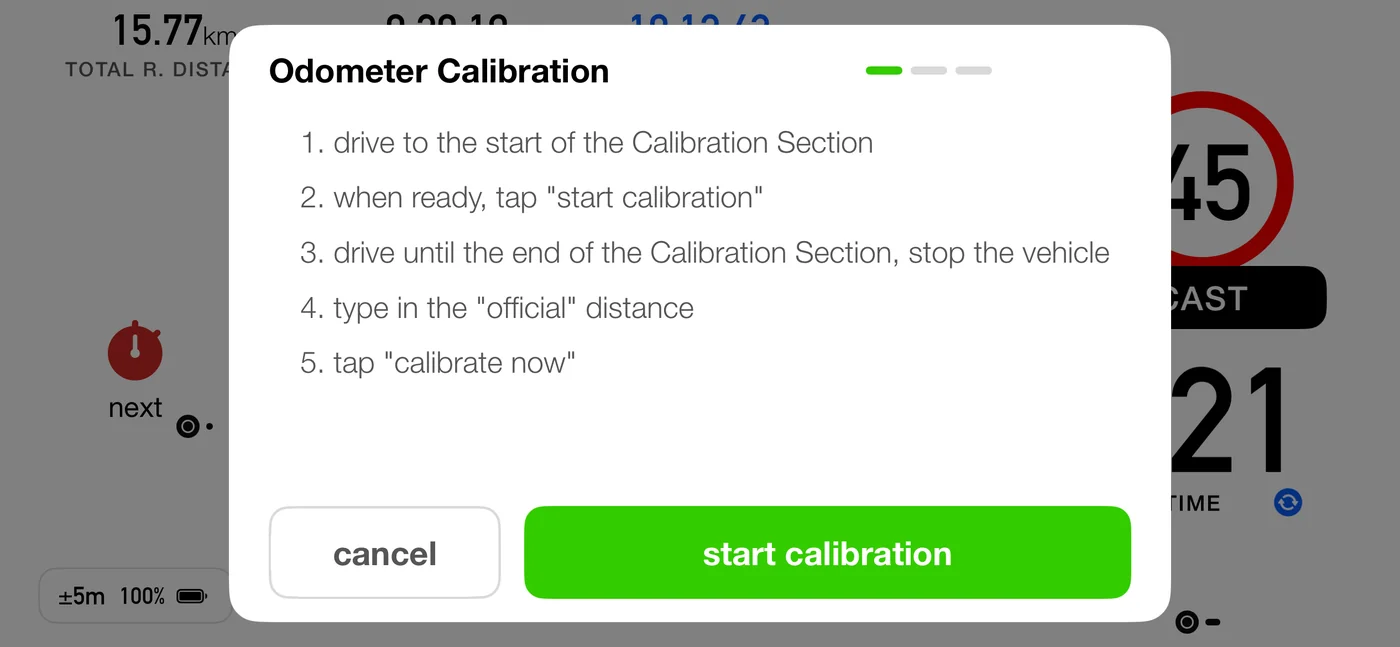
Reach the calibration screen from the calibrate button on the idle dashboard, in every mode. In Advanced and Roadbook it sits in the bottom row; in Classic and Stage it sits where stop appears once you are running, on the side opposite go. While running in Classic there is also a quicker way: double-tap a distance and set the correction as a percentage in the adjust dialog (7.4).
- Go to a known measured distance, ideally the organiser's own calibration leg.
- Tap start calibration at the beginning.
- Drive it, and stop at the end.
- Type the official distance.
- Tap calibrate now. It reads the distance you typed, so type it first.
- The screen shows
measured X · official Yand the correction it will apply. Confirm it, or restart to try again.
The measurement runs from the first tap to the second, and nothing outside them counts, so you can start and finish it while moving. A longer leg is still the safer one: any small error at either end matters less the further you drive.
The distance on the calibration screen can step back a few metres as you come to a stop. That is the reading correcting itself: between satellite fixes the screen runs slightly ahead of your car, and this screen always shows exactly the figure it would save, so it does not hold the extra metres the way the dashboard does. The dashboard lets them go too when the signal drops for more than two seconds (a tunnel, a car park): it steps back to the last measured distance rather than keep metres no fix will confirm.
reset calibration clears any correction back to zero.
⚠️ If you calibrated with 3pRally 5.0 or earlier, calibrate again. Those versions saved the calibration screen's correction the wrong way round, so it made the distance error larger instead of removing it. The update does not change a correction you already have, so redo the calibration or reset it. A correction the app learned from your controls (7.3) is not affected: it was always stored the right way round.
The sanity checks
A wrong calibration silently poisons every distance afterwards, so the app pushes back:
| Result | What happens |
|---|---|
| Correction over 30% | Rejected. The resulting calibration is too high. Please repeat the calibration. |
| Correction over 10% | Warning. Are you sure the distance you typed in is correct? |
| Difference smaller than your accuracy threshold | Warning: the difference is inside the noise, so the result means nothing |
⚠️ Calibrate over a long leg. A 1% error over 2 km is 20 m, which is inside GPS noise. Over 20 km it is 200 m, and the result is trustworthy.
7.3 Letting the app learn it from your controls
Settings ▸ Roadbook ▸ Learn calibration from controls (the Roadbook section appears while Mode is set to Roadbook) does the same job continuously while you follow a roadbook. Every control you mark pairs a surveyed distance with a measured one, which is a free calibration sample taken on the day's surface and pressures.
It is off until you have driven with it, and it needs a few kilometres of marked controls before it says anything:
- It measures across the whole run of controls, not one part at a time. A mark is late by a reaction time, and that lateness varies from mark to mark. At 40 km/h half a second is 5.5 m, so a single part carries roughly 11 m of uncertainty, which on a 500 m part is over 2%. That is larger than the error being corrected, so one part on its own can never answer the question.
- The marks cancel, which is what makes it work. The mark that ends one part begins the next, so its error counts once each way and drops out of the total. Only the first and last marks of an unbroken run remain, spread across everything between them, so the estimate improves the further you drive rather than staying as rough as its worst part.
- Automatic crossings break the run, since they fire when the app's own odometer reaches the roadbook distance and would compare it with itself. So does a part that was cut short, or one that swallowed a control you never marked.
- It has limits. The learned correction never goes beyond 5% either way. If your marked controls disagree with the roadbook's own distances by more than 3%, the app treats that as a mis-tap or a mistyped row rather than a car that far out, and starts counting again.
- Your own calibration is used until it has enough road, and replaced once it has. By then the app has measured over kilometres of the event you are actually driving, which beats a figure set before the start.
- Calibrating by hand starts its count again. If you set a calibration yourself, or clear one, the app puts aside whatever it had accumulated and begins collecting from your next marked control. Your figure stands until it has driven a fresh few kilometres of marks, so it can never replace something you have just set.
The correction shows on the dashboard, and the first time it moves you get a one-shot notice: Distance calibrated from your controls.
7.4 Adjusting a distance mid-run
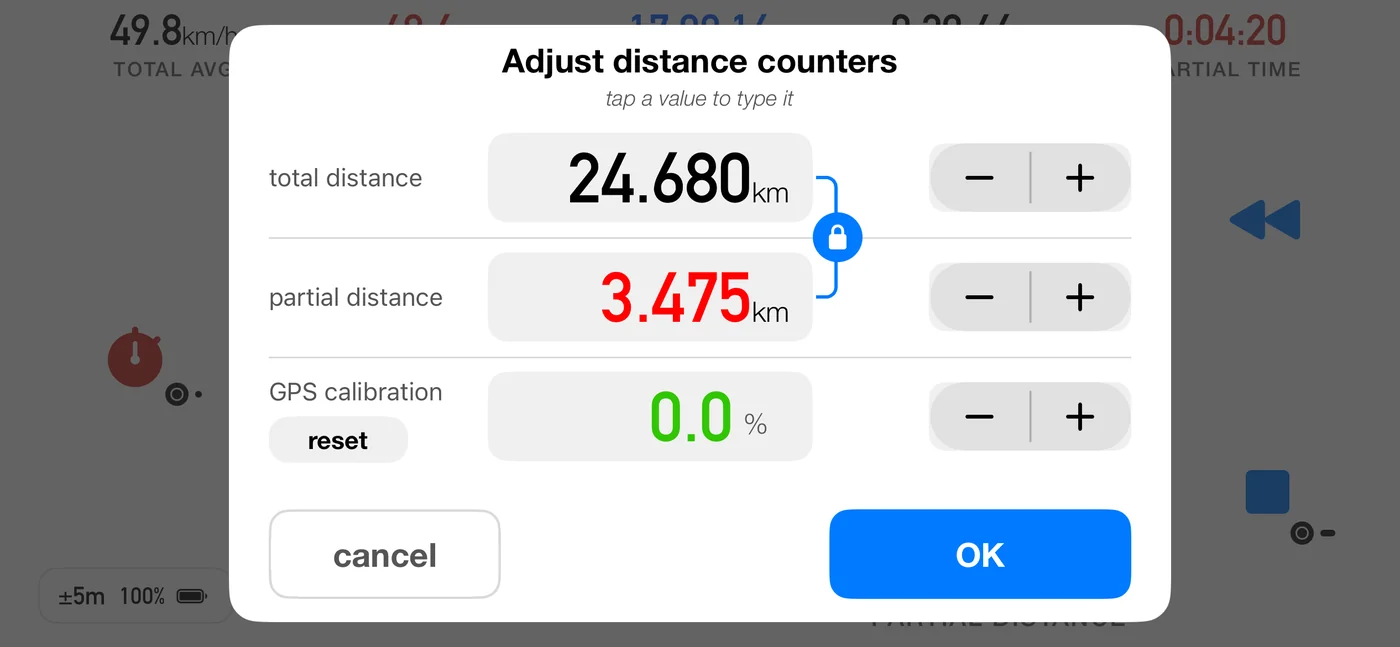
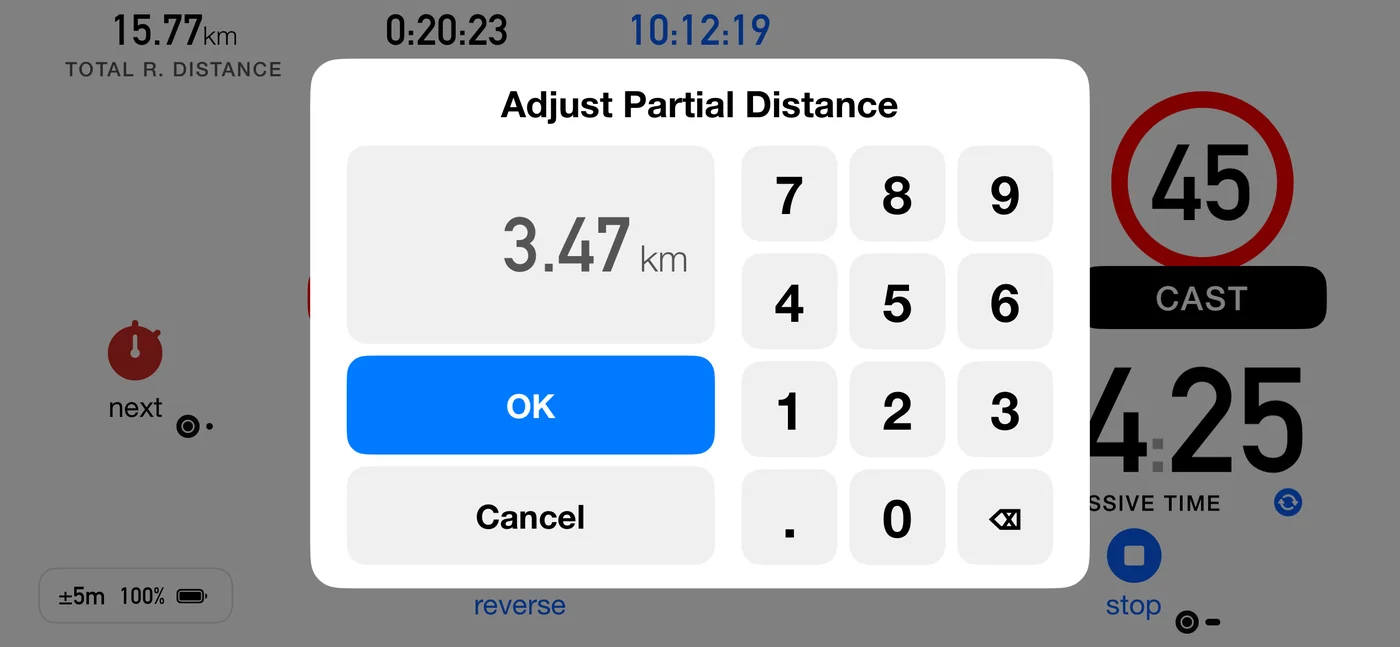
Double-tap a distance while running to open the adjust dialog.
- Adjust the total and the partial independently, or link them with the lock.
- The ± step is Settings ▸ Controls ▸ Adjustment steps: ±1 (default), ±10 or ±100.
- You can also type a value.
- The calibration chip sets the correction as a percentage, in 0.5% steps, up to 30% either way, when you already know the percentage.
When you apply:
- If you moved while the dialog was open, the app says how far and asks whether to apply anyway or cancel. Outside Roadbook mode it also offers to restart with the updated data.
- If you changed a distance and have no calibration set, it offers to turn that correction into an overall calibration for the whole track. Accept, decline (the distance change still commits), or cancel. It is only offered within ±30%.
Typing a percentage by hand is bounded the same way: Calibration must be between -30% and +30%.
7.5 When a calibration is active
Distances shown are the corrected ones, average speeds are computed from them, and a chip shows the active percentage beside the dashboard captions.
A calibration belongs to the car, so it is kept as a setting. It persists until you change or reset it. Stopping a run does not clear it, and neither does closing the app or iOS shutting it down in the background on a long liaison or overnight. The switch that applies it is kept with it, so a calibration is never restored in a state where it is loaded but not in use.
Changed: before this, a calibration lived only inside the crash recovery data, which the app deletes at the end of a normal run. Calibrating, driving, stopping and then quitting the app lost it silently, and the next leg was driven on raw GPS with nothing on screen saying so. If you are on an older build, re-check your calibration after any restart.
⚠️ A scored part in a roadbook can be recorded on the authored distance instead of the measured one, which is a setting and is separate from calibration. It is on by default, and the first leg where the two visibly disagree offers you the other basis. See 6.11.
7.6 What else moves your numbers
| Factor | Effect |
|---|---|
| Reverse | Distance is subtracted while it is engaged |
| Pause | No distance accumulates, and measuring restarts from your position on resume |
| Reduce GPS when parked | Lowers GPS power while stopped; full accuracy returns when you drive |
| Units | Settings ▸ Units & Format ▸ Units: Auto (default) follows the device region, Miles or km override it. This choice governs the driving screen at all times, including while you follow a roadbook written in other units, so the display can match your car's odometer |
| Distance format | Display only, with no effect on measurement. While you follow a roadbook, the driving screen shows the roadbook's decimals instead, so the figures match the page |