11. Settings reference
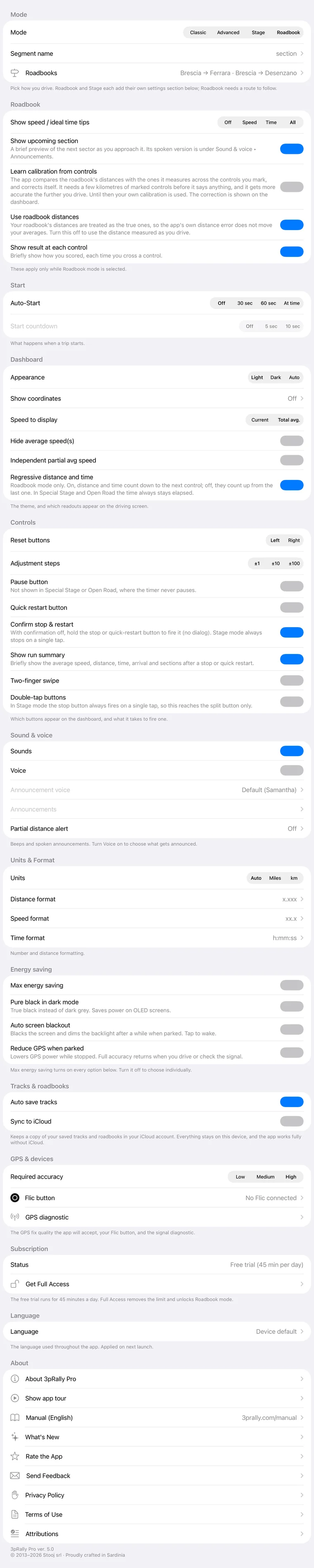
Swipe right on the dashboard to open Settings, or on iPad tap the gear icon at the top left. The sections appear in this order:
- 11.1 Mode
- 11.2 Roadbook or 11.3 Stage, depending on the mode
- 11.4 Start
- 11.5 Dashboard
- 11.6 Controls
- 11.7 Sound & voice
- 11.8 Units & Format
- 11.9 Energy saving
- 11.10 Tracks & roadbooks
- 11.11 GPS & devices
- 11.12 Subscription
- 11.13 Language
- 11.14 About
Every screen inside Settings has Back at the top left, one level up, and Done at the top right, which closes Settings from any depth and takes you straight back to the dashboard. A setting takes effect as soon as you change it, so closing from a deep screen loses nothing. A screen with its own buttons at the top right, such as an editor's Save, keeps those instead.
The second section is mode-scoped: it holds the settings that configure only the screen you are about to drive, and it sits directly under the mode that summons it. Classic and Advanced have none, so nothing appears there at all.
Below, each row is listed with its options, its default, and what it implies once you are moving. The names are the English ones; if your app runs in another language, chapter 15 gives every section and every row in yours.
11.1 Mode
Pick how you drive. Roadbook and Stage each add their own settings section below; Roadbook needs a route to follow.
| Row | Options | Default |
|---|---|---|
| Mode | Classic · Advanced · Stage · Roadbook | Advanced |
| Segment name | picker: section · stage · leg · section · stage · leg | section · stage |
| Roadbooks | opens the library and editor |
- Mode is covered in chapter 3. Selecting Roadbook with nothing to follow does not switch: it offers to create one. Legacy customers are shown the Lifetime Pass offer rather than the mode.
- Segment name sets the word the whole app uses for one timed piece of road, and the grouping word that follows it. Each option in the picker shows that pair: section · stage, leg · section, stage · leg. It is the pair that differs, not always the first word, because in some languages two of the choices share the same word for the timed piece and are told apart by the grouping. The three words swap roles rather than nesting. Pick the one your event's paperwork uses. See 1.4.
- Roadbooks shows what is currently selected on its right-hand side, so you can see what you are about to drive without opening anything.
11.2 Roadbook (only while Roadbook mode is selected)
These apply only while Roadbook mode is selected.
| Row | Options | Default |
|---|---|---|
| Show speed / ideal time tips | Off · Speed · Time · All | All |
| Show upcoming section | on / off | On |
| Learn calibration from controls | on / off | Off |
| Use roadbook distances | on / off | On |
- Show speed / ideal time tips decides which of the two live guidance readouts appear. On Speed you get the tip and no seconds, which is why the tip itself carries the deficit and names a speed to drive. Changed in 5.0: the default is now All, so the time-against-ideal readout is there from the start. It used to be Speed, which hid the number most regularity crews steer by until you went looking for it. If you had left this on Speed, the update switches you to All once; if you had switched the tips Off, that is left alone. Either way the row is still yours to set. The spoken announcements are separate and are not changed: see Sound & voice ▸ Announcements.
- Show upcoming section is the brief look-ahead. Its spoken version lives under Sound & voice ▸ Announcements.
- Learn calibration from controls lets the marks you make refine the distance calibration as you drive. It is off until you have driven with it, and it never acts on a single mark: it measures across an unbroken run of marked controls and needs a few kilometres of them. A calibration you set yourself is used until it has that much road, and is replaced once it has, because by then the app has measured over kilometres of the event you are driving. Setting or clearing a calibration by hand starts its count again, so it can never replace a figure you have just entered. See 6.10.
- Use roadbook distances decides which distance a finished section is recorded at. On, the default, it is the distance your roadbook gives: your average answers "did I hold the schedule" and the app's own distance error no longer moves it. (It does not protect you from marking late. See 6.11.) Off, it is the distance measured as you drive, and your average answers "what did my car actually do". You do not have to decide in advance. The first control where the two visibly disagree, the result card says which one it used and offers USE MEASURED DISTANCE, which recalculates the whole run, including the parts already behind you. That offer appears once per run. See 6.11.
11.3 Stage (only while Stage mode is selected)
These apply only while Stage mode is selected: splits, distance prominence, and the partial-time line.
| Row | Options | Default |
|---|---|---|
| Distance | Large · Compact · Off | Compact |
| Partial line | on / off | On |
| Live gap to best | on / off | On |
- Partial line is the second time under the main clock. Tap the timer to swap which one leads.
- Live gap to best shows, while driving, how far ahead or behind your best run of the day you are at the same point. It is your own measure, not official timing. See 3.4.
There is deliberately no toggle for the runs strip. It is hidden while you drive and only appears once you are parked with two or more comparable runs, so hiding it would buy nothing and cost the point of the mode.
11.4 Start
What happens when a trip starts. Countdown counts you down at an auto-start and at the end of every roadbook pause, with a call one minute before a long pause ends. Off silences all of it.
| Row | Options | Default |
|---|---|---|
| Countdown | Off · 5 sec · 10 sec | 5 sec on a new install; an update keeps yours (Off if you never set it) |
| Auto-Start | Off · 30 sec · 60 sec · At time | Off |
Countdown needs Sounds or Voice to be audible. It plays before an auto-start and at the end of every roadbook pause (6.6b). 30 sec and 60 sec start on a round clock time, not exactly that long after go. See 4.1 for that and the "At time" rules.
11.5 Dashboard
The theme, and which readouts appear on the driving screen.
| Row | Options | Default | Notes |
|---|---|---|---|
| Appearance | Auto · Light · Dark | Light | Auto follows the device |
| Show coordinates | Off · Decimal degrees · Degrees, minutes, seconds | Off | Off by default: on a distance-based roadbook there is nothing to check them against |
| Speed to display | Current · Total avg. | Total avg. | Disabled when averages are hidden. Overridden in Special Stage and Open Road, and on any sector carrying a posted MAX, all of which force current speed |
| Hide average speed(s) | on / off | Off | The average is replaced by current speed, so the slot is never left blank. Turning it on disables Speed to display and forces the independent average off |
| Independent partial avg speed | on / off | Off | Turning it on forces Show reset button off |
| Max speed | Off · a speed in your units, in steps of 5 | Off | Your own never-exceed speed, in every mode. A roadbook that sets its own limit replaces it for that event |
| Regressive distance and time | on / off | On | Roadbook mode only. Same setting as the toggle beside the readout on the dashboard |
- Speed to display. Changed in 5.0: the default is now Total avg., not Current. You pace a leg against its average, so that is the number a crew actually drives to; current speed was a general trip-meter's default from before the app had rally modes. If you never touched this row, the update moves you to Total avg.; if you had set it yourself, your choice is kept.
- Max speed. New in 3pRally 5.1. Your class top speed, set once instead of written into every roadbook, and it applies in all four modes. Go over it and the speed digits turn red, the alert beeps (or the voice says "over max") and the run summary records it. The limit sits under your speed on a dark pill, SPEED · MAX 180, in every mode. It does not change Speed to display: if that slot shows the average, there is no speed on screen for the limit to sit on, so you only hear it. A roadbook that sets its own limit (a Tech speed, or a row's own max) speaks for that event and is used instead, higher or lower than yours. See 6.4.
- Regressive distance and time. With it on, the roadbook distance and time run down to the next control instead of up from the last one, which is what the dashboard captions mean when they say regressive distance and regressive time. Not to be confused with Countdown under Start, which is the call before you move off, at the start or out of a pause. New in 5.0 as a settings row: the toggle beside the readout on the dashboard has always existed, but it only lives there while you are running, and it forgot your choice every time the app was closed. It is one setting with two places to change it, and it now sticks, including a change you make mid-run. One thing worth knowing: distance counts down in every discipline, but time only counts down where there is a schedule to follow. Special Stage and Open Road have no ideal clock, so their time is always elapsed time whatever this row says.
11.6 Controls
Which buttons appear on the dashboard, and what it takes to fire one.
| Row | Options | Default | Notes |
|---|---|---|---|
| Reset buttons | Left · Right | Left | Which side the reset controls sit on |
| Adjustment steps | ±1 · ±10 · ±100 | ±1 | The step in the distance-adjust dialog |
| Pause button | on / off | Off | Never shown in Special Stage or Open Road, where the timer never pauses |
| Show reset button | on / off | Off | Turning it on forces the independent average off |
| Confirm stop & reset | on / off | On | Off means those buttons must be held instead of tapped. In Stage mode stop is always a single tap |
| Show result at each control | on / off | On | The brief card after each next: the score in Roadbook, the sector's time, distance and average in Classic and Advanced, none in Stage. Turning it off never hides a cut short crossing, because that card carries the undo |
| Show run summary | on / off | On | The card after a stop or a quick restart, in every mode |
| Two-finger swipe | on / off | Off | The screen swipes then need two fingers |
| Double-tap buttons | on / off | Off | In Stage mode the stop button always fires on a single tap, so this reaches the split button only |
Three rows compete for the same button and the same readouts, so they constrain each other: Hide average speed(s), Independent partial avg speed and Show reset button. Settle those before an event rather than during one.
11.7 Sound & voice
Beeps and spoken announcements. Turn Voice on to choose what gets announced.
| Row | Options | Default |
|---|---|---|
| Sounds | on / off | On |
| Voice | on / off | Off |
| Announcement voice | the voices installed for the app language | Default |
| Announcements | sub-screen: everything the app beeps or says, and how often |
Announcement voice is always listed, even when iOS has only one voice for the app language; its picker then tells you where in iOS Settings to add more. Announcements opens with Voice off too, because the partial-distance beep lives there and needs only Sounds; the spoken rows are greyed until Voice is on. (Until 3pRally 5.1 the partial-distance rows sat on this level and Announcements opened only with Voice on.)
Announcements ▸ Distance
| Row | Options | Default |
|---|---|---|
| Partial distance alert | Off · Beep · Spoken | Off |
| Alert every | a distance in your units | |
| Say time with distance | on / off | On for a new install; an update keeps it Off. Shown with Spoken; says the time only when Alert every is 0.5 or more (8.2) |
Alert every is not shown at all while the alert is Off, because an interval under an off alert is a value that is not true. Partial distance alert replaces what used to be two separate settings. A beep and a spoken callout are alternatives, so only one can be active. Picking one does not switch on Sounds or Voice: a beep needs Sounds on, a spoken callout needs Voice on.
Announcements ▸ Speed
| Row | Options | Default |
|---|---|---|
| Announce current speed | Off · 10 sec · 30 sec · 1 min | 10 sec |
| Announce average speed | Off · 10 sec · 30 sec · 1 min | 30 sec |
Announcements ▸ Roadbook
Pace guidance, spoken only while Roadbook mode is selected. You can set it up here in advance.
| Row | Options | Default |
|---|---|---|
| Announce speed tips | Off · 10 sec · 30 sec · 1 min | 30 sec |
| Announce time vs ideal | Off · every 0.5 / 1 / 2 units | Off |
| Announce upcoming section | on / off | On |
See chapter 8 for what each announcement actually says, and for how to install more voices.
11.8 Units & Format
Number and distance formatting.
| Row | Options | Default |
|---|---|---|
| Units | Auto · Miles · km | Auto |
| Distance format | 2 decimals (x.xx) · 3 decimals (x.xxx) | 3 decimals |
| Speed format | No decimals · 1 decimal · 2 decimals | 1 decimal |
| Time format | h:mm:ss · h:mm:ss.d · h:mm.hh · h:mm.ttt | h:mm:ss |
Units on Auto follows the device region. This row governs the driving screen at all times, including while you are following a roadbook written in other units: a roadbook carries its own units for the strip and the editor, but it never takes the dashboard off this setting. That is on purpose, so the screen can agree with your car's odometer rather than with the paper. Set it explicitly when you want the opposite.
Distance format and Speed format are the one place a loaded roadbook does override you: while you are following one, the driving screen shows its decimals, so the numbers you call match the page. Everything else, and every trip driven without a roadbook, uses the values here. See 5.10.
Time format offers seconds, tenths of a second, and decimal minutes to hundredths or thousandths, which are the notations roadbooks are actually printed in. Like the two above, a loaded roadbook's own notation wins on the driving screen while you follow it (3pRally 5.1), unless its Decimals switch says Settings; the time of day always stays on this setting.
The decimal separator is not a setting. Distances, speeds and percentages are written
the way your device region writes them, so a phone set to Italy or Germany shows
3,500 km, and one set to the UK or the US shows 3.500 km. It follows the region, not the
app language: an English-speaking crew on a European region gets the comma, which is what
their paperwork uses.
Two things stay a dot deliberately, because they are notations rather than numbers: the
time (1:17.02 is hours:minutes.hundredths, written with a period in motorsport
everywhere) and map coordinates.
⚠️ These are your global display settings. A roadbook carries its own format profile, which wins inside the roadbook editor. See 5.10.
11.9 Energy saving
| Row | Options | Default |
|---|---|---|
| Max energy saving | on / off | Off |
| Pure black in dark mode | on / off | Off |
| Auto screen blackout | on / off | Off |
| Reduce GPS when parked | on / off | Off |
Max energy saving turns on every option below it and locks them, each then showing Controlled by Max energy saving. Turn it off to choose individually.
- Pure black in dark mode is true black instead of dark grey, which saves power on OLED screens.
- Auto screen blackout blacks the screen and dims the backlight after a while when parked. Tap to wake.
- Reduce GPS when parked lowers GPS power while stopped. Full accuracy returns when you drive or check the signal.
⚠️ Enabling Max energy saving while Appearance is fixed to Light moves Appearance to Auto, and tells you it did, because a black screen only saves power when the screen is actually dark. A fixed Dark choice is left alone, and turning Max off restores your previous choice unless you have since changed Appearance yourself.
11.10 Tracks & roadbooks
| Row | Options | Default |
|---|---|---|
| Auto save tracks | on / off | On |
| Sync to iCloud | on / off | Off |
iCloud sync also covers your roadbook library. Enabling it verifies the iCloud account first and explains any failure rather than silently doing nothing. See 10.5.
11.11 GPS & devices
The GPS fix quality the app will accept, your Flic button or Bluetooth media button, and the signal diagnostic.
| Row | Options | Default |
|---|---|---|
| Required accuracy | Low (50 m) · Medium (20 m) · High (10 m) | High |
| Flic button | pairing and status | |
| Bluetooth media button | On · Off, and Test your button | Off. A clip-on wheel button: Play/Pause start / next, Previous reset, Next stop (twice, or held). Pauses other audio while the app is open; a Flic is ignored while it is on (9.6) |
| GPS diagnostic | opens the diagnostic screen |
Required accuracy is a measurement setting, not a cosmetic one. See 7.1.
11.12 Subscription
| Row | What it shows |
|---|---|
| Status | Free trial with its daily limit · Lifetime Access - Legacy · Lifetime Full Access · Full Access Subscription |
| The row below it | The purchase and management screen. Its name follows your status, because most statuses have no subscription to manage: Get Full Access while you are on the trial or on a legacy purchase, Subscriptions & Passes once you own the Lifetime Pass, and Manage Subscriptions only if you actually hold a recurring subscription. In 3pRally it reads Download 3pRally Pro or Upgrade to Pro, since that app sells nothing in app |
See chapter 12. In 3pRally, which sells nothing in app, this explains how to move to 3pRally Pro to purchase.
11.13 Language
| Row | Options | Default |
|---|---|---|
| Language | Device default, or one of the six app languages | Device default |
Saved immediately, but applied only on a full relaunch. Switching away and back is not enough. While a change is pending the section says so and offers Restart now to apply.
Changing the language also changes which announcement voices are available.
11.14 About
| Row | What it does |
|---|---|
| About | App icon, version, and where it is made. On screen the row reads About 3pRally |
| Show app tour | Replays the onboarding tour |
| Manual (English) | Opens this manual at 3prally.com/manual. The language is in the title, not a setting: the manual is English only |
| What's New | This release's highlights |
| Rate the App | The App Store page, where one is known |
| Send Feedback | A support email, pre-filled with diagnostic information; the support portal in a browser if there is no mail app |
| Privacy Policy | The privacy policy |
| Terms of Use | Where published for that app |
| Attributions | Third-party credits |
The section footer carries the exact build version. Quote it in any bug report, and leave the diagnostic block in the support email in place: it is what makes a report actionable.