
1. Getting started
1.1 Which app do you have?
| 3pRally | 3pRally Pro | |
|---|---|---|
| Devices | iPhone | iPhone and iPad |
| Price | Free to download | Free to download |
| Subscription sold inside | No | Yes |
| Lifetime Full Access Pass sold inside | No | Yes |
| Free trial | 45 minutes of running time per day | 45 minutes of running time per day |
Both apps are the same instrument. The difference is commercial: the purchase flow lives in 3pRally Pro. Both trials include every mode, Roadbook too. If you use 3pRally on iPhone and want unlimited running time, you buy in 3pRally Pro, and the entitlement follows your Apple ID.
If you bought either app before version 4.0 you are not on a trial: that app opens what you paid for. Stage mode, added since, is included. Roadbook mode needs a discounted upgrade, and future features may too. If you bought 3pRally on iPhone, 3pRally Pro recognises that purchase and offers you the discounted upgrade. Until you take it, Pro runs as a trial for you: every mode, 45 minutes a day. Your unlimited legacy access stays in 3pRally. See chapter 12.
1.2 What the app is, and is not
We are your instrument, not the beam. The organiser's timing owns the result. What this app gives you is a clock where there is none, and the splits nobody hands you. GPS distance is good to roughly three to five metres, which is about a second, not hundredths. Some events time to whole seconds, some to tenths, some to hundredths, and none of that is ours to choose.
Worth knowing before you enter an event: some organisers ban this category of device outright. Certain classic events allow mechanical counters only, some ban GPS devices from the crew entirely, and some clubs move any competitor using a computer into an expert class. Check your regulations, not the app.
If an event bans an average-speed display, Settings ▸ Dashboard ▸ Hide average speed(s) removes both averages from every mode and shows your current speed in their place. Whether that makes the app acceptable is still for the regulations to say.
1.3 First launch
A short tour runs once, one idea per page: go to start, next to reset the partial, the four modes, following a roadbook, Voice, saving and sharing, avoiding accidental resets, making it yours, and the location permission.
You can skip it, and replay it any time from Settings ▸ About ▸ Show app tour, where Manual opens this document. What's New shows the highlights of the version you are running.
Location permission
Your speed and distance both come from GPS, so the app cannot measure anything without it. The tour's last card explains that, and iOS asks for the permission once you tap Get started. The card does not grant it, and nothing is asked for while the tour is open. Grant While Using the App at minimum. If you decline, the dashboard prompts you and offers a shortcut into iOS Settings.
Getting a fix
At launch the app searches for satellites and shows the current accuracy against the minimum you require. Tap anywhere to interrupt the search. For the first 20 seconds the app then takes fixes within 50 m even if you require better, and never a rougher one (see 7.1).
If location cannot work at all, the search says why instead: location not allowed for the app, Location Services off, or Precise Location off. Each message points to the setting that fixes it; see 13.2.
1.4 Choose your words first
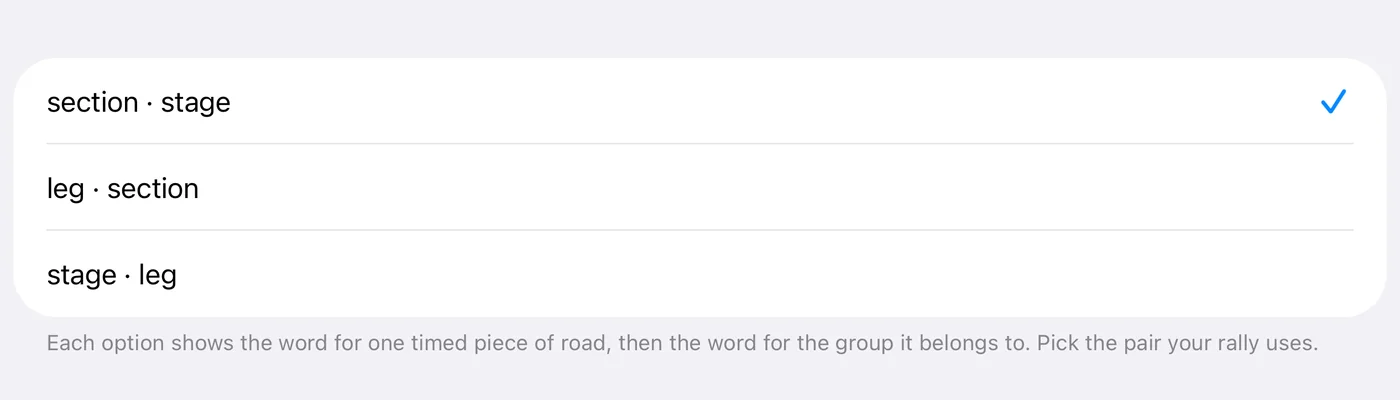
Settings ▸ Mode ▸ Segment name sets the vocabulary the whole app uses:
Tap the row and pick from the list. Each option names the pair it sets, the word for one timed piece of road followed by the word for the group it belongs to:
| Choice | One timed piece is a | Its grouping is a | Typical use |
|---|---|---|---|
| section · stage | section | stage | European regularity |
| leg · section | leg | section | US TSD |
| stage · leg | stage | leg | Stage rally |
The same three words swap roles rather than stacking into one hierarchy: a section is the timed piece under one choice and the grouping under another. That is deliberate, because each discipline uses the words differently.
It is cosmetic but pervasive: row labels, dialogs, summaries and the roadbook editor all follow it. Pick the one your paperwork uses, so the app speaks the same language as the event.
In the other five languages the words are not a simple translation of these three. Each discipline gets the term crews in that country actually use, which sometimes means the same word appears in two places and sometimes means three entirely different ones.
1.5 A first run in five minutes
- Open Settings: swipe right on the dashboard. On iPad you can also tap the gear icon at the top left.
- Settings ▸ Mode ▸ Mode: leave it on Advanced.
- Settings ▸ Units & Format ▸ Units: check it matches your paperwork.
- Close Settings and let the accuracy settle.
- Tap go.
- Tap next at each waypoint. The partial distance and time zero, and the counter advances.
- Tap stop, holding it or confirming depending on your settings, to end and save.
Everything else in this manual refines that loop.
1.6 Before your first event
- Calibrate. The organiser's distance and your GPS distance will differ, and calibration is what reconciles them. Chapter 7.
- Pair your Flic, or run Test your button for a Bluetooth media button, at home rather than at the start line. Chapter 9.
- Decide your safety settings. Two-finger swipe and double-tap buttons are both off by default. 2.3.
- If you will follow a roadbook in the app, build it and check it against the paper beforehand. It is optional: many crews run Classic or Advanced and read the roadbook on paper. Chapter 5.
- Sort out access. The free trial is 45 minutes of running per day, which is enough to evaluate the app and not enough for a rally. Chapter 12.
1.7 Where things live
| You want to | Go to |
|---|---|
| Change anything | Swipe right on the dashboard, or on iPad tap the gear icon at the top left |
| See the map or your track | Swipe left, or on iPad tap the map icon beside the gear |
| Build or pick a roadbook | Settings ▸ Mode ▸ Roadbooks |
| See saved tracks | Map ▸ Show saved tracks |
| Pair a Flic, set up a media button, or check the GPS | Settings ▸ GPS & devices |
| Check your access | Settings ▸ Subscription |