2. The dashboard
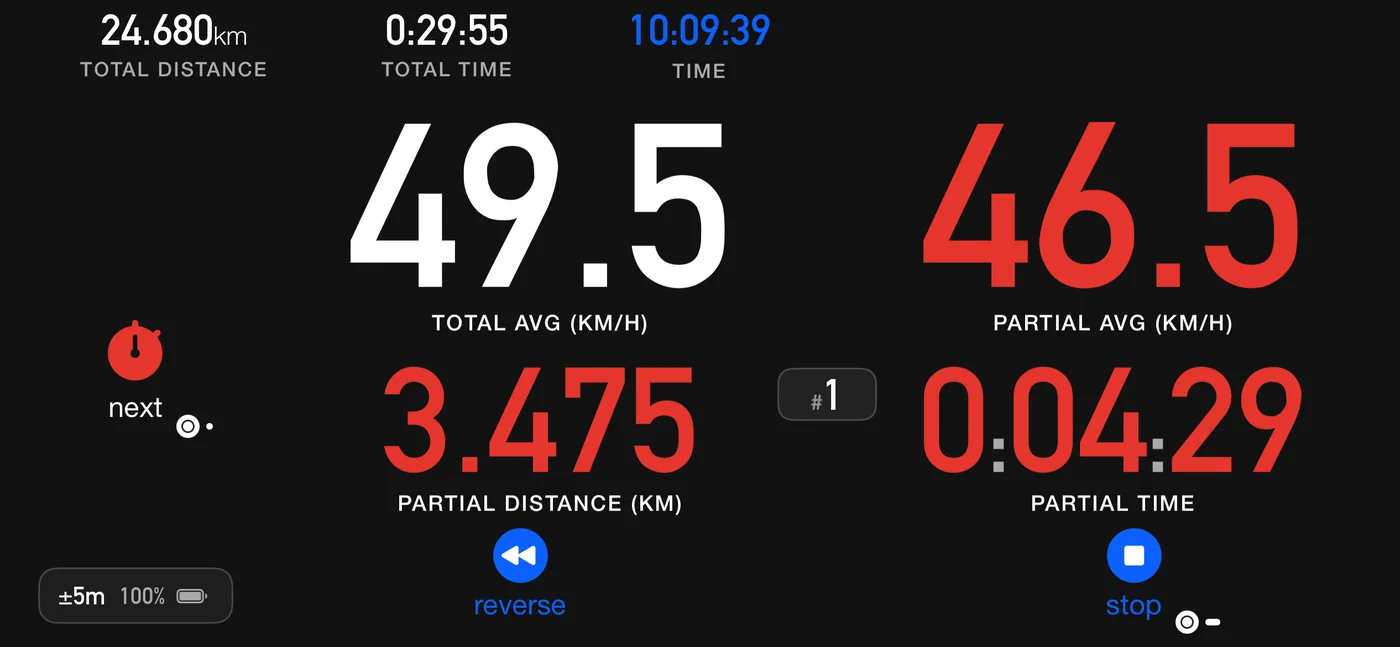
The screen you drive with. What it shows depends on the mode (chapter 3); this chapter covers what is common, and the gestures that work everywhere.
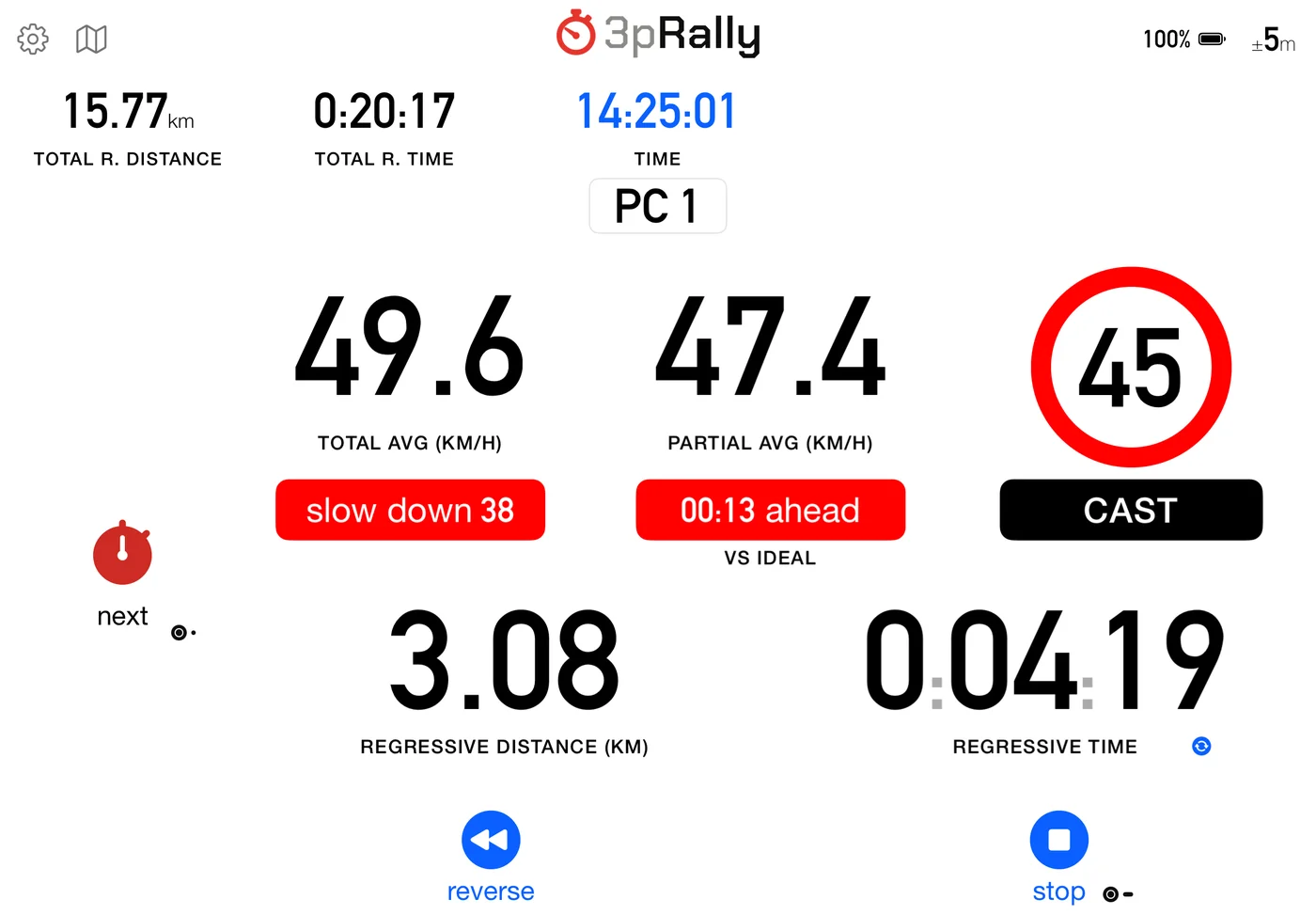
The screenshots in this manual are mostly from an iPhone, because a phone screen fits the page better. The iPad shows the same readouts with more room; the differences are in 2.5.
2.1 The readouts
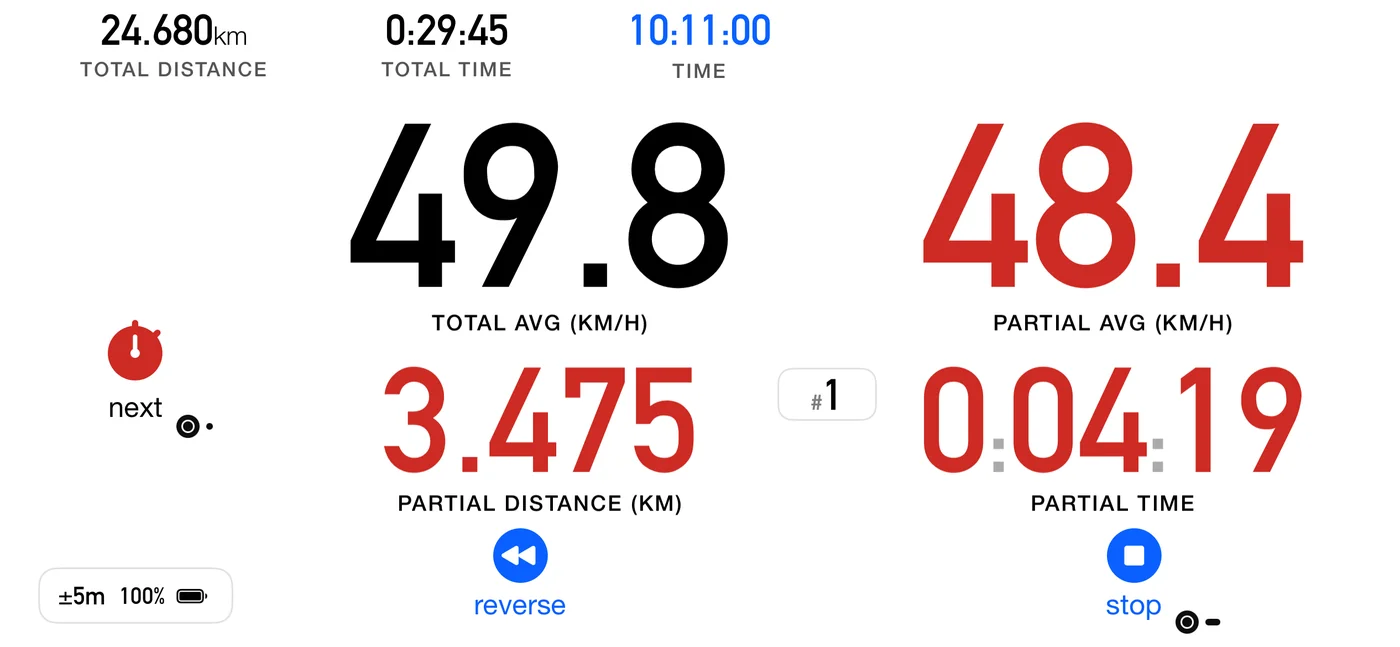
| Readout | What it is |
|---|---|
| Total distance | Distance since go, or since the last quick restart |
| Partial distance | Distance since you last tapped next |
| Total time | Elapsed since go, or since the last quick restart, less any paused time |
| Partial time | Elapsed since you last tapped next, less any paused time |
| Current speed | Speed reported by the GPS, not computed from distance |
| Total average speed | Total distance over total time |
| Partial average speed | Partial distance over partial time |
| Independent average | A second partial average, in green, that you start and end yourself. See below |
| Coordinates | Your position, off by default |
| Clock | Wall clock, or official time when an offset is set |
| Crossing chip | Which part you are on, or the paper's own label where you typed one (Roadbook only) |
Independent average. Turn on Settings ▸ Dashboard ▸ Independent partial avg speed and the reset button changes job, and turns into a green stopwatch: tap it to start a fresh average from that moment, and tap it again to end it. In Advanced and Roadbook the word under it reads start avg, then end avg. The average shows in green and runs alongside the normal partial. next does not zero it, so it can span as many waypoints as you like. A Flic double click does the same as tapping it.
Max speed. Set Settings ▸ Dashboard ▸ Max speed and, in every mode, going over it is announced: a beep with Sounds on, a spoken "over max" with Voice on. Where the slot shows your current speed you also see it: the caption becomes a dark pill naming the limit, SPEED · MAX 180, and the speed turns red when you are over. With the average in that slot instead there is no pill to show, so the limit is only heard. See 11.5.
In Roadbook mode the partial still zeroes each time you tap next, as in Advanced. The partial average is the difference: it runs from one control to the next, so a row that is only there for navigation does not restart it. The distances can also count down to the next control. See 6.2.
2.2 The buttons
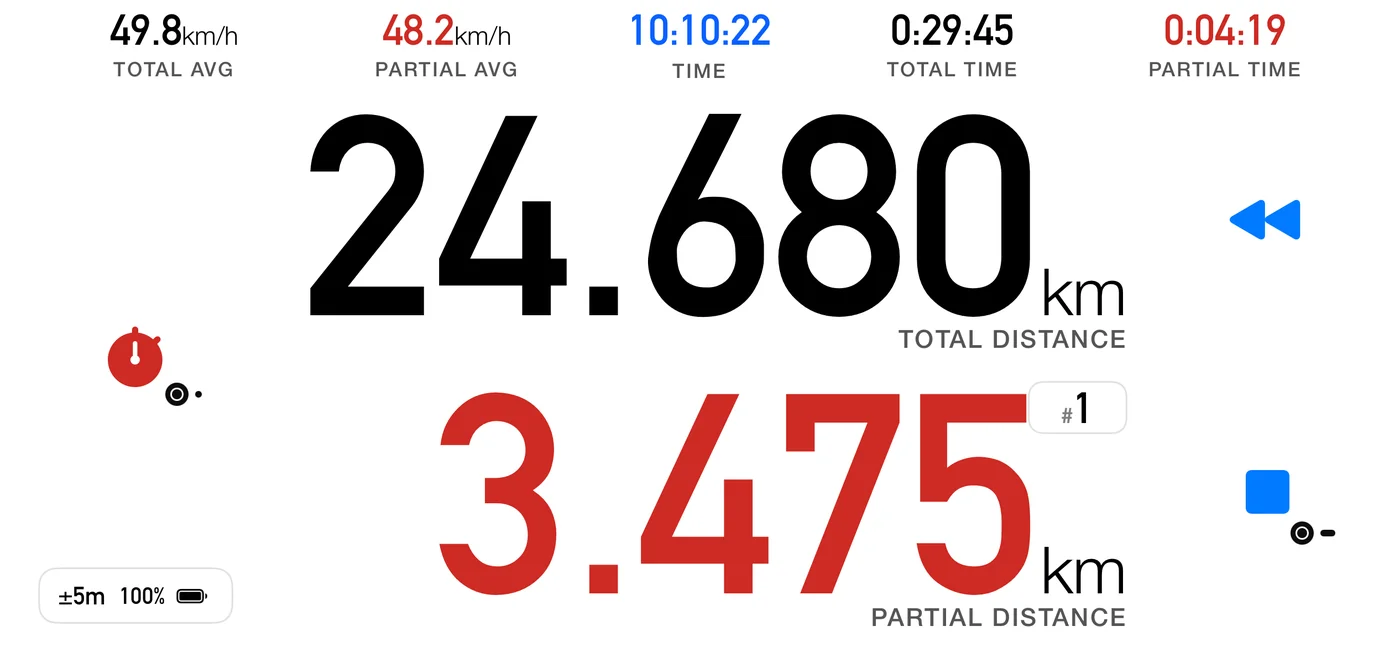
In Classic the buttons are icons only, apart from calibrate on the idle dashboard. In Advanced and Roadbook a word sits under or beside each one.
| Button | Looks like | When | What it does |
|---|---|---|---|
| go | Large play triangle | Idle | Starts, immediately or on a countdown |
| next | Red stopwatch; word next | Running | Zeroes the partial and moves to the next part |
| Red circled A; word auto | Roadbook, when the next crossing is automatic | Lets you cross early by hand | |
| Checkered flag; word finish | Roadbook, final part | Finishes: crosses the last control, scores it and saves the track. Tap and confirm Finish, or hold it if Confirm stop & reset is off. Reads auto when the roadbook's Finish is set to auto (6.8) | |
| Word reset | Roadbook with a single part | Zeroes the trip | |
| stop | Blue square | Running | Ends the run and saves the track |
| pause | Pause bars | Running, only with Settings ▸ Controls ▸ Pause button on (default: off) | Freezes the clock and stops counting distance. Never shown in Special Stage or Open Road parts |
| reverse | Blue double arrow pointing left | Running | Subtracts distance while you backtrack. The distances turn blue while it is on |
| quick restart | Black stopwatch; word reset | Running, with Settings ▸ Controls ▸ Show reset button on | Resets everything and restarts |
| Green stopwatch; words start avg / end avg | Running, with Independent partial avg speed on | Starts or ends the independent average | |
| calibrate | Ruler; word calibrate | Idle | Opens the calibration screen |
| set timer | Timer; word set timer | Idle, with Auto-Start "At time". In Classic and Stage, above calibrate | Sets the start clock time |
Notes:
- Confirm stop & reset (default: on) makes stop and quick restart ask first. Turn it off and they must be held instead. In Stage mode the stop is always a single tap, because a hold would land on the result.
- next, and split in Stage mode, fire on a tap (or a double tap, with the double-tap setting on). Holding one down does nothing: let go and tap again. The finish is the one exception, as above.
- Reset buttons puts the reset side on the Left (default) or the Right.
- On a roadbook's final part, next becomes the finish. See 6.8.
2.3 Gestures
| Gesture | Where | Result |
|---|---|---|
| Swipe left | Dashboard | Map, and from it your saved tracks |
| Swipe right | Dashboard | Settings |
| Pinch | Classic or Advanced | Switch between those two. It does nothing in Roadbook or Stage, or while reversing |
| Tap a top readout | Classic | Promote it to the big slot |
| Tap the timer | Stage | Swap the total and the split |
| Tap the splits row | Stage | Interval or cumulative times |
| Double-tap a distance | Running | The adjust dialog (7.4) |
| Tap next, or a Flic single click | One-part roadbook | Zero the trip (6.15) |
| Flic double click | Classic, Advanced or Stage, with Show reset button on | Quick restart |
| Flic double click | Classic, Advanced or Roadbook, with Independent partial avg speed on | Start or end the independent window (the button carries the two-dot badge) |
| Double-tap the clock | Classic, Advanced, Roadbook | Set the official-time offset |
| Tap the clock | Stage | Set the official-time offset |
The gestures you cannot see get a short hint during your first few sessions: pinch, tapping a readout to promote it, double-tapping a distance, and in Stage tapping the timer. Each hint comes back a few times and then stops.
Making input deliberate
Two settings under Settings ▸ Controls exist to prevent expensive accidents:
- Two-finger swipe (default: off): the screen swipes then need two fingers, and a one finger swipe warns instead of moving.
- Double-tap buttons (default: off): a dashboard button acts only on a double tap, two quick taps in a row, so a single accidental touch does nothing. In Stage mode stop still takes a single tap, so this reaches the split button only.
⚠️ Neither is on by default. On a rough route, turn both on before the start.
2.4 Day and night
Settings ▸ Dashboard ▸ Appearance is Auto, Light (default) or Dark, where Auto follows the device. Everything re-tints live, including the roadbook overlay, the speed signs and the Stage instrument.
Max energy saving (Settings ▸ Energy saving) turns on every power-saving option at once: pure black instead of dark grey, a blank screen when parked, and less GPS while stopped. A green leaf in the status pill, beside the GPS accuracy and battery, shows that at least one of them is on. Turning it on while Appearance is fixed to Light moves Appearance to Auto and tells you so, because a black screen only saves power when it is actually dark. See 11.9.
2.5 iPhone and iPad
- iPad, meaning 3pRally Pro, has a bar at the top with a gear icon for Settings and a map icon, beside the swipes both devices share.
- On iPad, Settings opens as a panel over the dashboard. On iPhone it fills the screen. The map is full screen on both.
- 3pRally is landscape only, on both devices. Turning the iPad upright does not change the layout.